

Open and Save a DOCX in Ulet on Mac

To edit a local Word document in Ulet on Mac, choose Open File on Home, select a .docx, and press Command+S after making an edit. Open the saved file again to check the result.
Open the intended DOCX
Launch Ulet and sign in if prompted. On Home, choose Open File.
In the file picker, browse to the folder that contains your DOCX and select it. For practice, use a copy of a short document with a heading and a paragraph.
Check that the expected heading and paragraph are visible in the editor before making changes.
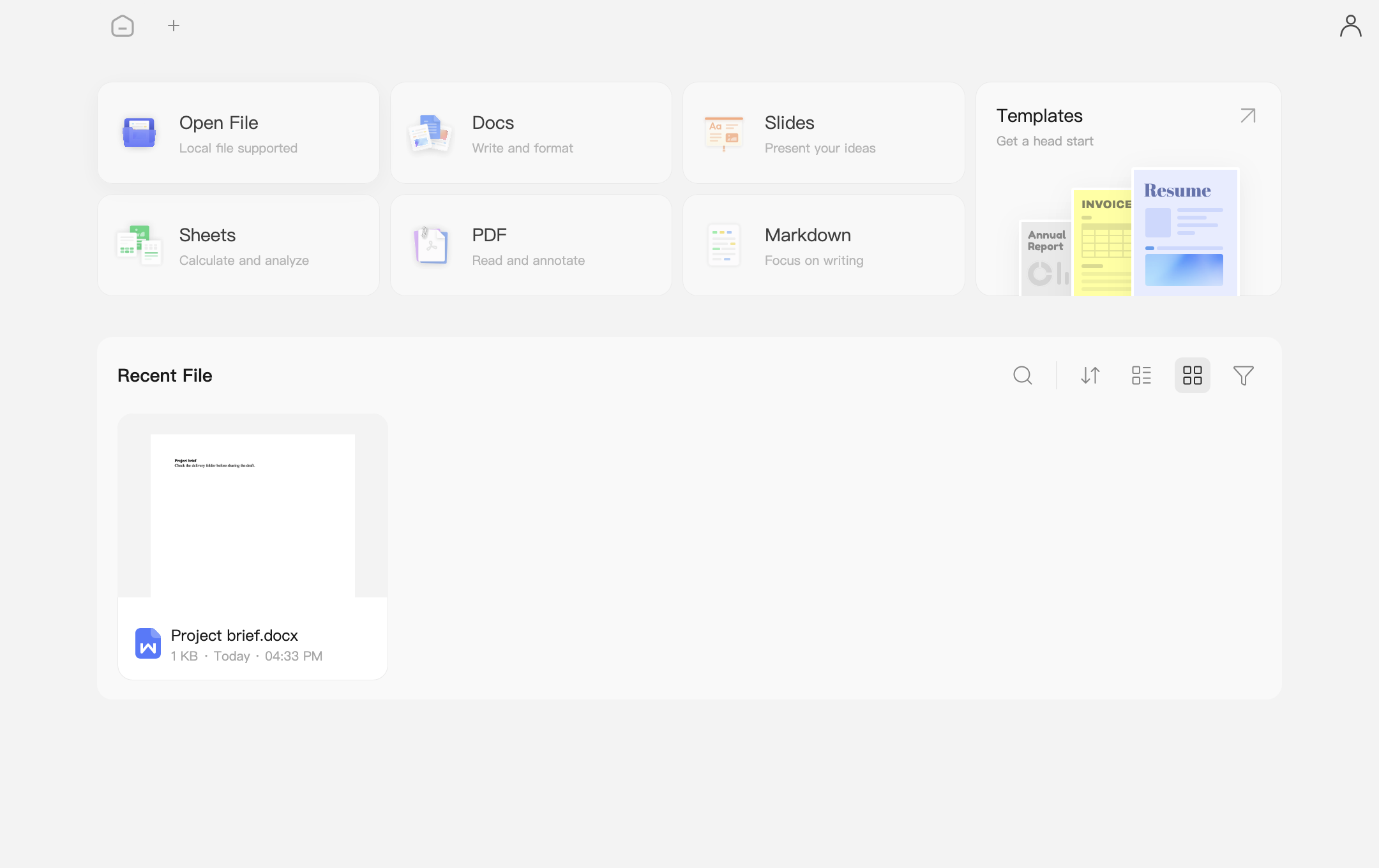
The Open File tile on Ulet Home on Mac.
Edit and save in DOCX format
Add a short sentence such as Reviewed for handoff. Keep the edit easy to find.
Press Command+S and wait for the save to finish. To keep the original as a reference, use Save As to create a separate copy before continuing to edit.
In Finder, find the saved document and confirm that its name ends in
.docx. In Finder, select the file and press Command+I to check its name and extension.
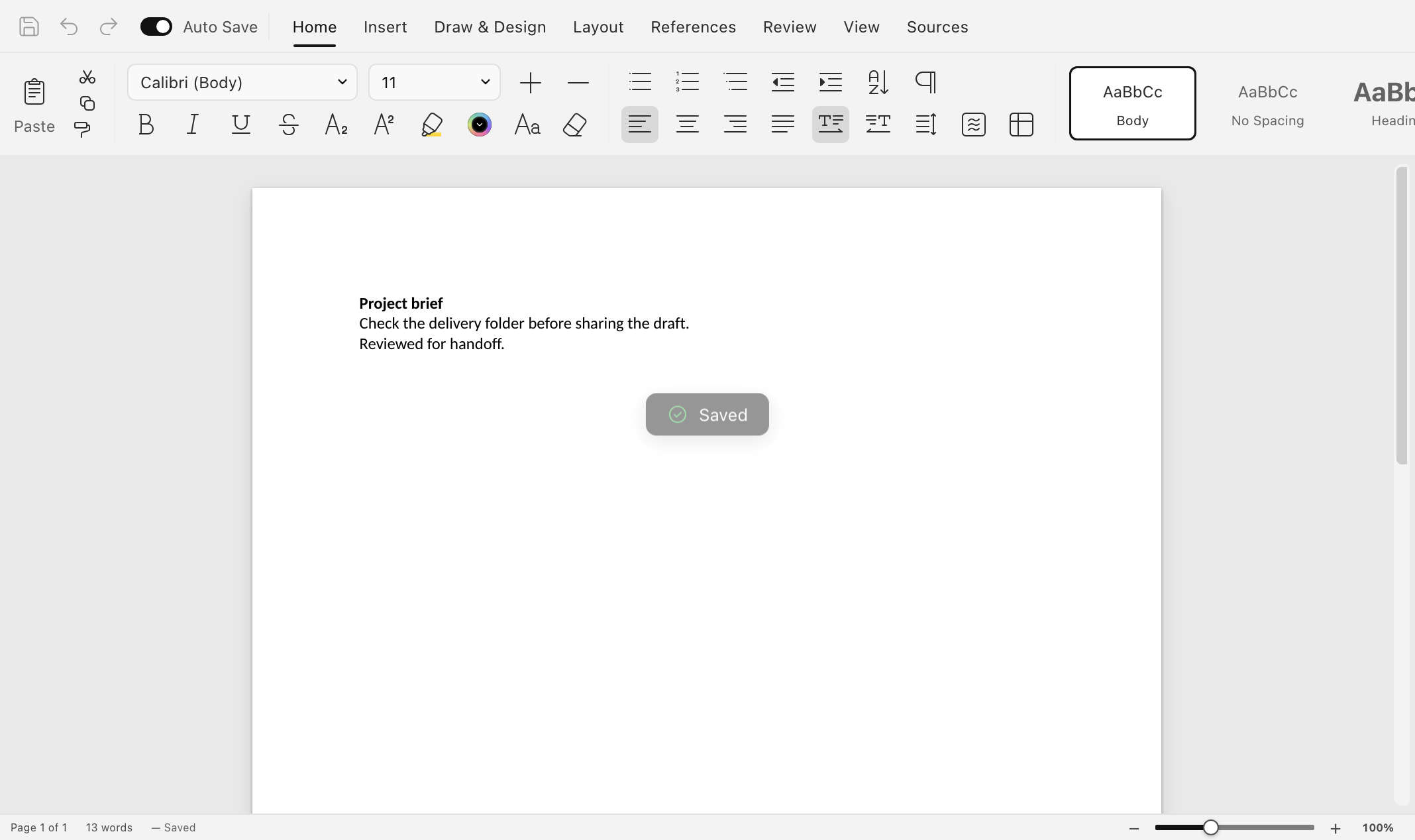
The Mac editor after saving a small edit to the sample DOCX.
Reopen and check the saved file
Close the document tab, open the intended file again in Ulet, and find the sentence you added. Check the heading and any table, image, or page break important to the handoff. For a read-only file, try saving a separate copy to a folder you can write to and reopen that copy.
Using Windows? Read the Windows instructions.
