

Insert and Resize a Picture in a DOCX in Ulet on Mac

Add a local picture to the document, then check that its size leaves enough room for the surrounding text.
Insert and size the image
Put the cursor on a blank line and choose Insert → Picture.
Choose the local image and click it in the document.
Drag its resize handle inward to make the image smaller, then save.
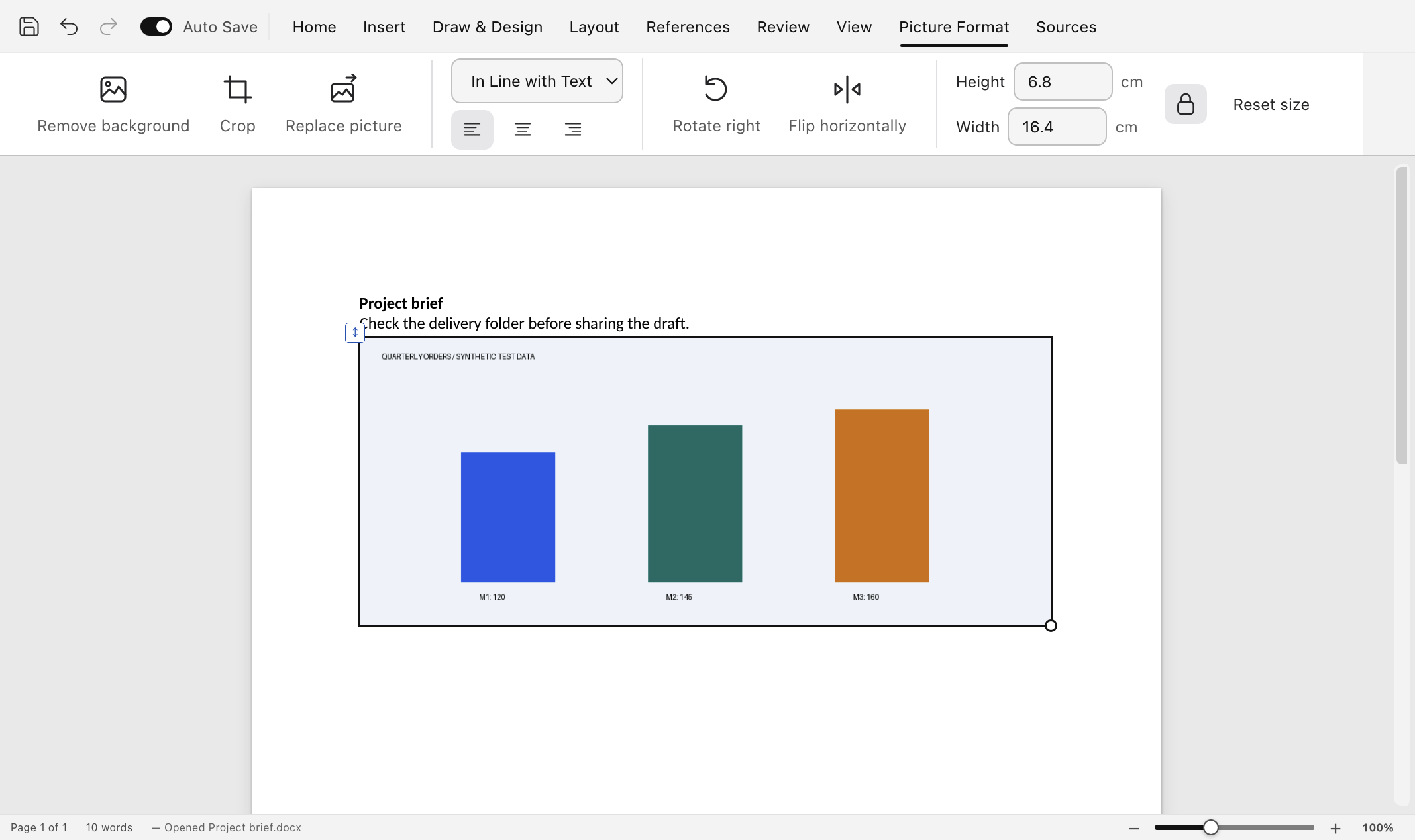
The inserted practice image is selected for resizing.
Check the saved picture
Reopen the DOCX and confirm the picture is visible and fits the page. Check the paragraphs immediately above and below it for unexpected wrapping.
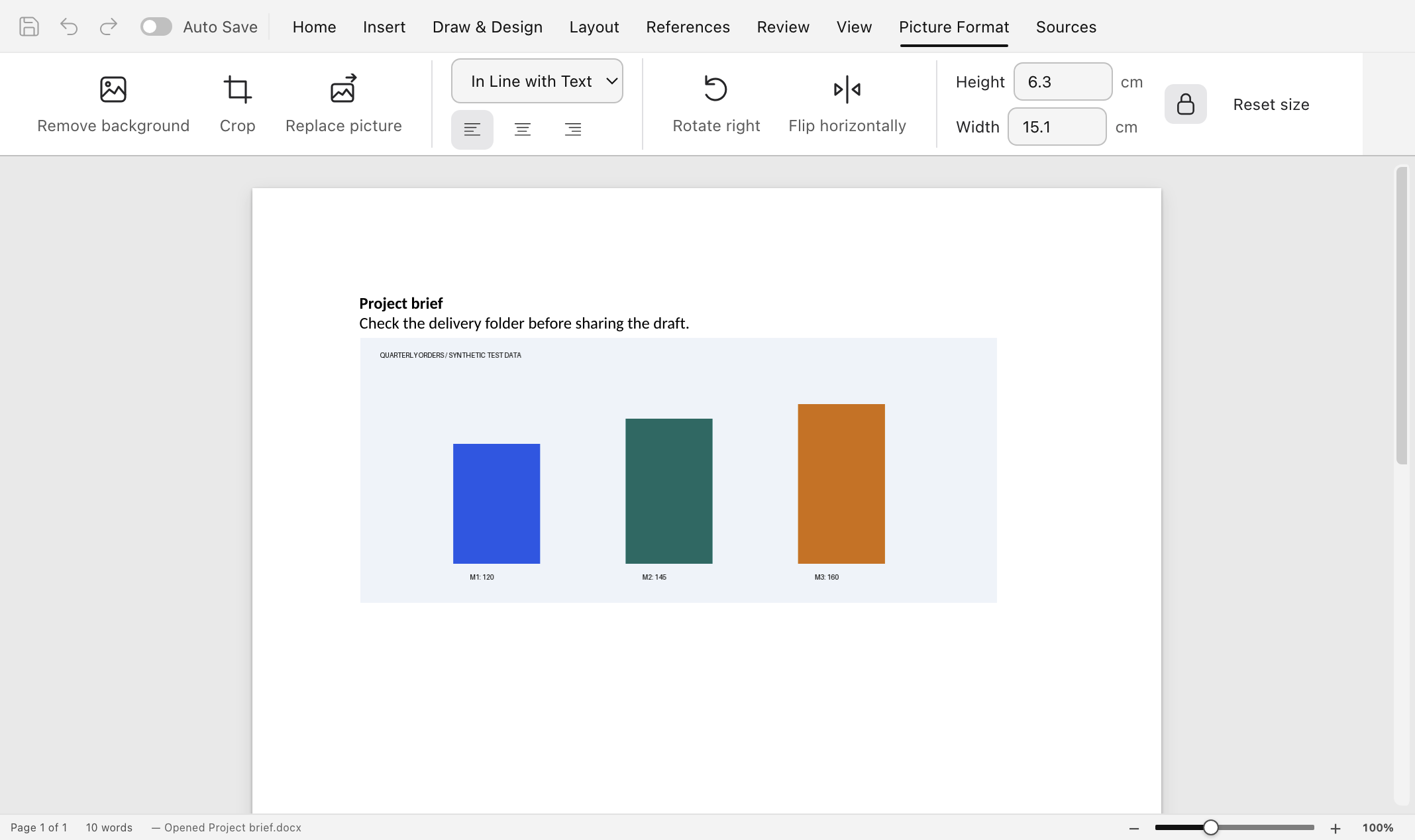
The resized image in the saved practice document.
Related guide open and save a DOCX on Mac.
Steps checked in the Mac desktop editor with a practice file, including saving and reopening. Screenshots show the Ulet editor; the test used an isolated profile and file-picker fixtures.
