

Install and Open Ulet on Mac

Copy Ulet out of its disk image before you start working. Opening the app from an Applications folder gives you an installed copy you can find again after the installer is closed.
Copy the Mac app into Applications
Get the Mac download from the Ulet download center. Use the build offered for your Mac. The package checked for this guide was Ulet 0.22.204 for Apple silicon.
Open the downloaded disk image in Finder. Locate the Ulet app inside it.
Copy the app to an Applications folder. This check used the current user’s ~/Applications folder: select Ulet, press Command-C, open that folder, then press Command-V. The installer also displays an Applications shortcut; that shortcut normally points to the shared Applications folder.
Wait for the copy to finish. Open the copied app from its destination folder.
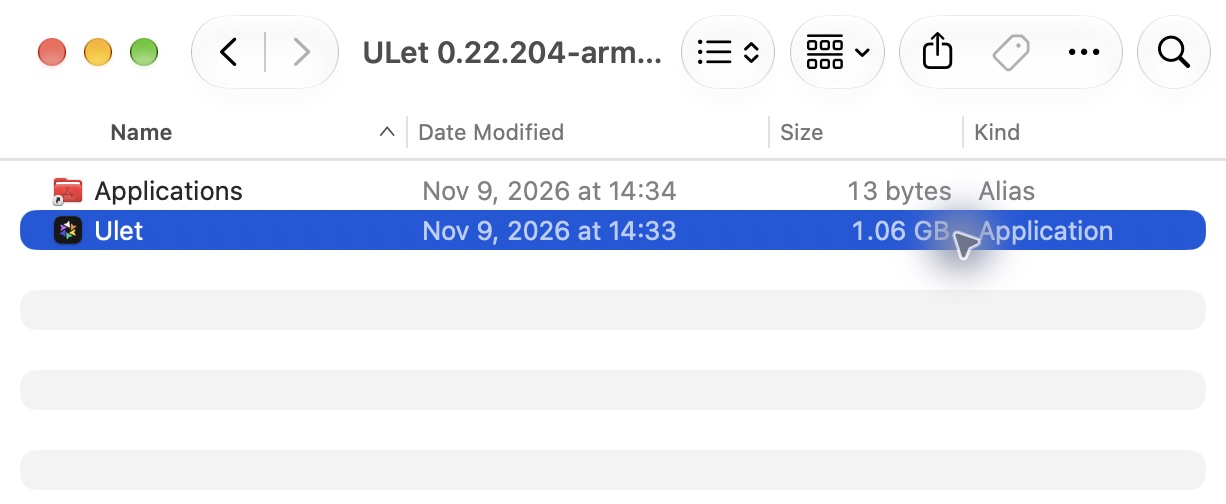
The mounted Mac disk image contains the Ulet app and an Applications shortcut.
Check that the installed copy opens
Confirm that Home appears. Quit Ulet normally, then open the copy from Applications again. You should return to Home without reopening the disk image. In this check, the copied app at ~/Applications/ULet.app opened and reopened successfully.
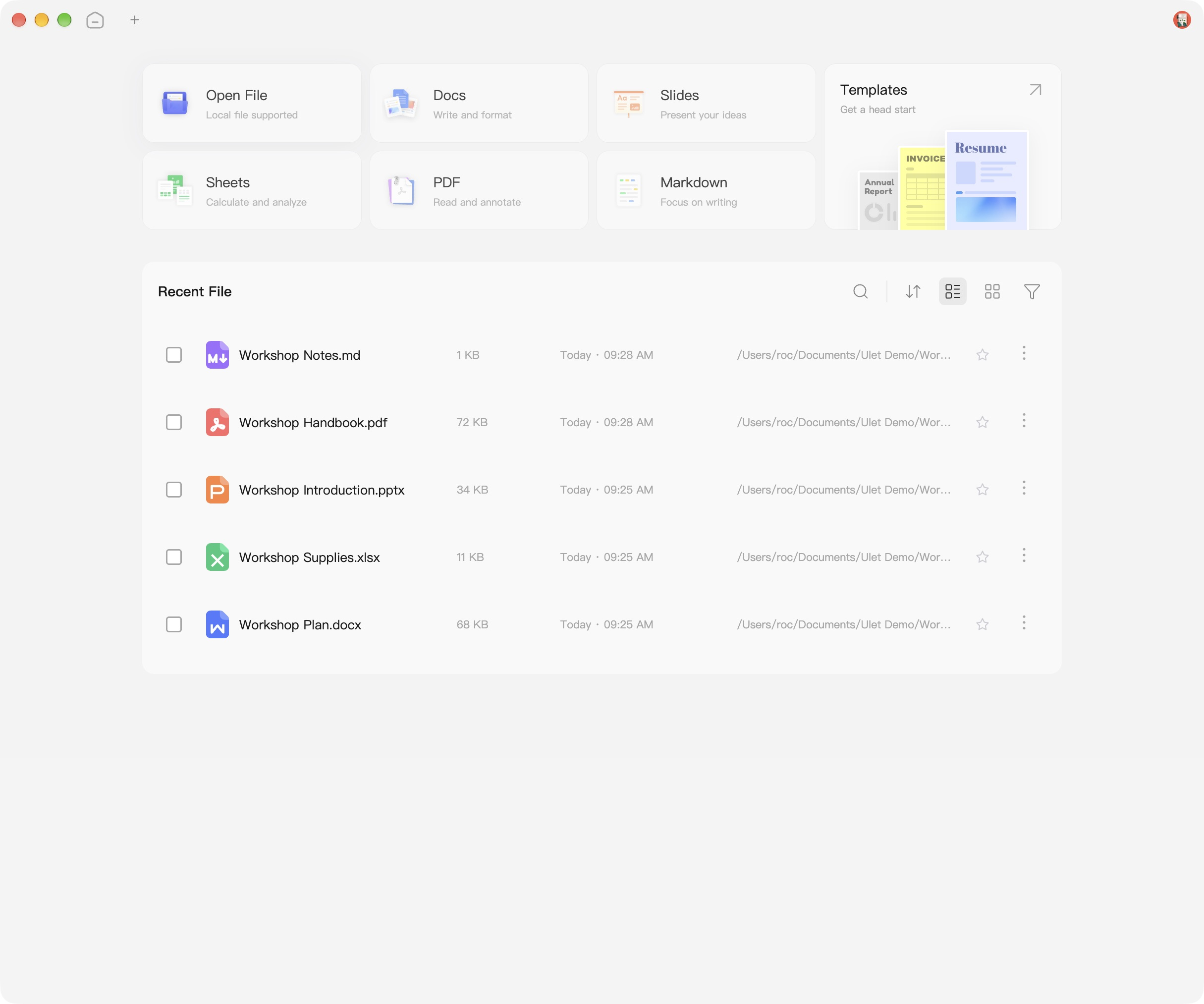
Home after reopening the installed Ulet copy. The recent-file entries are practice files used for these guides.
Before you edit an important file
Open a disposable local document first. Check that the expected title and content appear, then close it without changing it. Keep your installer until this small check is complete. If you see a macOS security or permission message, read it before continuing; this session did not reproduce or validate every possible first-launch prompt.
This installation check copied the distributed Mac app to an empty destination and opened that copy. The Mac already had Ulet account and preference data, which were retained. It was not a clean-account onboarding test, and the Home screen may look different on a Mac that has never used Ulet.
Next: open and save a DOCX. Verified with the actual Ulet 0.22.204 Mac app, Finder copy, and normal quit/reopen.
