

Create and Save a Markdown File in Ulet on Mac

Use a new Markdown file when the text needs to stay readable in any editor. Start with a short note so you can check what was written.
Start a new note
Choose Markdown on Ulet Home.
Type a first line, such as Workshop notes.
Use the Save icon or Command+S. If asked, choose a local folder and give the file an
.mdname.
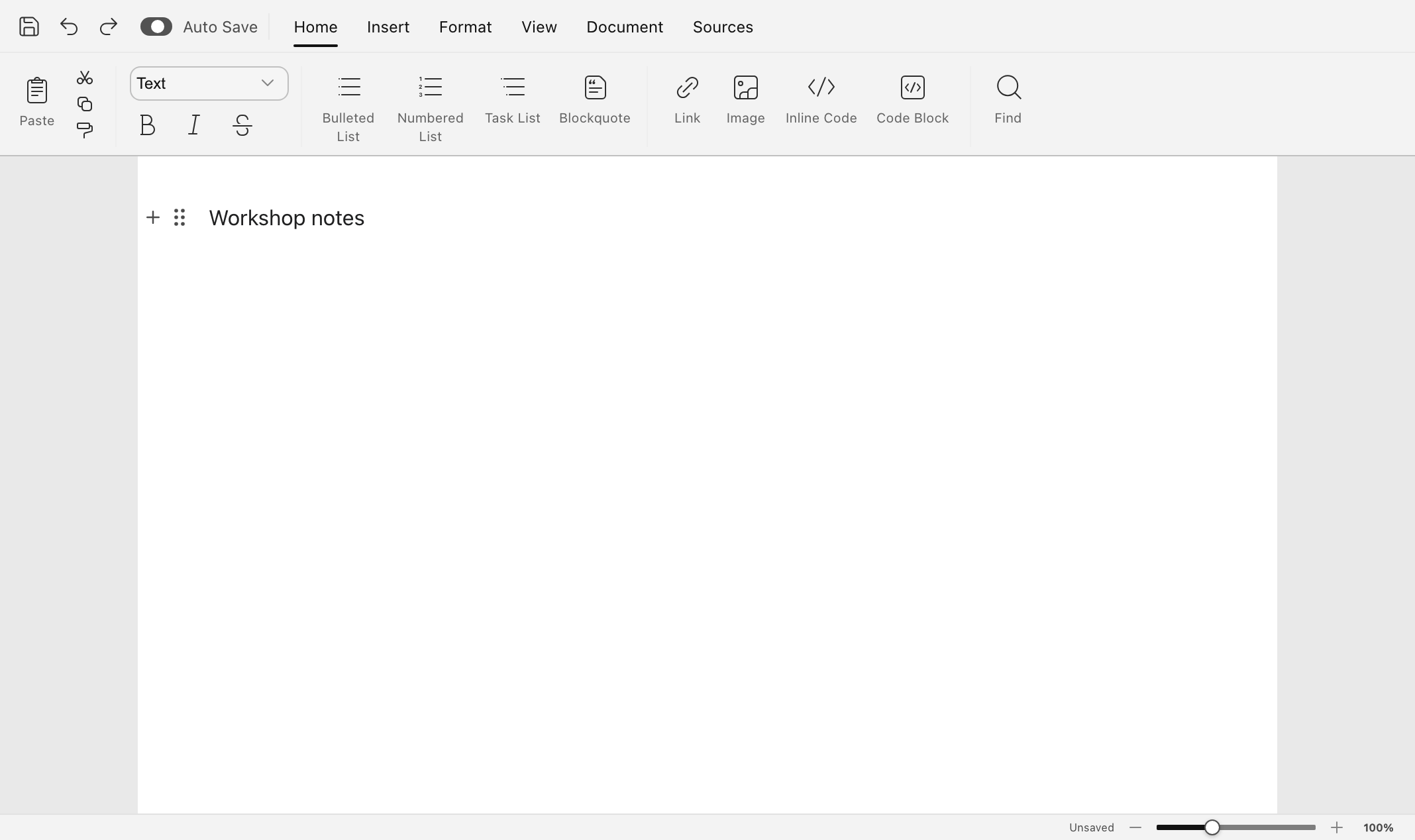
The practice note in the Markdown editor before its first save.
Confirm the .md file
Find the file in Finder, open it again, and look for Workshop notes. The file should still end in .md. If you open it in a text editor, you should see the same words.
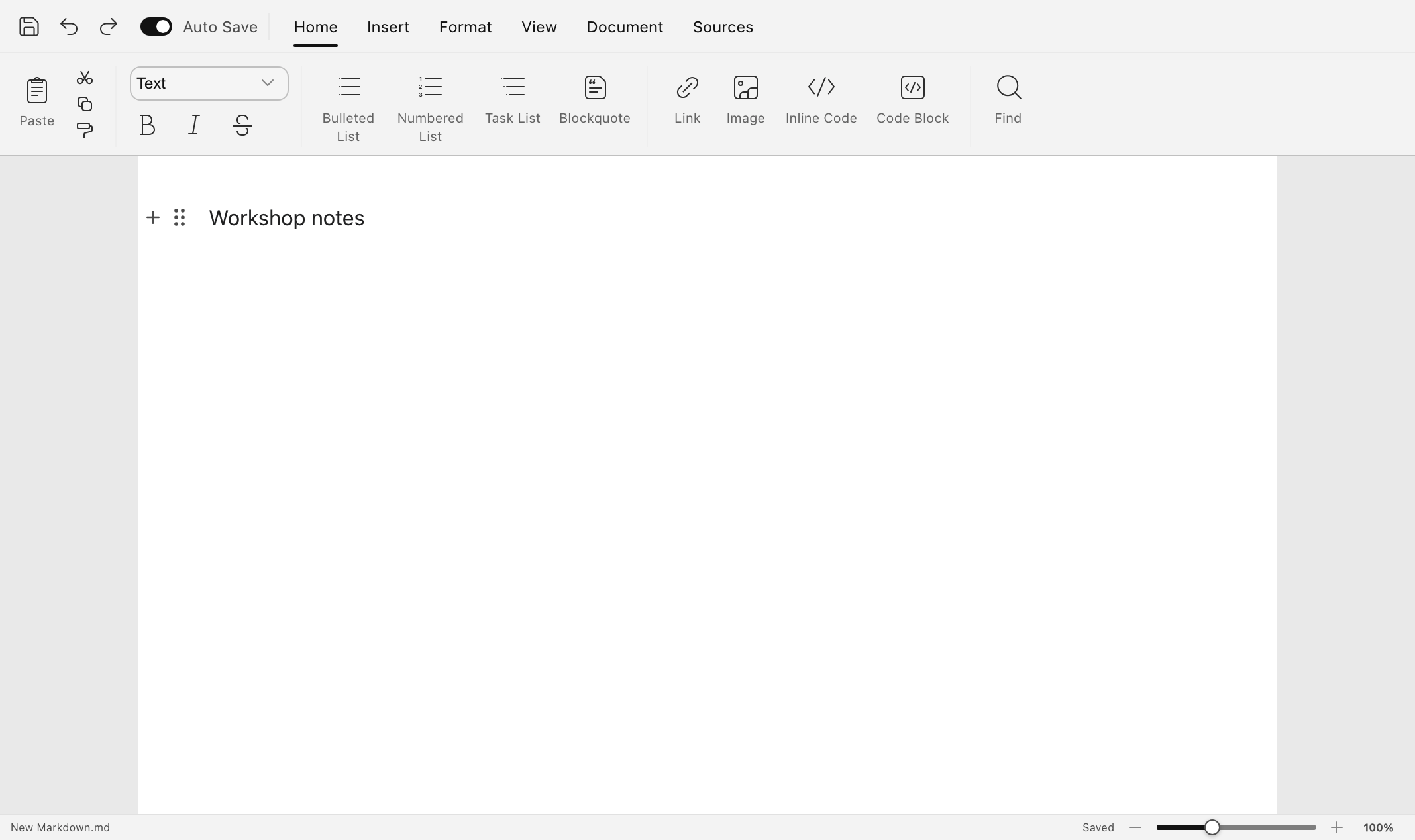
The practice note after Ulet writes the new Markdown file.
Related guide open and save a Markdown file on Mac.
Verified using Ulet 0.22.204 on Mac with a practice file. Screenshots show the Ulet editor.
