

Freeze Header Rows in Ulet on Mac

Freeze the first row when a long sheet needs column names that stay in view.
Keep the header row in place
Open the sheet with headings in row 1.
Choose View → Freeze Panes → Freeze Top Row.
Scroll down the sheet to check that the header remains visible.
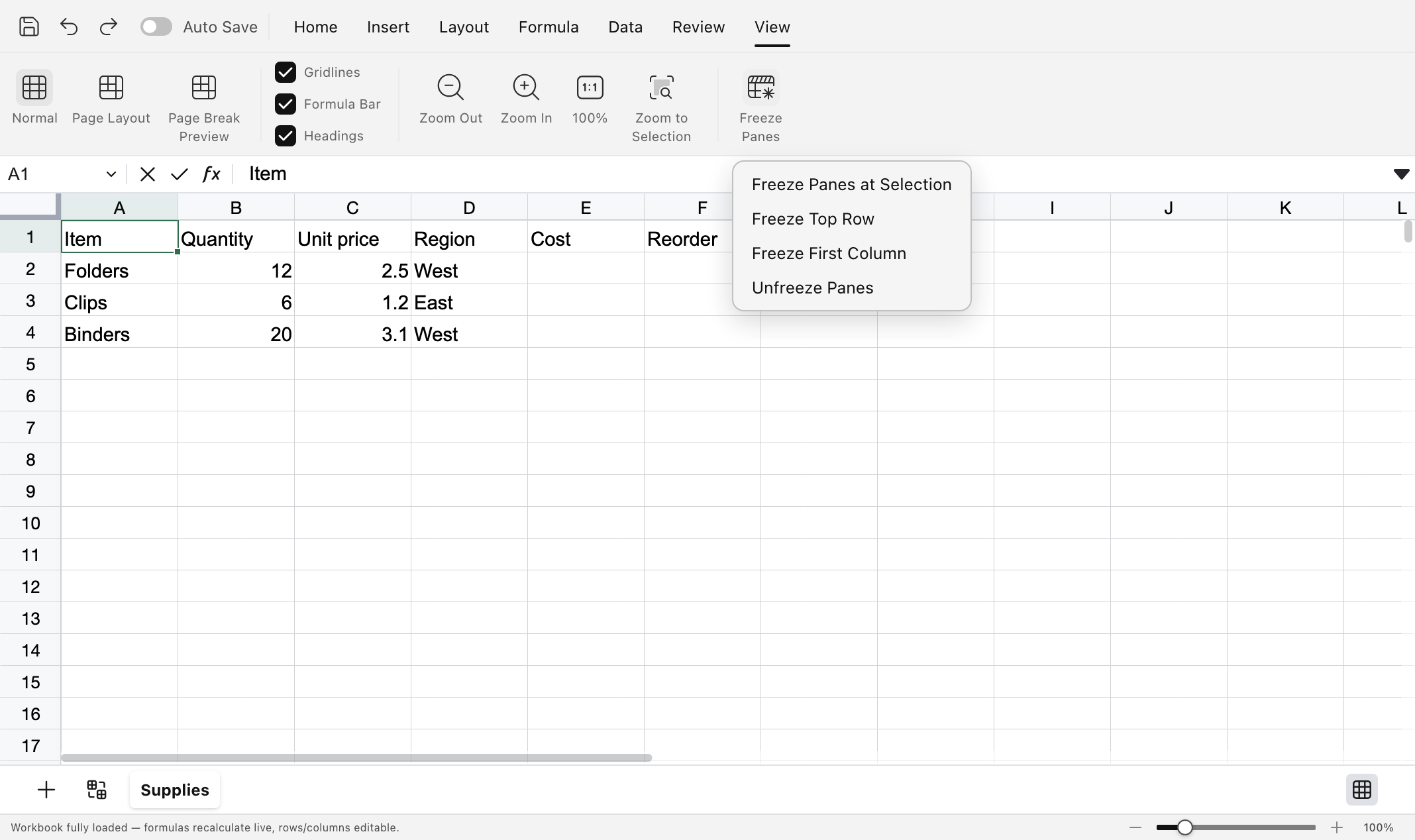
The Freeze Panes menu with Freeze Top Row available.
Check and remove the freeze
Save the workbook. Reopen it and scroll again to verify the view. To clear the freeze, use the Unfreeze choice in the same menu.
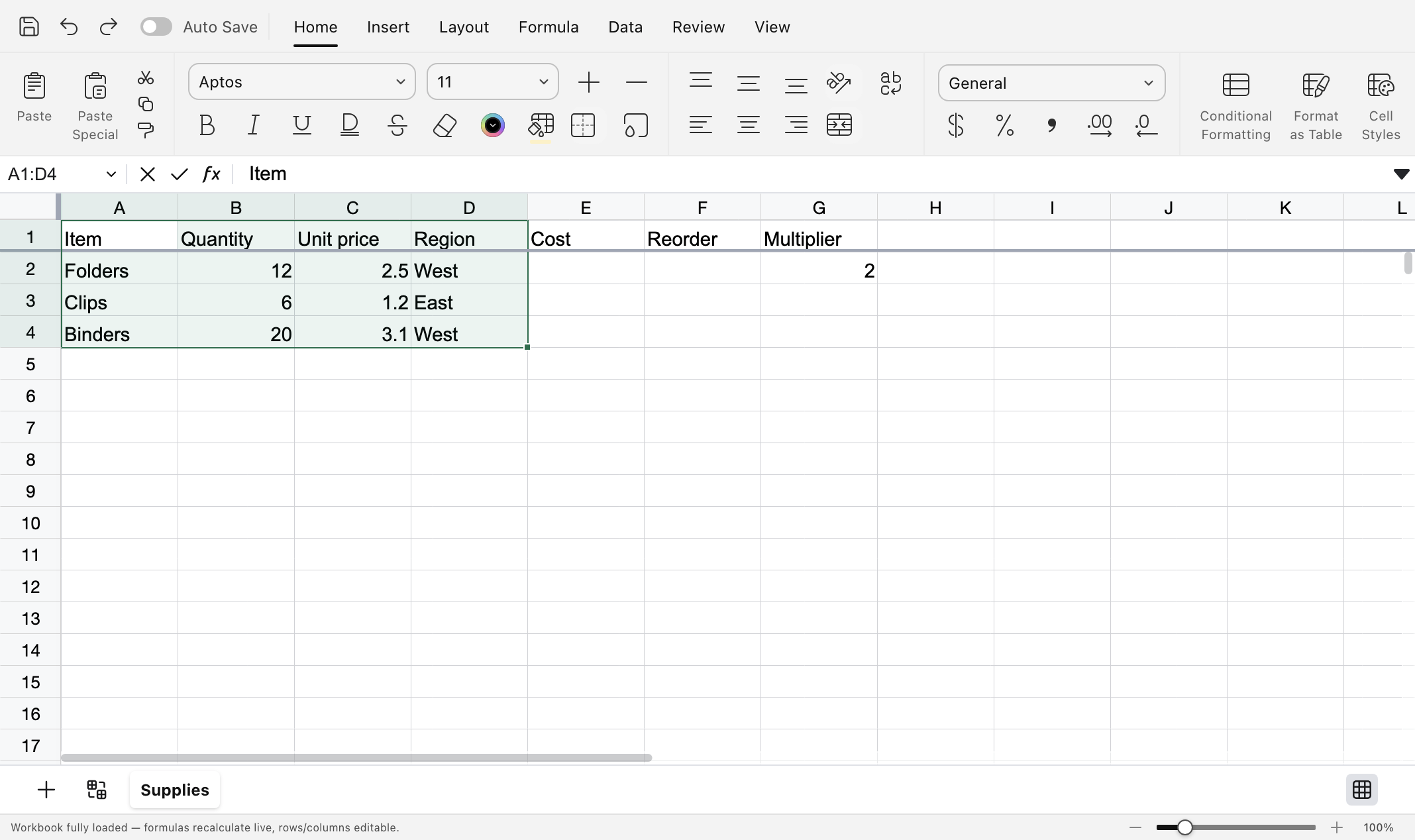
The workbook after applying the freeze to row 1.
Related guide open and save an XLSX workbook.
Steps checked in the Mac desktop editor with a practice file, including saving and reopening. Screenshots show the Ulet editor; the test used an isolated profile and file-picker fixtures.
