

Start a Slide Show From a Selected Slide in Ulet on Mac

Start from a selected slide when you need to rehearse one section or resume a presentation partway through. Check the selected thumbnail first so that the audience sees the slide you intend.
Select a recognizable slide
Open the presentation in Ulet Slides.
Click the slide you want in the left thumbnail pane. Check the status at the bottom: this example shows Slide 2 of 5.
Read the selected slide’s title and look at its main content. In Workshop Introduction.pptx, slide 2 has a three-bar chart with 48, 64, and 80 registered places. Slide 1 is the opening overview, so those bars make a useful check that the show did not restart at the beginning.
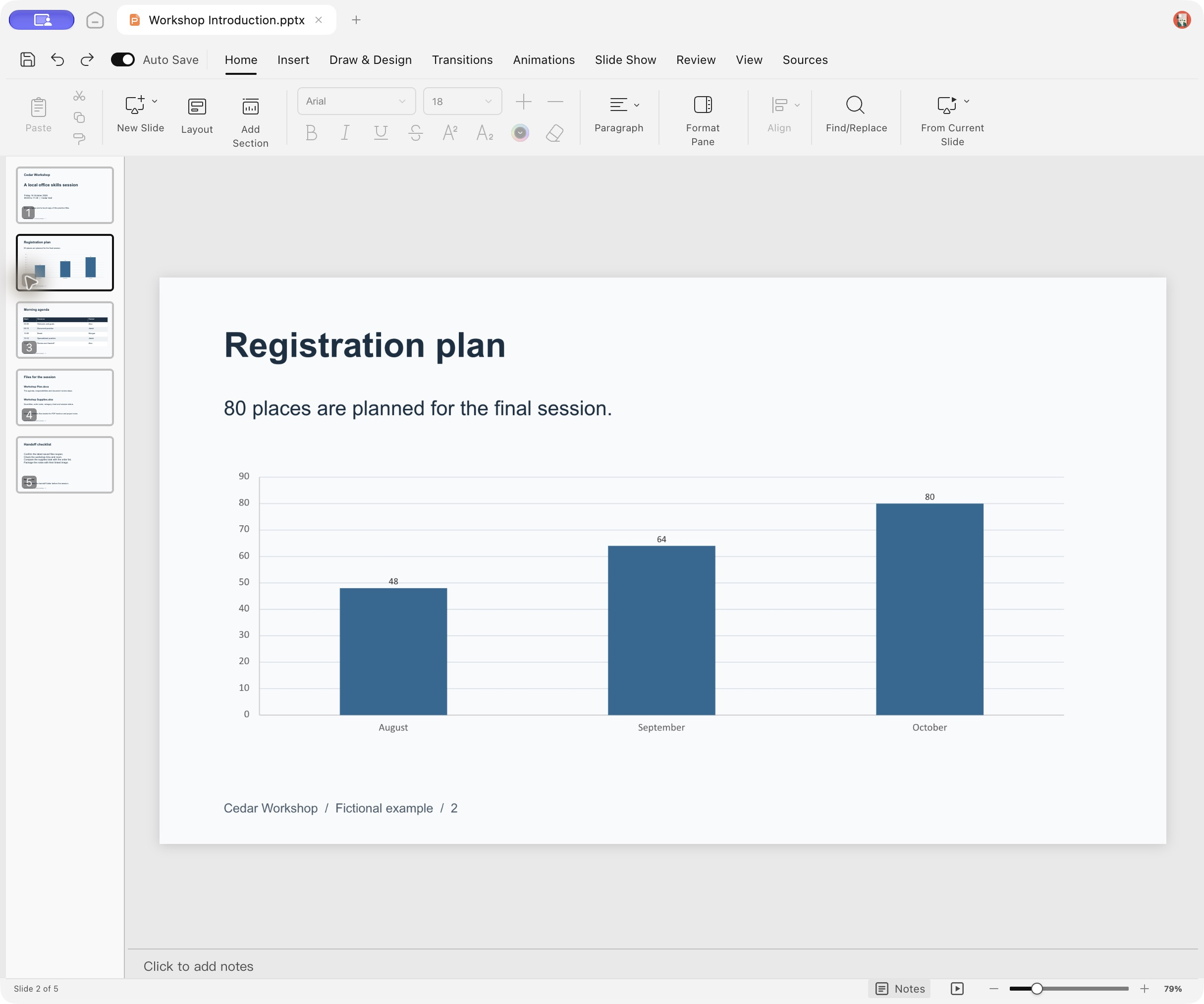
Slide 2 is selected in the five-slide practice deck. The slide contains a three-bar chart; the ribbon and status bar are still visible.
Start the show from the current slide
Click the small presentation button on the bottom status bar. Its tooltip reads Full-screen show from the current slide (⇧F5). This is the control used in the check.
Allow the fullscreen transition to finish. Confirm that the editing ribbon and thumbnail pane disappear.
Check the displayed slide. The example starts with the same three-bar chart and shows 2 / 5 in the lower-right corner.

The actual fullscreen show opens on slide 2 of 5, showing the same chart without the editing ribbon or thumbnail pane. The English Cedar Workshop deck uses fictional registration data.
Check navigation and return to editing
Press the Right Arrow once. In this check the show advanced to 3 / 5, a table slide. Press Escape to leave the show. The ribbon and thumbnail pane should return; after advancing once, the editor should show Slide 3 of 5.
If the wrong slide opens first, exit with Escape, select the intended thumbnail again, and check its number before starting. Rehearse this on the display you plan to use. This check used the Mac’s local screen; it did not validate an external projector or separate presenter display.
The screenshots are from the actual Ulet 0.22.204 Mac app. The start slide, next-slide navigation, and Escape exit were checked in a real fullscreen session.
