

Open a PDF for Review on Windows

Before annotating a PDF, confirm that you opened the right file and that its pages are visible. This short check helps avoid reviewing the wrong copy of a document.
Open the local file
On Ulet Home, choose Open File.
In the file picker, navigate to the folder containing your PDF.
Select Riverside-Review.pdf for this example and open it.
Wait for the PDF page and thumbnails to appear.
Confirm the document
Check the filename in the tab and read the title on the first page. The Riverside example shows Riverside Project Review. The page counter shows three pages; the thumbnail pane also includes the following Equipment Budget page.
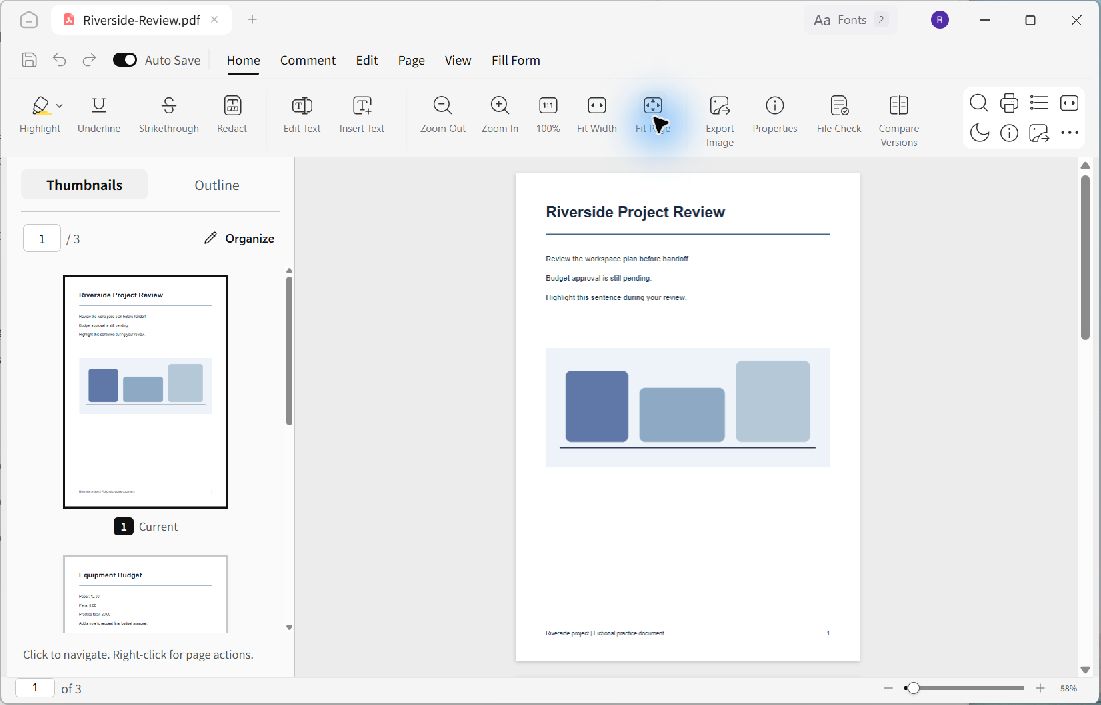
The filename, cover title, and page count provide a quick identity check before reviewing.
Fit the page for a quick overview
Choose Fit Page on Home to see the complete page. This changes the viewing scale rather than the saved page size. Use 100% or Fit Width later when you need to read smaller text.
Scroll through the thumbnails and inspect the final page before starting a review. If a page is missing or the wrong revision is open, choose the correct file first.
Start reviewing deliberately
Opening a PDF does not by itself add highlights, notes, or page changes. Use the appropriate review command only after confirming the document. If you intend to keep the original unchanged, save a separate review copy before making edits.
