

Copy a Recent File Path on Windows

A full file path identifies both a document and its folder. Copy it when you need to distinguish similarly named files or use the same location in another local workflow.
Find the recent document
Save and close the document tab when you have finished editing.
On Ulet Home, locate the document in Recent File.
Check the filename and displayed folder before choosing an action.
Open the row’s More actions menu.
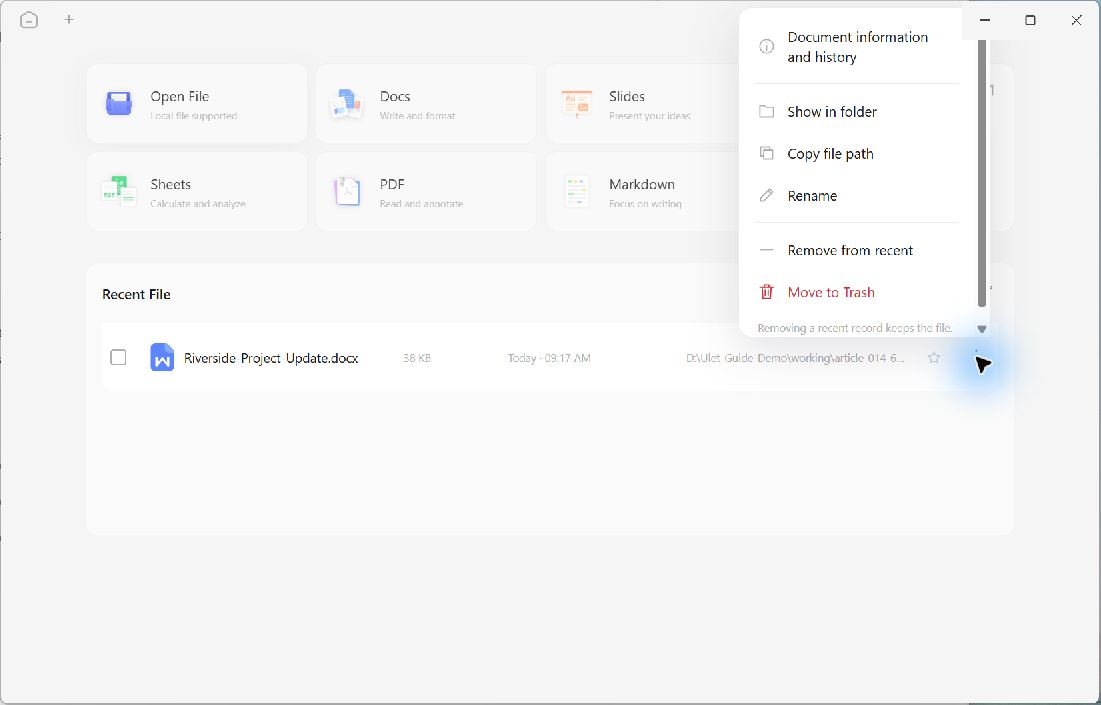
Copy file path uses the selected recent entry without changing the file itself.
Copy the complete location
Choose Copy file path. Ulet puts the full local path on the clipboard, including the drive, parent folders, filename, and extension.
In the demonstration, pasting the result into a local text field confirmed that it points to the Riverside-Project-Update.docx file inside that demonstration’s documents folder. The long demonstration-specific folder is only an example; your copied path should match your own file location.
Use the path carefully
Paste it into a local file picker or a note when you need the exact location. Copying a path does not copy the document’s contents, move the file, or create a backup. A path on your computer may not be accessible on someone else’s computer.
Review the destination before sharing a path because folder names can contain personal or project information. If the file has been moved outside Ulet, locate its current location first rather than assuming an old recent entry still points to the right place.
