

Format Numbers and Decimal Places on Windows

Number formatting controls how a numeric value appears in the grid. Use a consistent number of decimal places when nearby values need to be compared.
For matching example data, use the Practice workbook section at the end of this guide.
Format a practice amount
Open your working expense workbook and select B2 on Expenses.
Enter 12.3456 and commit the value.
Select the cell again. On Home, open Number format and choose Number.
Check the two-decimal display. Use Increase decimal or Decrease decimal on Home if you need a different number of displayed places.
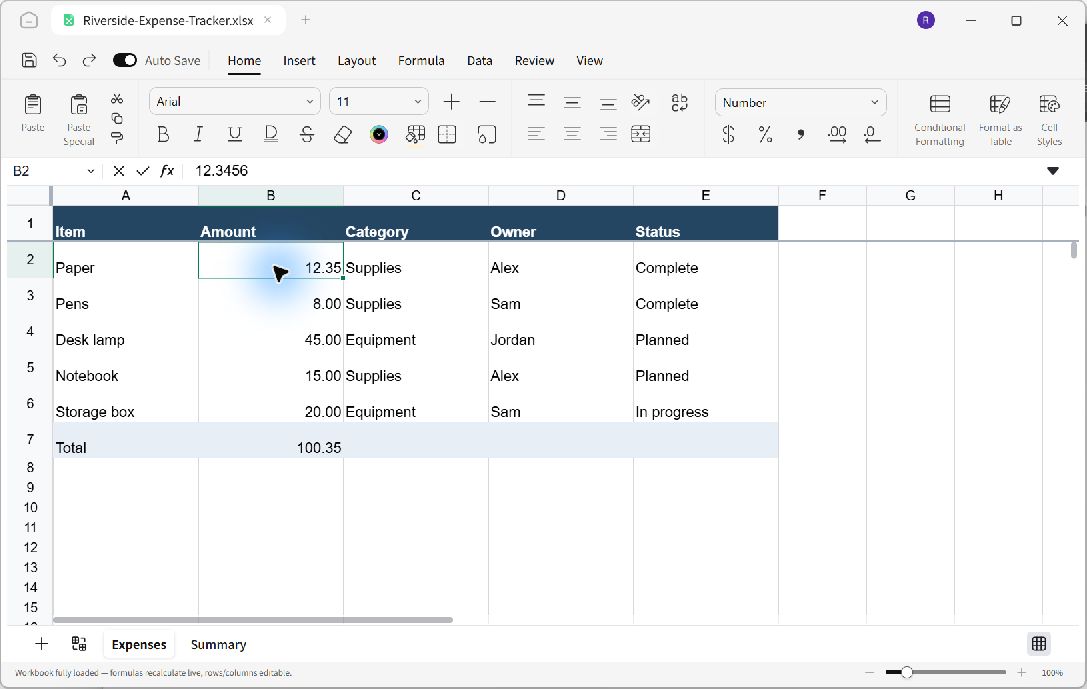
The cell uses a readable number display while its underlying value retains its precision.
Understand the displayed value
At two decimal places, 12.3456 is displayed as 12.35. The number format does not replace the stored value with 12.35. Calculations can continue to use the more precise input.
If you need a calculation that explicitly rounds a value, treat that as a separate formula decision. A number format is a display choice.
Check the saved workbook
Press Ctrl+S, close the document, and reopen it. Select the same cell and check its numeric value and display format. Apply matching precision to comparable amounts so a reader can scan the worksheet easily.
Practice workbook
To reproduce this example, start with a separate practice copy. On Ulet Home, choose Sheets. Rename the first worksheet Expenses and enter the following values in A1:E6. Enter amounts as numbers.
Item | Amount | Category | Owner | Status |
|---|---|---|---|---|
Paper | 12 | Supplies | Alex | Complete |
Pens | 8 | Supplies | Sam | Complete |
Desk lamp | 45 | Equipment | Jordan | Planned |
Notebook | 15 | Supplies | Alex | Planned |
Storage box | 20 | Equipment | Sam | In progress |
Enter Total in A7 and =SUM(B2:B6) in B7. The initial total is 100. Column widths, colors, and number formatting are presentation choices; the values and cell addresses are what the exercise depends on.
Press Ctrl+Shift+S to choose a practice folder and save as Riverside-Expense-Tracker.xlsx. Reopen this named copy before following the exercise above. Keep your original documents separate.
