

Check Word and Character Counts in Word on Windows

Check the document statistics before submitting a report with a word or character limit. Ulet shows a quick word total in the status bar and a detailed Word Count dialog.
Open Word Count
Open your DOCX file and look at the status bar along the bottom of the editor.
Click the word total, such as 93 words in this example.
Review the statistics in the Word Count dialog.
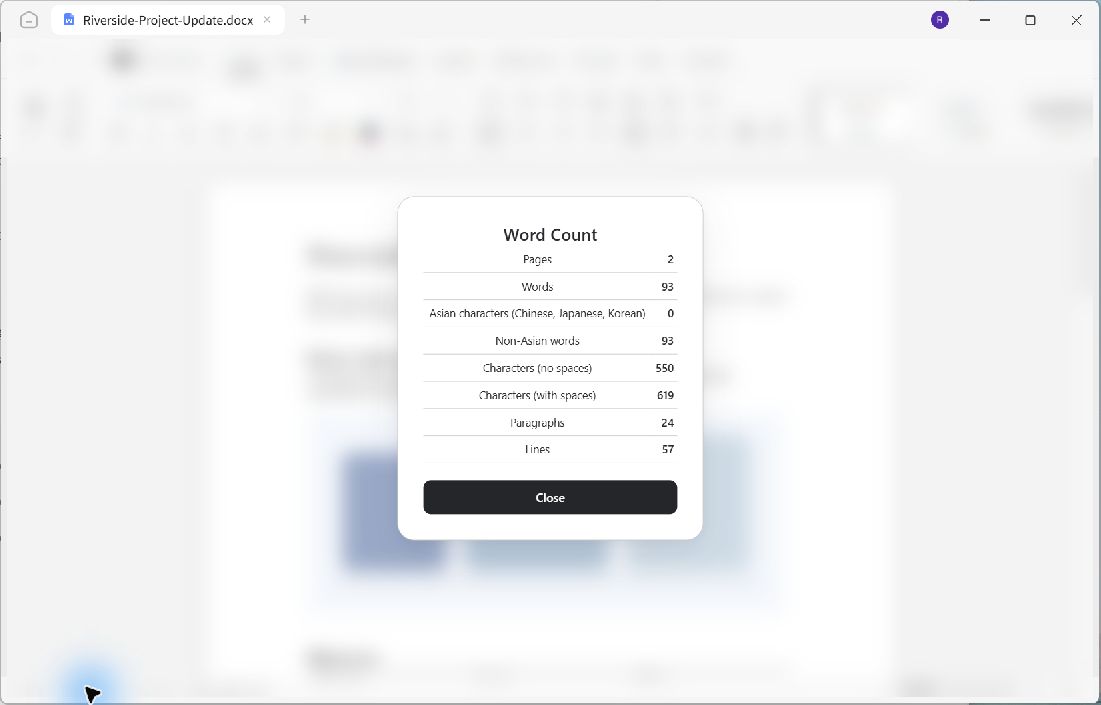
The sample counts describe this project document; your own totals depend on its content.
Choose the relevant total
Use Words when a requirement specifies a word limit. For a character limit, check whether spaces should count: the dialog provides both Characters (no spaces) and Characters (with spaces). The example has 550 characters without spaces and 619 with spaces.
The dialog also reports pages, paragraphs, and lines. Use these as document statistics and inspect the actual layout separately when a submission has a page limit.
Return to editing
Click Close to return to the document. If you shorten or expand the text, open Word Count again to check the updated totals. Reading the statistics does not change the file; save any content edits with Ctrl+S before sharing.
