

Create a Markdown Task List on Windows

Turn meeting actions into a checklist so you can distinguish completed work from items still waiting for attention. A task list adds a checkbox to an item while keeping the action text readable.
Convert an action to a task
Open your Markdown notes in Ulet for Windows.
Click inside the action you want to track. The example uses Alex: review the layout.
On the Home tab, choose Task List.
Click the new checkbox to mark the action complete.
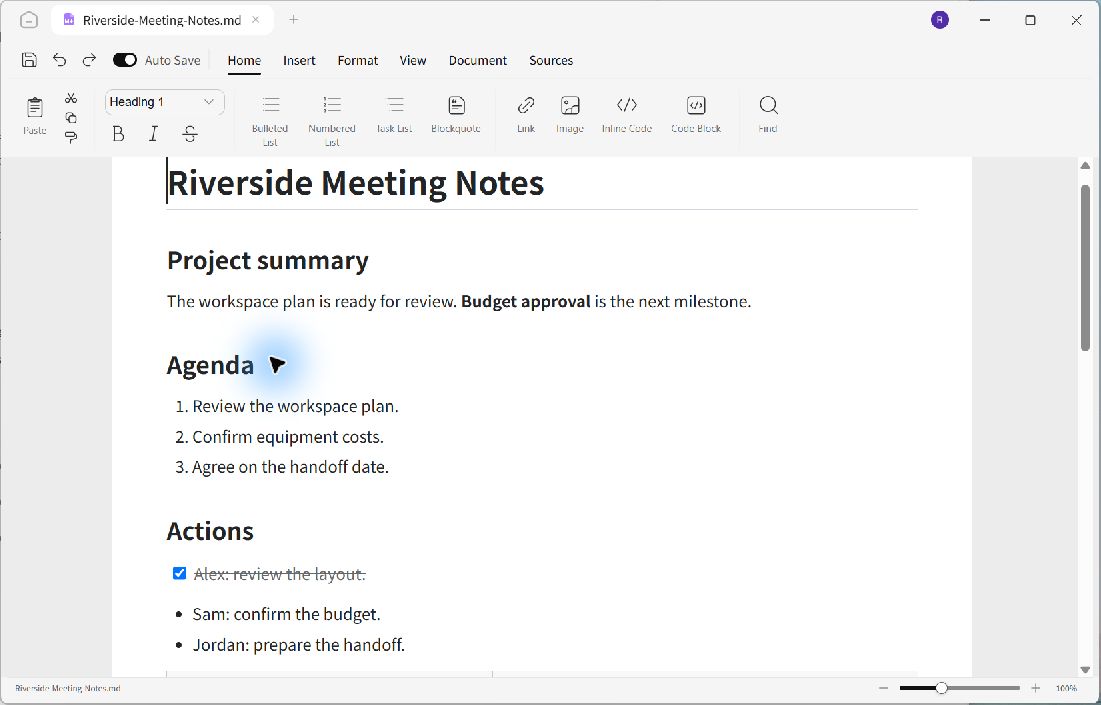
The completed task has a checked box and struck-through text; the remaining actions are still ordinary bullets.
Choose the right kind of list
The numbered Agenda communicates an order: review the plan, confirm costs, then agree on the handoff date. The Actions section assigns work to people. Only the selected Alex item was converted in this example, so Sam and Jordan remain bulleted items.
Use the adjacent Bulleted List and Numbered List controls for lists that do not need completion tracking. Click inside the intended item before applying a list command so the cursor is in the correct paragraph.
Keep the completed state
Press Ctrl+S, close the tab, and reopen the same file to check the result. The saved Riverside example keeps Alex checked. In Markdown source, the completed item is represented by - [x] Alex: review the layout..
To reopen a task, clear its checkbox and save again. Keep each action specific so a checked item has a clear meaning for everyone reading the notes.
