

Highlight PDF Text on Windows

Highlight a short passage to draw attention to wording that needs review. This example marks the pending budget statement and the review instruction on the project cover page.
Select the passage
Open the PDF and move to the correct page.
Set a readable zoom, such as 100%.
Drag over the words you want to mark. Inspect the blue text selection before applying the annotation.
Apply and save the highlight
In the floating text-selection toolbar, click Highlight.
Click an empty area of the page to clear the blue text selection and inspect the highlight color.
Press Ctrl+S to save the PDF.
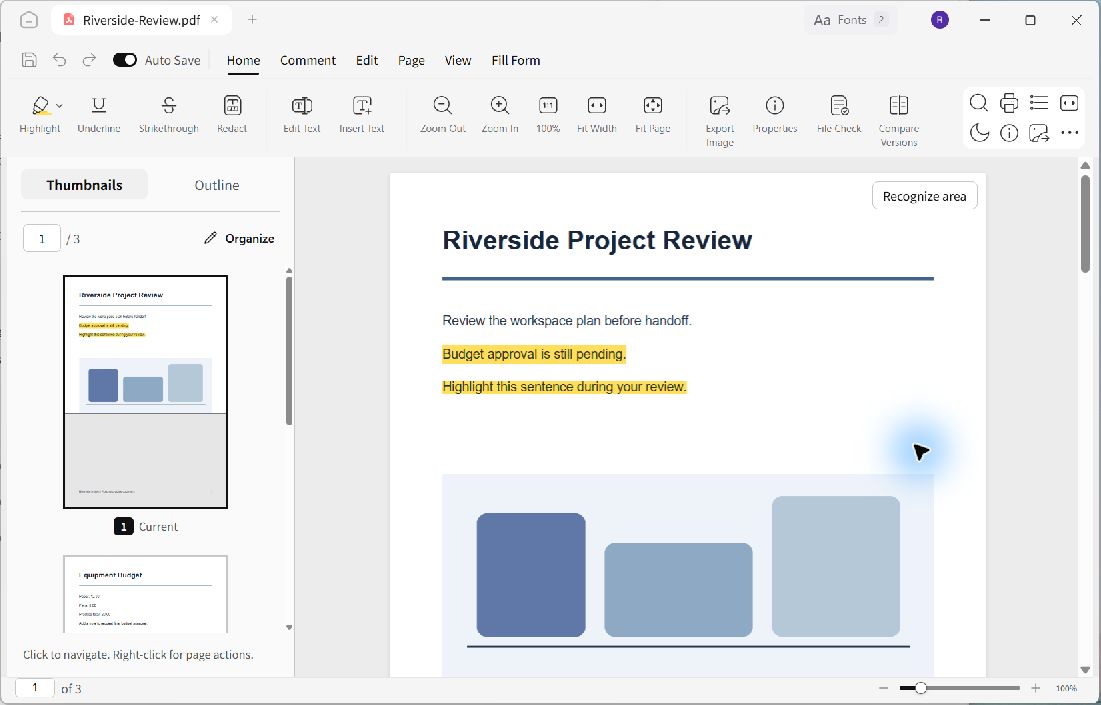
The yellow marks remain after the temporary blue text selection is cleared.
Review the marked text
Make sure the highlight covers the intended words and does not extend to an unrelated line. The example marks Budget approval is still pending. and Highlight this sentence during your review.
A text selection and a highlight are different states. Blue selection shows what you are currently selecting; the saved yellow annotation identifies the passage for later review.
Use highlights sparingly so the important passage remains easy to find. If a reviewer needs an explanation or a question, add a note alongside the relevant text rather than highlighting a large area without context.
