

Navigate a PDF with Page Thumbnails on Windows

Page thumbnails help you move directly to a section of a PDF without scrolling through every page. This example jumps from the project cover to the equipment budget.
Open the thumbnail pane
Open the PDF in Ulet.
Choose Thumbnails in the left pane. If the pane is showing an outline, switch to the Thumbnails tab.
Scroll inside the thumbnail pane until the page you need is visible.
Jump to a page
Click the second thumbnail. The main document moves to Equipment Budget, and the second thumbnail gains the Current marker. The page fields show 2 out of 3.
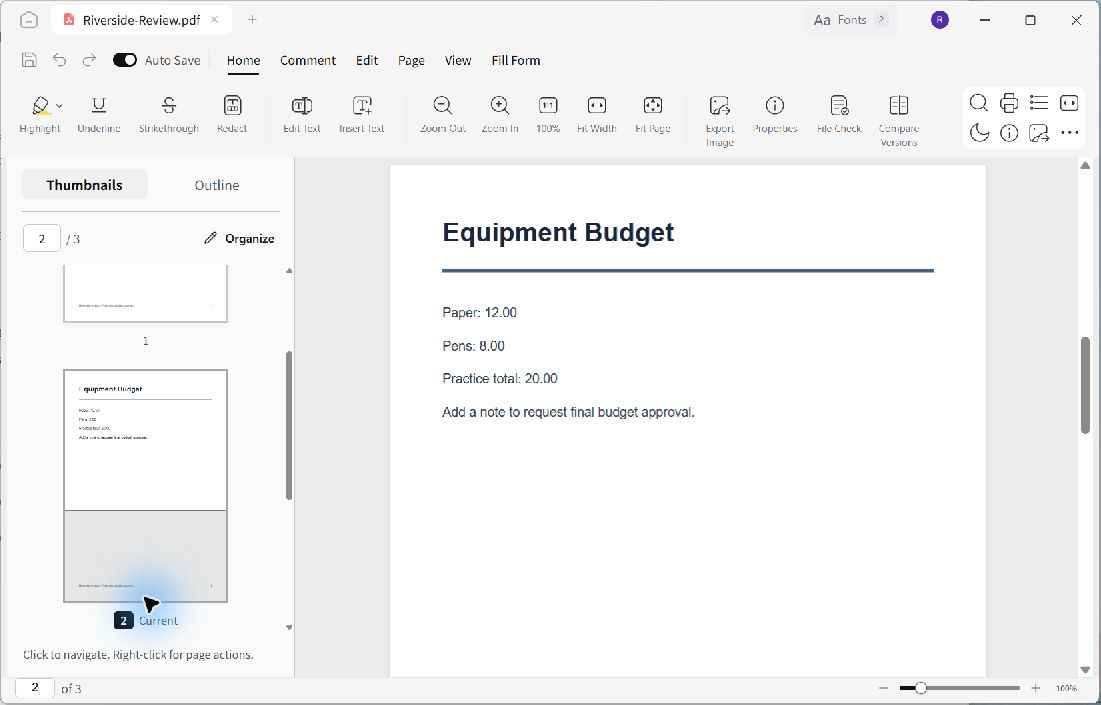
The thumbnail marker, page number, and document heading identify the same page.
Adjust the reading view
Use the zoom controls if the page text is too small. This example shows the budget at 100% so the amounts and review instruction are readable. The thumbnail pane remains available for another jump.
Selecting a thumbnail changes your reading position; it does not edit the PDF. Before adding a note or highlight, confirm both the page number and the visible heading so the review mark lands on the intended page.
If you already know the page number, use a Go to page field instead of searching through the thumbnails.
