

Create a Bulleted List in Word on Windows

Use a bulleted list for items that do not need a fixed order, such as meeting action items or a project checklist. Each item should be a separate paragraph before you apply the list formatting.
Prepare the list text
Open your DOCX file and place the cursor where the list belongs.
Type an optional label such as Action items, then press Enter.
Type Prepare agenda, Review budget, and Send summary, pressing Enter between the items.
Add bullets
Select the three item paragraphs, leaving the Action items label outside the selection. Choose Home, then click the main Bullets button. The three paragraphs become a list with one bullet per item.
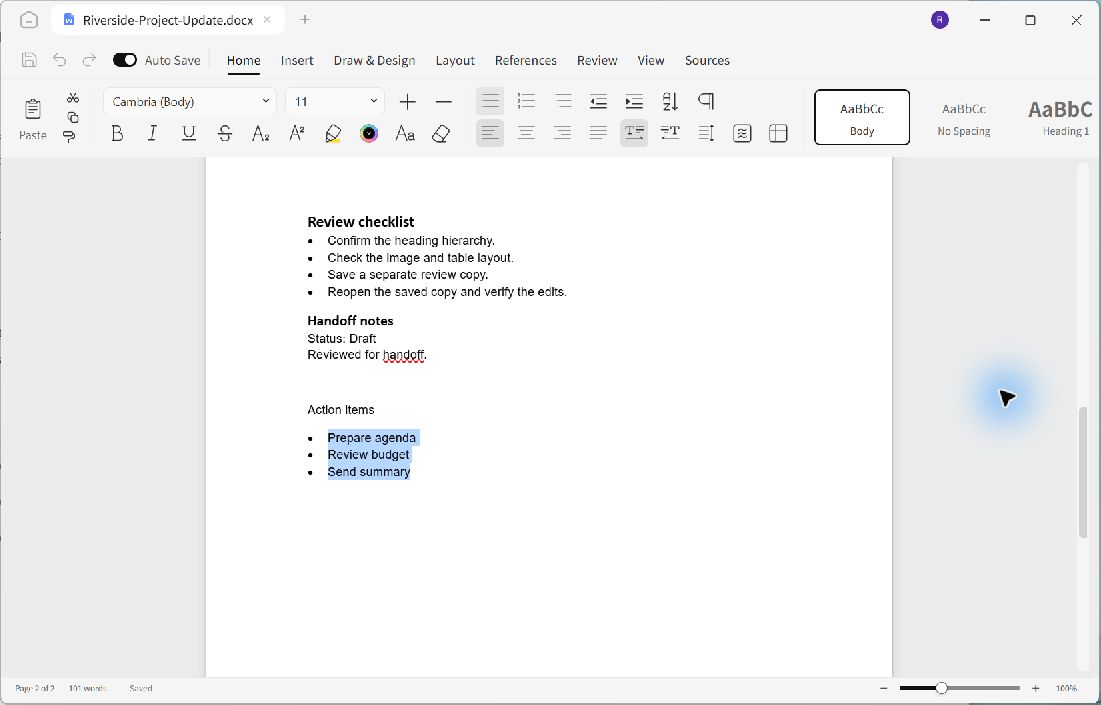
Apply bullets to the item paragraphs; keep the introductory label separate.
Continue or finish the list
Place the cursor at the end of an item and press Enter to add another item. Press Enter again on an empty list item to return to an ordinary paragraph. To remove list formatting from existing items, select those items and click the main Bullets button again.
Check that every intended item has one bullet and that your label has none. Keep each item concise, and use the same grammatical form across the list. Press Ctrl+S to save your document.
