

Check an XLSX Before Sharing on Windows

A quick reopening check helps confirm that you are sharing the file you intended. Use representative inputs, calculated results, and worksheet names rather than relying only on the filename.
For matching example data, use the Practice workbook section at the end of this guide.
Save a named review copy
Open a fresh working copy of the Riverside expense workbook.
On Expenses, change Paper in B2 from 12 to 16 and commit the edit.
Check that the Total row displays 104.
Press Ctrl+Shift+S and save a separately named copy, Riverside-Ready-to-Share.xlsx.
Close its document tab, then reopen that exact file.
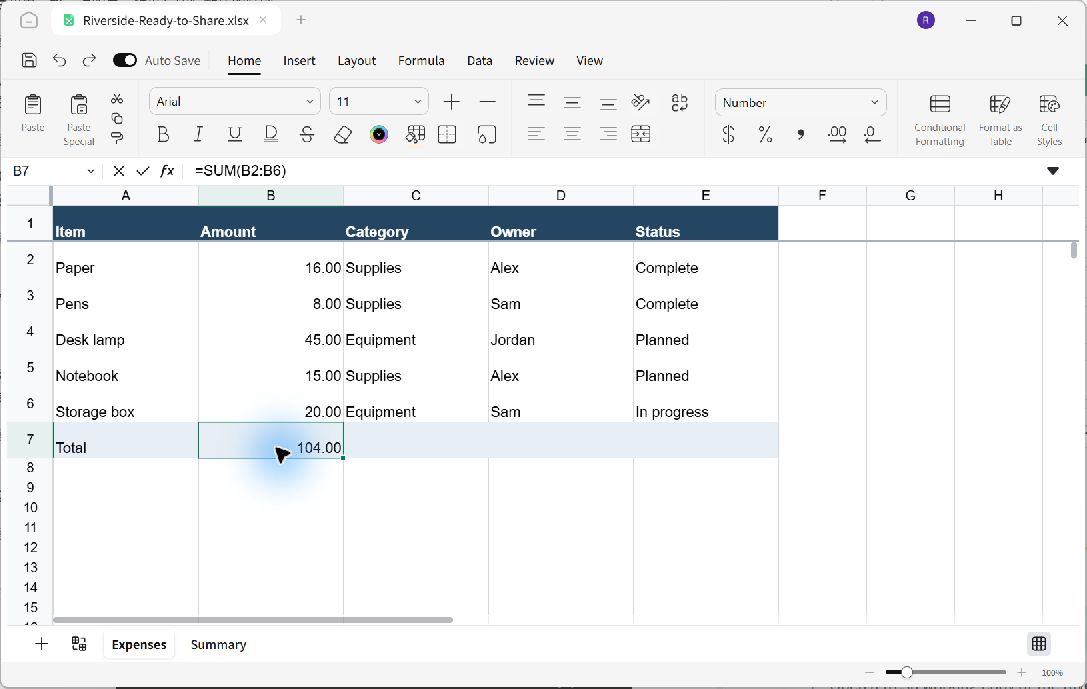
Reopening the named copy checks the saved file rather than only the current editing view.
Review the reopened workbook
Confirm the active filename is the copy intended for sharing.
Check that Expenses and Summary are both present.
Check Paper is 16 and the expense total is 104.
On Summary, check Total expenses is 104 and Practice subtotal is 24.
Select a calculated cell and inspect its formula.
Inspect the presentation
Check for clipped labels, inconsistent amount formats, and an unintended active sheet. Keep your original input and master sample separate from the copy you share.
This walkthrough verifies a local file. Transfer and recipient-side checks depend on the sharing method and the application used by the recipient.
Practice workbook
To reproduce this example, start with a separate practice copy. On Ulet Home, choose Sheets. Rename the first worksheet Expenses and enter the following values in A1:E6. Enter amounts as numbers.
Item | Amount | Category | Owner | Status |
|---|---|---|---|---|
Paper | 12 | Supplies | Alex | Complete |
Pens | 8 | Supplies | Sam | Complete |
Desk lamp | 45 | Equipment | Jordan | Planned |
Notebook | 15 | Supplies | Alex | Planned |
Storage box | 20 | Equipment | Sam | In progress |
Enter Total in A7 and =SUM(B2:B6) in B7. The initial total is 100. Column widths, colors, and number formatting are presentation choices; the values and cell addresses are what the exercise depends on.
Add a second worksheet named Summary. Enter Riverside budget in A1, Total expenses in A2, =SUM(Expenses!B2:B6) in B2, Practice subtotal in A3, =SUM(Expenses!B2:B3) in B3, Budget status in A4, and Draft in B4. The initial results are 100 and 20.
Press Ctrl+Shift+S to choose a practice folder and save as Riverside-Expense-Tracker.xlsx. Reopen this named copy before following the exercise above. Keep your original documents separate.
