

Review Document Version History on Windows

Version history helps you identify saved revisions of a local document. Review the entries before deciding whether you need to return to an earlier state.
Create a recognizable saved revision
For this example, open a working copy of Riverside-Project-Update.docx, change its title to Riverside Budget Review, press Ctrl+S, and close the document tab. The imported file and the saved edit can then be distinguished in history.
Open the history
On Home, locate the document in Recent File.
Open its More actions menu.
Choose Document information and history.
Select Version history.
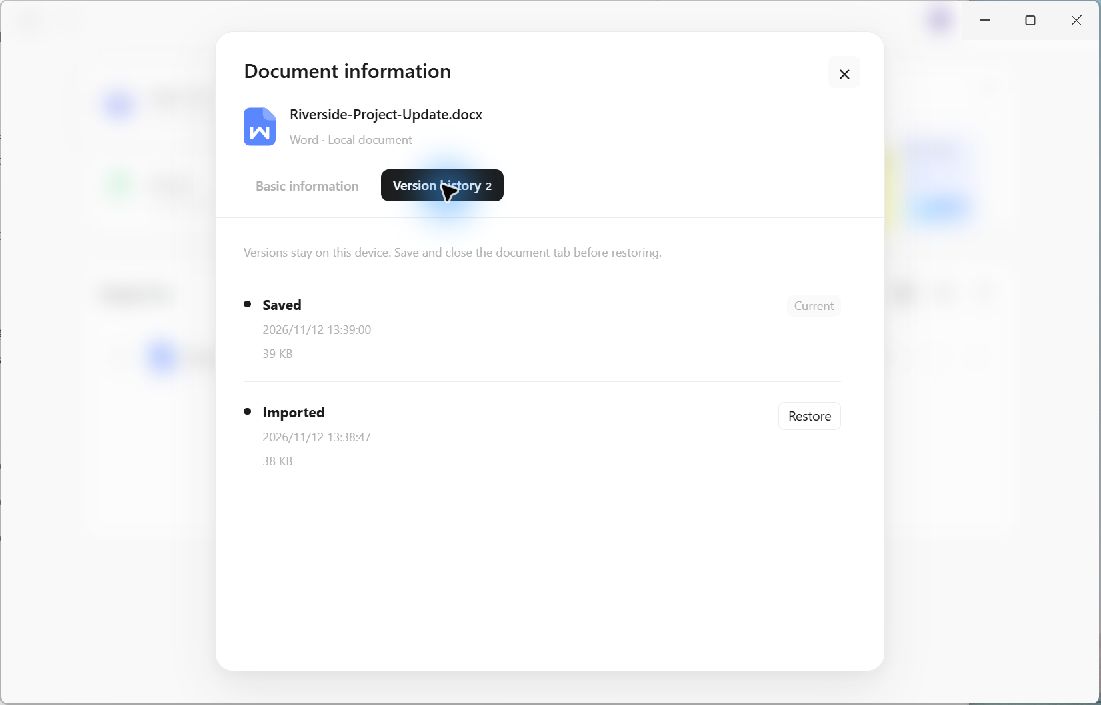
The sample contains two entries, with the Saved revision marked Current.
Read the entries
Each entry shows its type, timestamp, and size. In the demonstration, Saved is the current revision and Imported is the earlier starting point. The two entries belong to this specific working file; another document may have a different history or no earlier entries.
Use the filename and Basic information tab to confirm that you are examining the intended local document. Similar filenames in different folders can represent separate working copies.
Keep review separate from restore
Opening history does not replace the file. The earlier entry has a separate Restore action. Save and close the document tab before considering restoration, as the panel instructs.
The panel states that versions stay on this device. Do not treat this local history as a cross-device backup. Close Document information to return to Home when you only need to inspect the records.
