

Edit a Markdown Code Block on Windows

A code block preserves a short example as a separate, monospaced section. It is useful for commands, configuration snippets, and plain-text status examples that should remain distinct from normal prose.
Edit the example
Open the Riverside Markdown notes in Ulet for Windows.
Scroll to Example code.
Click inside the line
Status: Draft.Select that line and replace it with
Status: Ready for review.Press Ctrl+S.
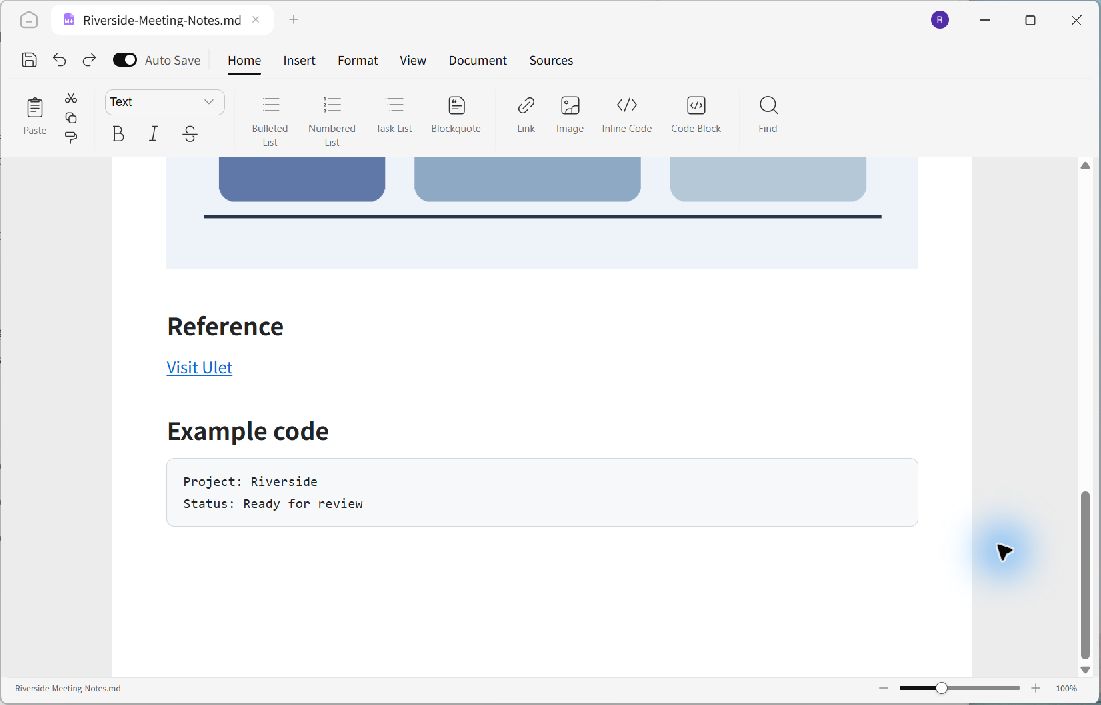
The two-line example stays inside its own code block after the status is updated.
Check the block boundaries
The saved sample uses a fenced block: an opening line of three backticks followed by text, the two example lines, and a closing line of three backticks. The word text identifies this example as plain text rather than executable program code.
Keep the opening and closing fences on separate lines when editing Markdown source. In the visual editor, click within the block before changing its contents so your text remains in the intended section.
Review the saved result
Close and reopen the file to check the new status. The Riverside example retains Project: Riverside on the first line and Ready for review on the second. The reference link above it remains a separate paragraph.
A code block displays text; it does not run commands. Use a short, representative example and remove private paths, passwords, and other sensitive values before sharing technical notes.
