

Inspect a PDF File on Windows

Use File Check to inspect the local PDF you are reviewing. The report puts basic file details and detected features in one place, making it easier to check that you opened the expected document.
Open the inspection report
Open a local PDF in Ulet for Windows.
On the Home tab, choose File Check.
Wait for the PDF file inspection dialog to show its results.
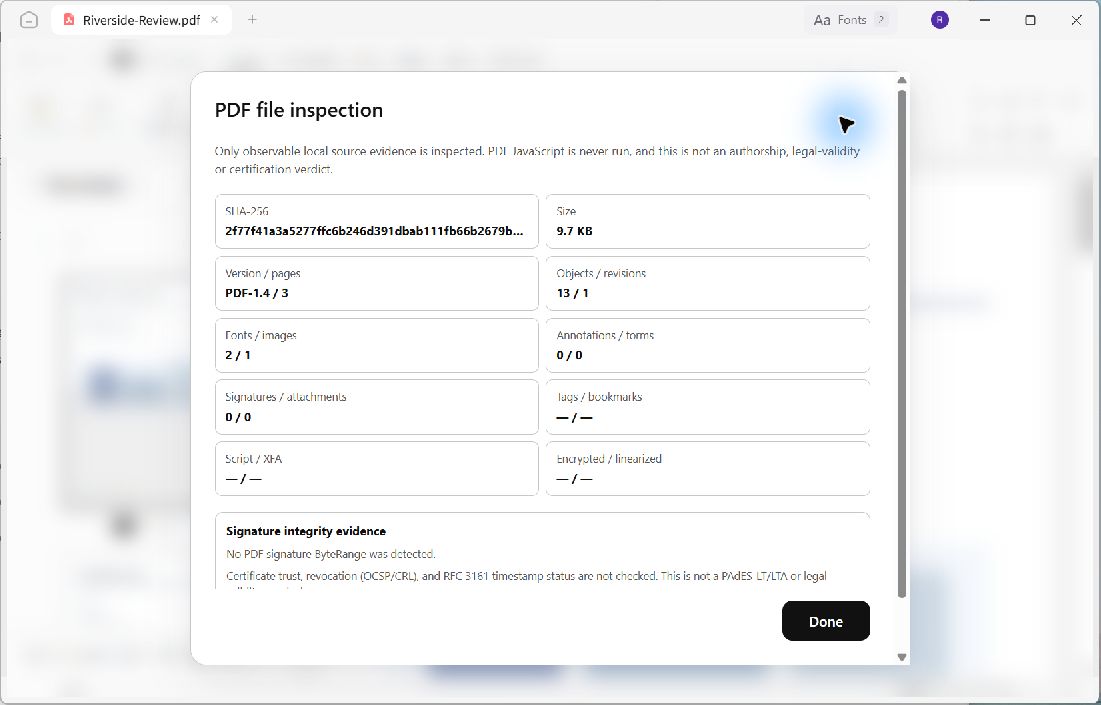
The Riverside sample is a three-page PDF with two fonts, one image, and no detected annotations or forms.
Read the file details
The report includes the SHA-256 fingerprint, file size, PDF version and page count. It also shows counts for objects, revisions, fonts, images, annotations, forms, signatures, and attachments, alongside indicators for other PDF features. Values describe the inspected file; they will differ for another document.
In this example, the report shows PDF-1.4 / 3 under Version / pages and 9.7 KB under Size. These details help distinguish the original Riverside review from an edited copy with an extra page.
Understand the result
Read the explanation at the top and the signature evidence section before drawing conclusions. This report inspects observable local source evidence and does not establish authorship, legal validity, certification, or certificate trust. A missing PDF signature is a report finding, not an instruction to treat a document as authentic.
Choose Done to return to the PDF. Opening and closing this report does not add content to the document.
