

Format Text on a Presentation Slide on Windows

Use text formatting to make a slide heading stand out while keeping its supporting details easy to read. This example formats the project title without changing the subtitle or footer.
Select the words to format
Open the presentation and select the cover slide.
Double-click inside the title text box to enter text editing.
Press Ctrl+A while the text cursor is inside that box to select its text. Check that the title words are selected before using the ribbon.
Apply the formatting
On Home, keep Arial as the font for this example.
Click the Font Size (pt) field, replace its value with 32, and press Enter.
Click Bold to emphasize the title.
Press Esc to finish text editing and Ctrl+S to save.
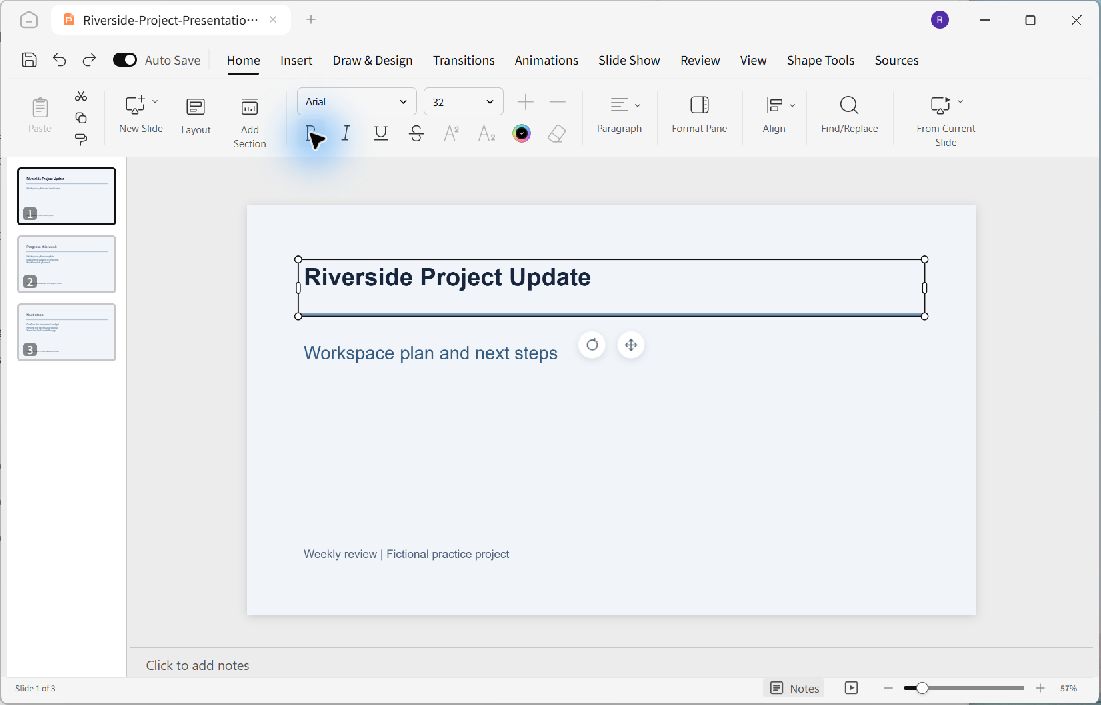
The title is emphasized while the subtitle and footer retain their original styling.
Review readability
Check the whole line after changing its size. The heading should fit within the text box and remain separated from the horizontal divider. If a title becomes longer, review both its wrapping and the space available on the slide.
Text selection matters: an active text cursor lets you format the selected words. Clicking an object border instead selects the text box as an object. Re-enter text editing when you need to change a specific word or phrase.
