

Favorite a Recent Document on Windows

Favorite a recent document when you return to it often. The star provides a quick way to narrow the Home list without moving the document into a different folder.
Star the document
On Ulet Home, locate the document in Recent File.
Check the filename and folder to identify the correct copy.
Select the row’s Favorite star button.
After the action completes, the button becomes Unfavorite. The demonstration uses Riverside-Project-Presentation.pptx, a saved three-slide project presentation.
Show starred files
Open Filter files at the upper-right of Recent File.
Enable Starred Only.
Review the filtered list and open the document you need.
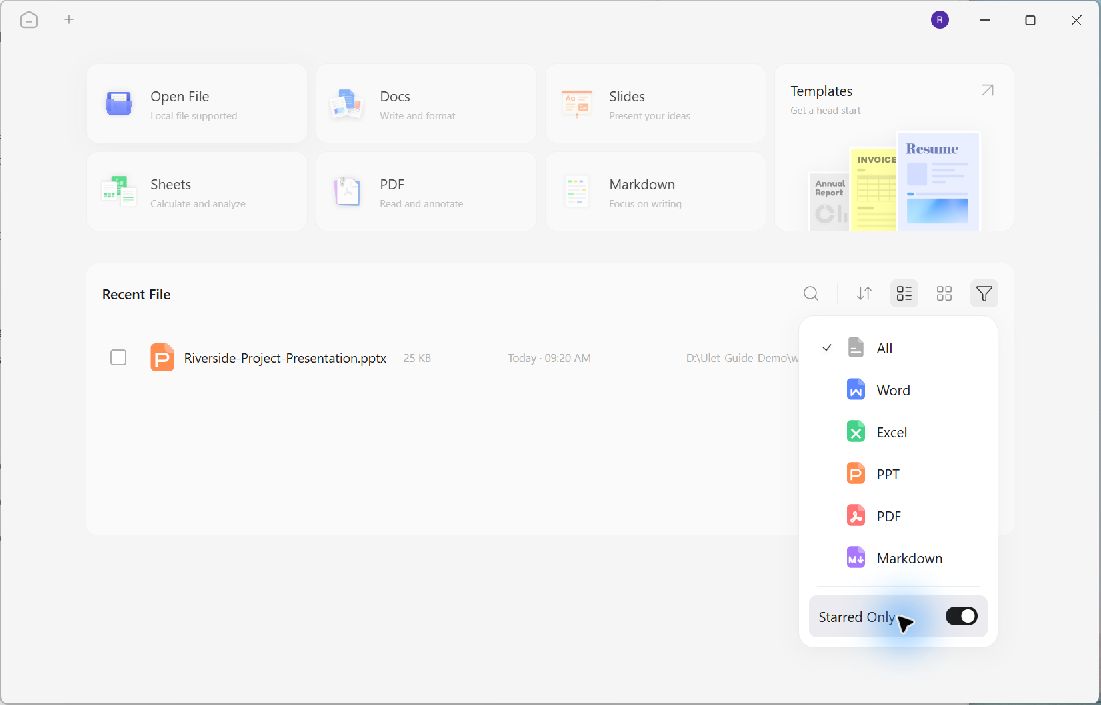
Starred Only keeps the favorited Riverside presentation visible in the recent list.
Return to the broader list
Turn Starred Only off when you want to see recent documents that are not favorited. A file can appear to be missing simply because the list is filtered. Check this option before searching for another copy.
To remove a favorite, select its Unfavorite star button. This changes the favorite state; it does not delete the document. In the demonstration, the presentation also reopened successfully after being favorited.
Favorites help organize access to a file at its existing location. They do not create a backup or combine separate copies. Continue saving the document normally and check its path when several versions have similar names.
