

Format Spreadsheet Values as Currency on Windows

Currency formatting makes a list of amounts easier to scan. In this fictional example, the worksheet uses US dollars. Formatting a number as currency does not convert it using an exchange rate.
For matching example data, use the Practice workbook section at the end of this guide.
Format the expense amounts
Open a fresh working copy of the expense workbook.
On Expenses, change the B1 header to Amount (USD).
Select B2:B7, including the Total row.
On Home, choose Currency. Check that the amounts show a dollar symbol and two decimal places.
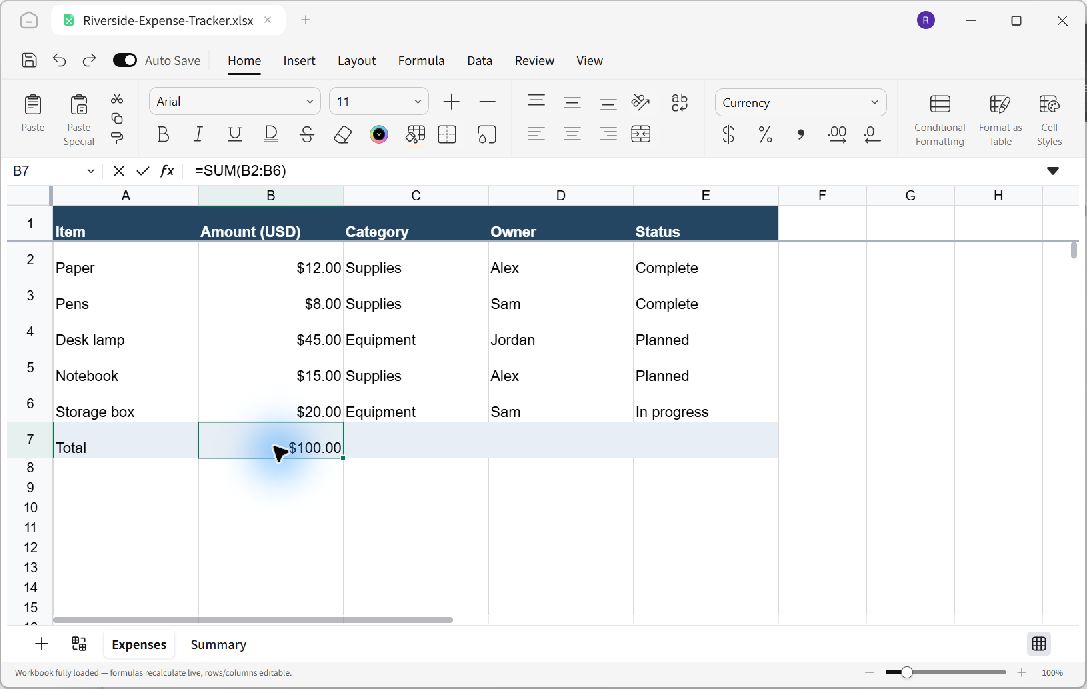
The column label identifies the currency, and the same display format includes the total.
Review the result
The Paper amount remains numerically 12 and the total remains 100. Their displayed forms include the dollar symbol and consistent decimal places. Check that the column is wide enough to show every amount.
Use the currency that matches your source data. Changing the symbol alone cannot change the economic meaning of the amounts, and a worksheet with mixed currencies needs explicit labels.
Save and reopen
Press Ctrl+S. Reopen the working file to confirm that its unit label, number formats, and total are retained.
Practice workbook
To reproduce this example, start with a separate practice copy. On Ulet Home, choose Sheets. Rename the first worksheet Expenses and enter the following values in A1:E6. Enter amounts as numbers.
Item | Amount | Category | Owner | Status |
|---|---|---|---|---|
Paper | 12 | Supplies | Alex | Complete |
Pens | 8 | Supplies | Sam | Complete |
Desk lamp | 45 | Equipment | Jordan | Planned |
Notebook | 15 | Supplies | Alex | Planned |
Storage box | 20 | Equipment | Sam | In progress |
Enter Total in A7 and =SUM(B2:B6) in B7. The initial total is 100. Column widths, colors, and number formatting are presentation choices; the values and cell addresses are what the exercise depends on.
Press Ctrl+Shift+S to choose a practice folder and save as Riverside-Expense-Tracker.xlsx. Reopen this named copy before following the exercise above. Keep your original documents separate.
