
Before printing a DOCX, check its paper size and layout, then check the printer's settings. Start with a page that contains a wide table, a large image or an important footer. That small test can catch problems a plain text page would miss.
Open the local file in Ulet and review the copy you actually intend to print.
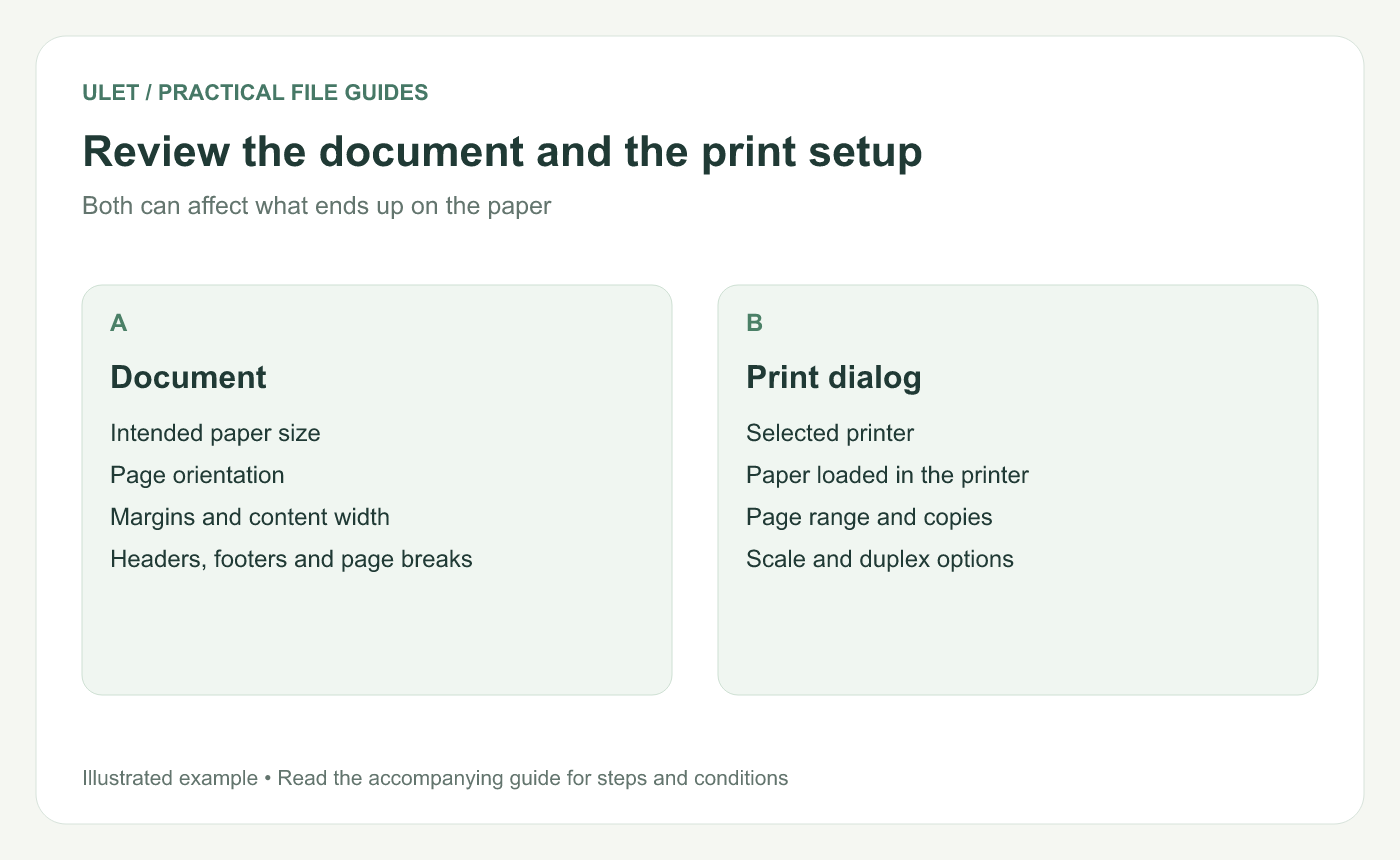
Check both layers before printing the full document.
Match the intended paper size
Confirm whether the document is meant for A4, Letter or another size. Review the orientation and margins, especially when the file came from someone using a different setup.
A printer can scale content to fit the loaded paper, but that can change text size. Check whether scaling is intended before accepting the result.
Inspect the awkward pages first
Look at the widest table, the page with the biggest image and the last page. Check for clipped cells, unreadable labels, a nearly empty final page and text too close to the paper edge.
Check page breaks around headings and tables. If a break looks unexpected, follow the page-break troubleshooting steps in a working copy.
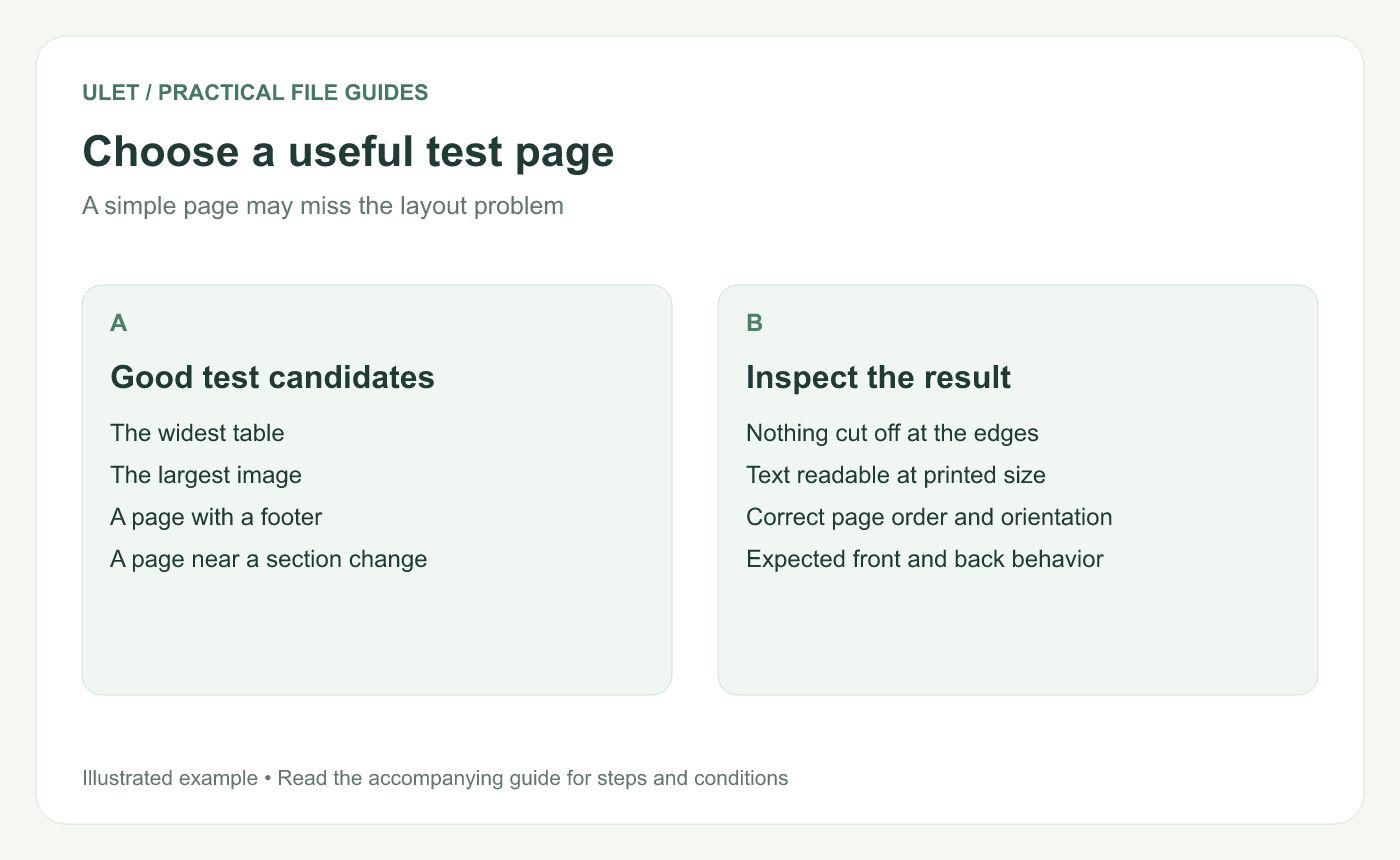
Print a small sample before a long document.
Review the print dialog
Select the intended printer.
Confirm the page range and number of copies.
Check paper size, orientation and scaling.
Choose single-sided or duplex printing as needed.
Print a small sample and inspect it.
For duplex printing, check the edge on which pages turn. A landscape insert may need extra attention. Printer drivers use different wording, so use the preview and the sample sheet to confirm the result.
Keep the issued copy identifiable
Save the finished file before the full print run. If several versions exist, record the filename or issue version used for printing. That helps when someone later asks for another copy of the same document.
Ulet's everyday local document workflow includes editing, saving and printing. The printer dialog and available options depend on your operating system and printer. Work with DOCX documents in Ulet.



