It is Thursday afternoon and someone else has to send the monthly invoice summary. The folder contains a workbook, a Word template and a PDF. Which file should they change? How will they know the PDF they export is current? A short note at the top of the folder can answer both questions before they open anything.
A folder another editor can navigate
Start with the names they will actually see. For this fictional invoice packet, inputs/invoice-register.xlsx contains the source rows and templates/summary.docx holds the text and layout. The issued PDF lives in output/. Call out anything stored outside the project, such as a font or a source attachment, and say how to obtain it.
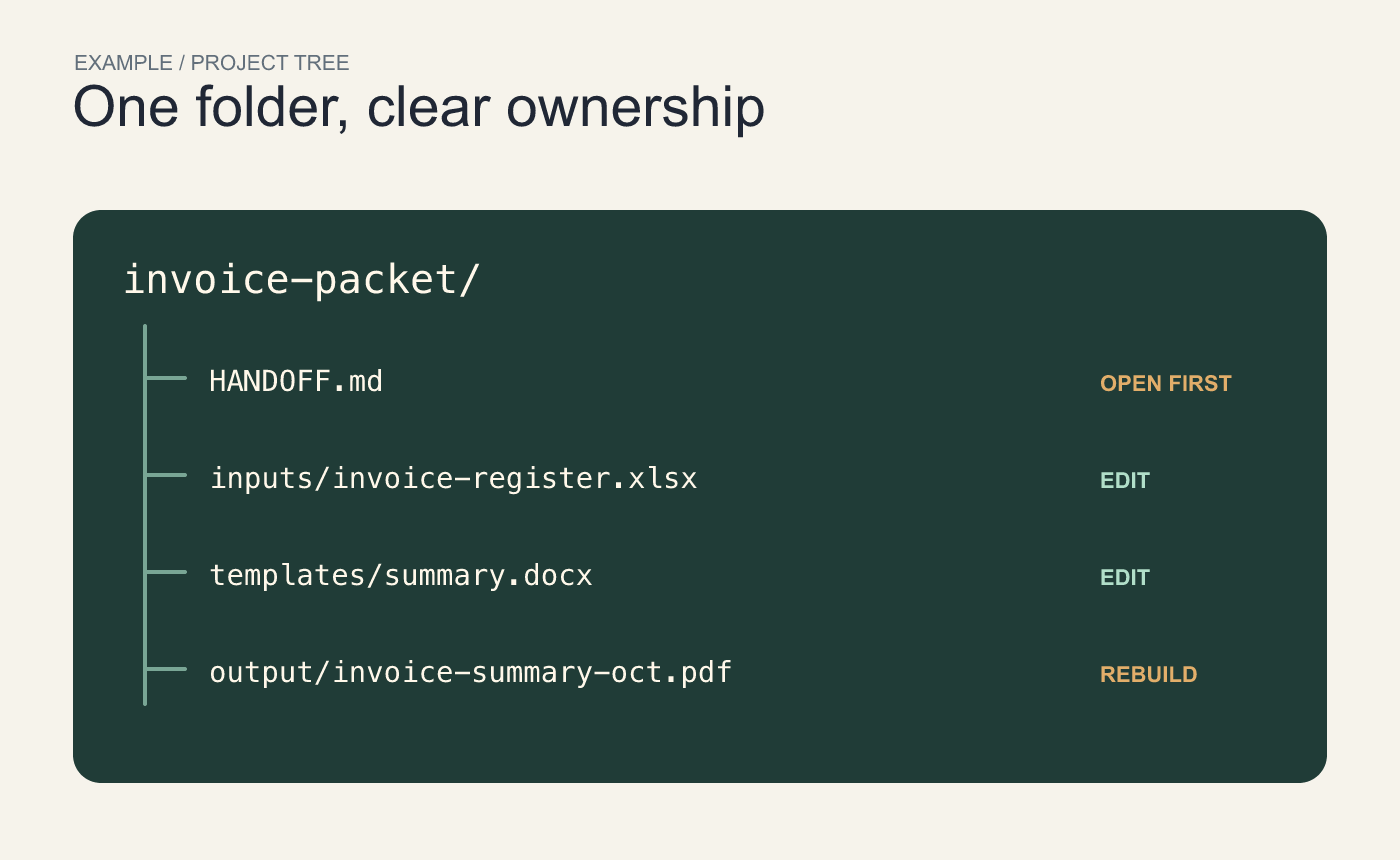
Example project tree. Inputs and generated output live in separate folders.
What the handoff note says
Monthly invoice packet, October. Update the register first. Use the October rows to update the counts in
templates/summary.docx. Export the reviewed summary tooutput/invoice-summary-oct.pdf. For this example, the finished PDF should say October and show 18 overdue invoices on page 1. If either differs, check the period and count in the workbook before sending.
If a manual transfer is involved, say so. “Update the counts” means someone must read the workbook and enter the values in the document. Readers need to know whether a figure updates on its own or needs their attention.
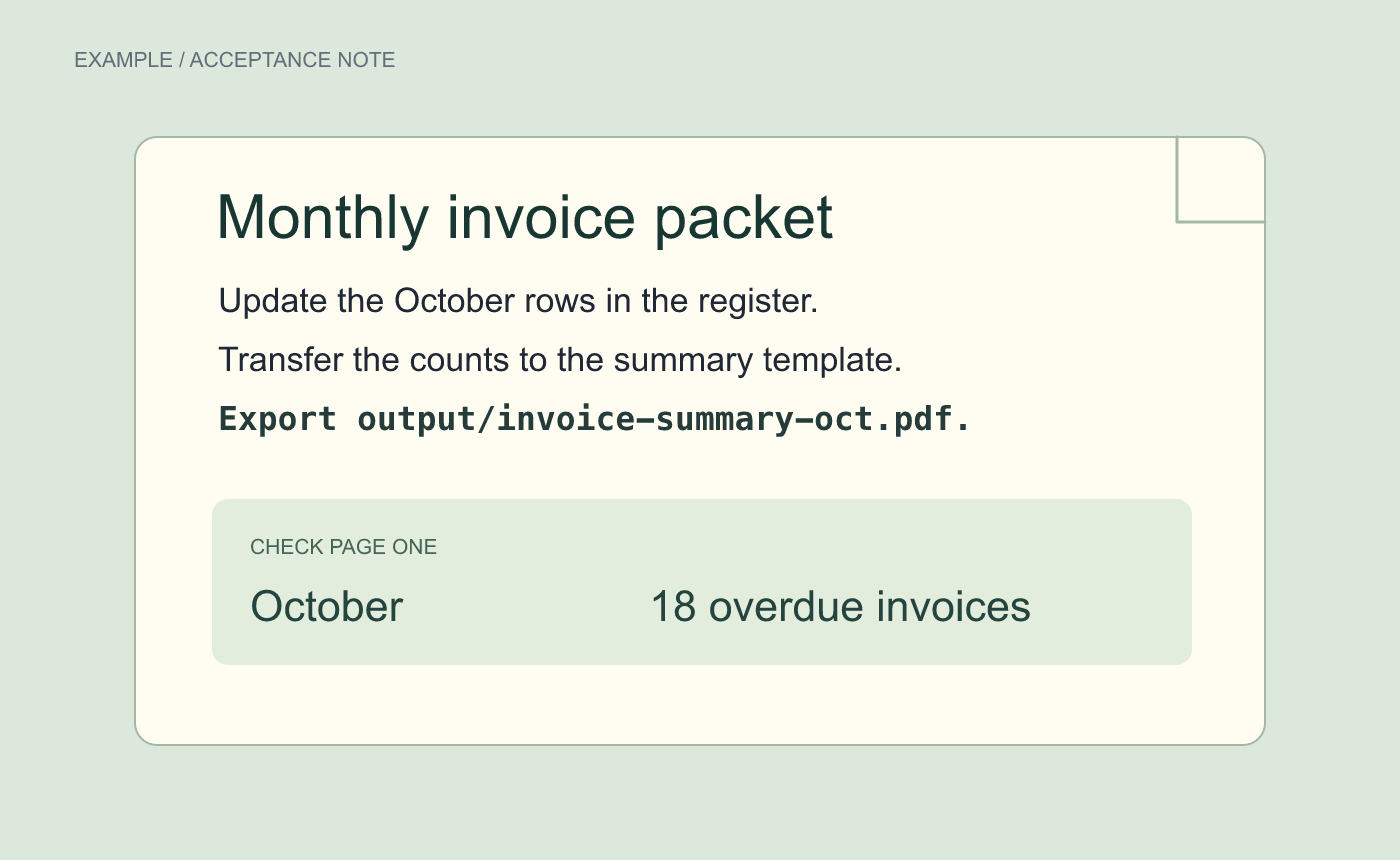
Example handoff note with the exact values a second editor can check.
Do the cold read
Hand the folder and note to a colleague, or reopen the packet yourself in a fresh window. Ask them to point to the editable source, locate the deliverable, and describe the check they would make. If they have to ask what “latest” means, put a date or revision in the note and match it to the file. An intentional exception belongs beside the instruction it changes.