
When a paragraph suddenly moves to the next page, check what changed near the break before changing the whole document. A manual break, blank paragraphs, different page settings or a table can all affect where the page ends.
Save a working copy first. Then inspect the last paragraph on the earlier page and the first item on the next one.
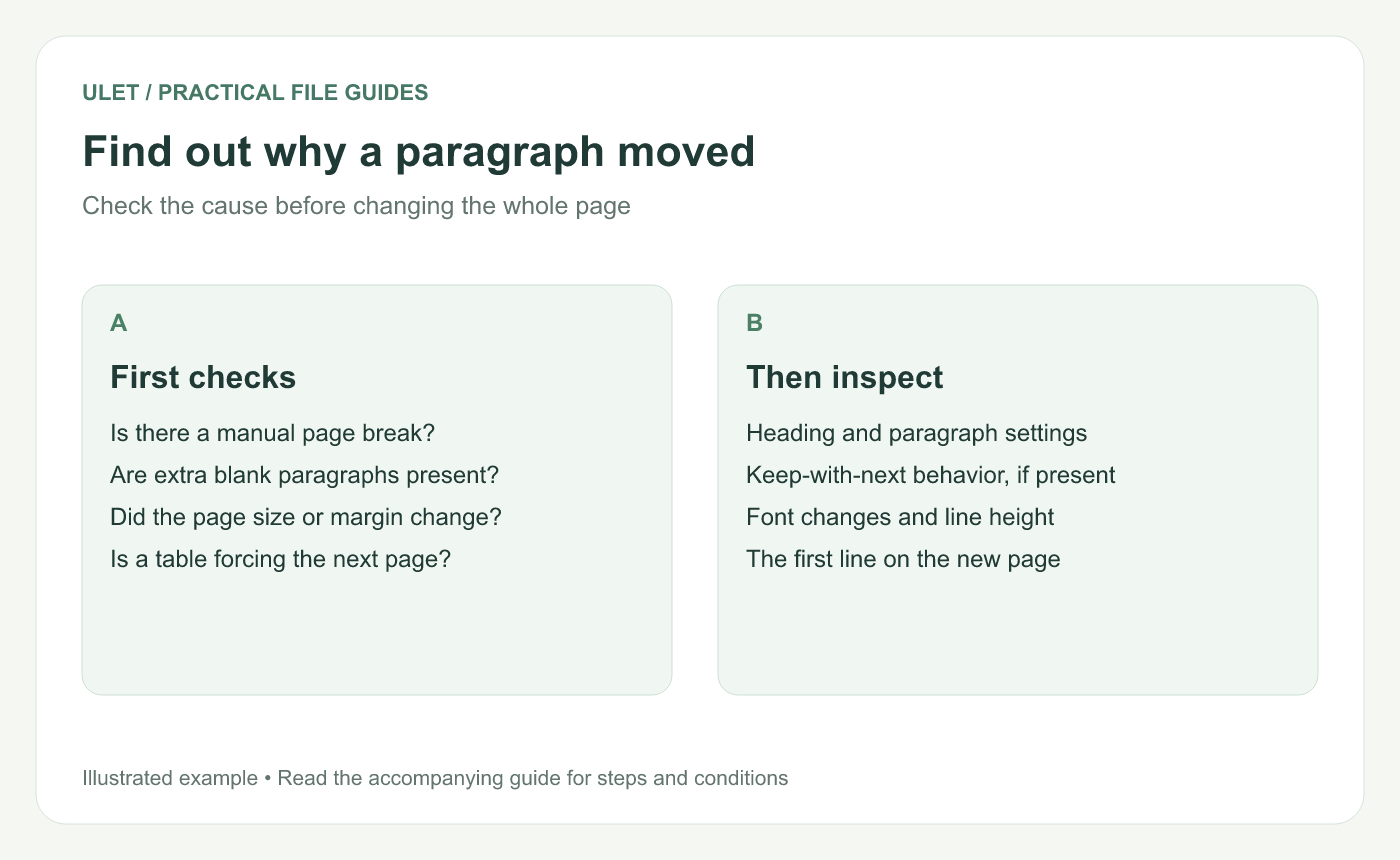
Start close to the break and change one cause at a time.
Look for a deliberate break
A manual page break tells the editor to begin a new page even if there is room left. If your editor can show formatting marks or break indicators, turn that view on and inspect the area.
A break before a new chapter may be intentional. Check the document's structure before removing it. Also keep an eye on section breaks in documents with different page layouts, since changing them can affect more than the nearby text.
Check empty paragraphs and spacing
Extra empty paragraphs can push the next heading away. Paragraph spacing can do the same job less visibly. Select the text around the break and compare its spacing with a section that looks right.
If the problem appeared after pasting text, the pasted paragraph may have brought different formatting. Apply the intended paragraph or heading style and check the result before making further changes.
Compare the page settings
Changing the page size, margins, font or font size changes how much content fits on a page. If you have a PDF reference or an earlier DOCX, compare the settings and the same passage in both copies.
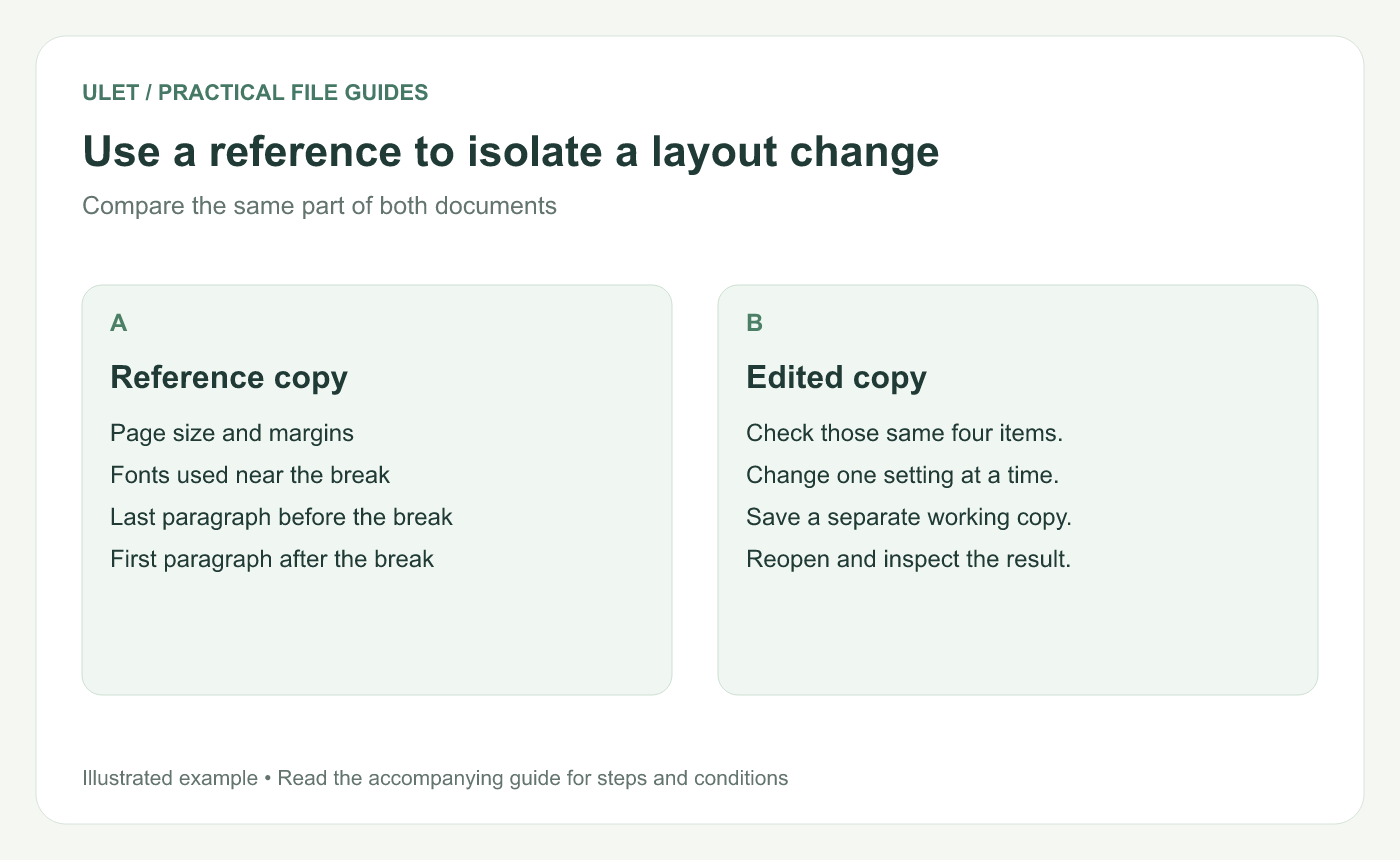
A reference helps distinguish a local paragraph issue from a wider layout change.
Check tables and headings
A table row may need more room than the remaining space allows. A heading may also be set to stay with the paragraph after it. Where those controls are available, inspect them before assuming that the empty area is an error.
For a wide or tall table, review cell contents, row height and the space around it. Try reducing unnecessary spacing in a working copy. Keep the text readable and check the table's meaning after each change.
A simple troubleshooting order
Save a separate working copy.
Inspect the text immediately before and after the break.
Check manual breaks and empty paragraphs.
Compare paragraph spacing and page settings.
Inspect nearby tables and heading behavior.
Save, reopen and review the edited pages.
If the file uses complex sections or layouts, the application that created it can be a useful reference for the intended behavior. Note the exact page and paragraph that differ so the person reviewing it can reproduce the issue.
Ulet can open and edit local DOCX files, making it useful for reviewing the text and page layout on Windows or macOS. Explore Ulet Document Editor.
If you need the file-opening steps first, see the guide to editing a DOCX without Word.


