
An editor opens a report but cannot save it back to Documents. Controlled folder access is one possibility. The quickest useful clue is a Windows Security event that matches the failed write.
Match the failed save with an event
Write down the save time, editor and destination. In Windows Security, open Protection history. Look around the time of the failure for a Controlled folder access block. Expand the event and compare its details with your notes. In the fictional example, the save and event are both at 14:32 and refer to the same editor and Documents location.
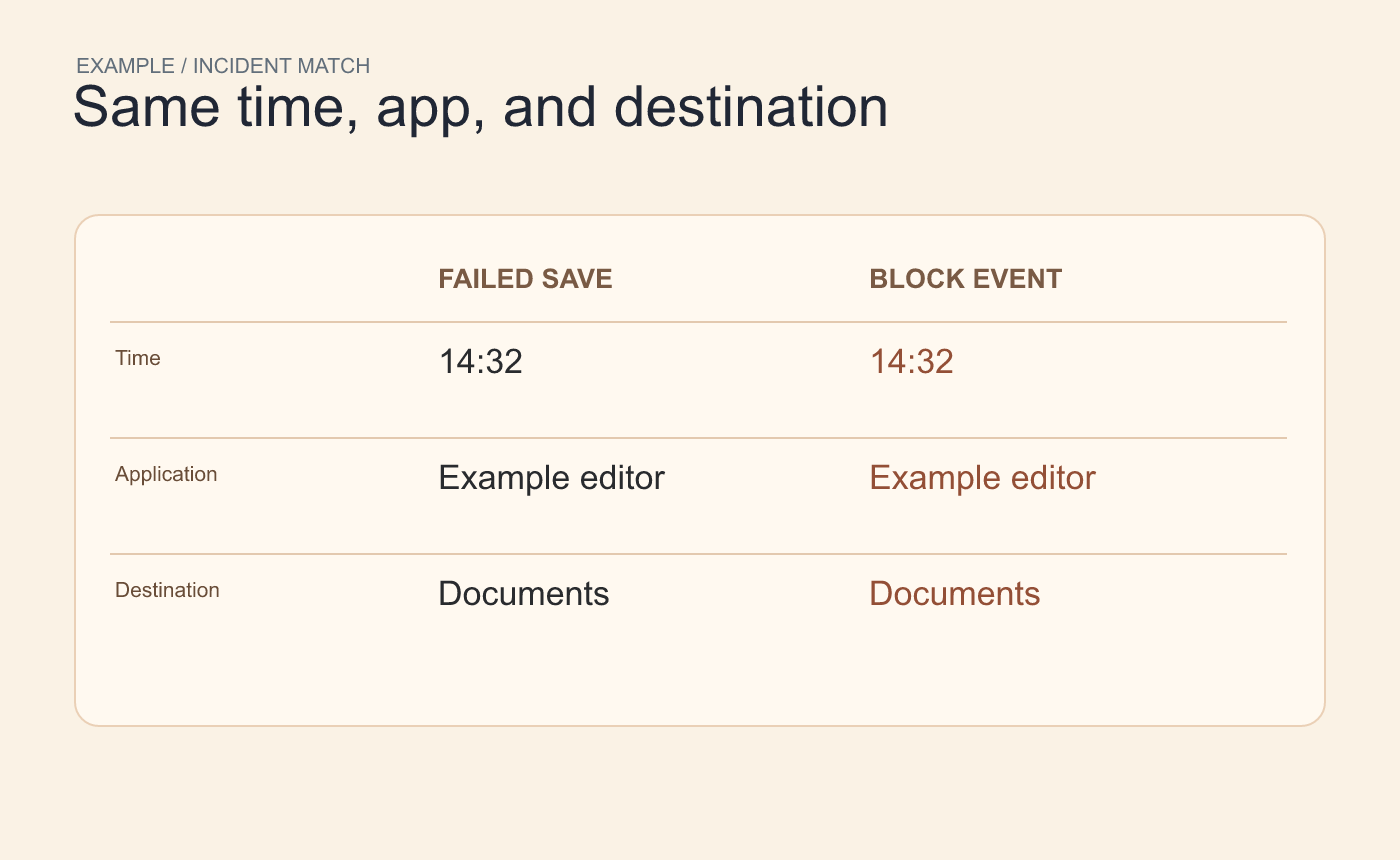
Example evidence match. The time, editor and destination all line up.
You can review the feature under Virus & threat protection → Manage ransomware protection. On a managed computer, the organization may control the setting. If you have a matching block for an editor you trust, share the event details with the administrator or follow the device’s approved process for allowing that app. Keep the protection enabled while investigating.
Use a test copy to narrow the cause
Try saving a separate, small copy to a local folder you are permitted to write to. If the copy saves there, reopen it and check one change. This tells you the editor can write in that location. If the original destination fails and Windows Security has no matching event, check whether the file is read-only, open elsewhere or stored in a restricted folder. Use the matching event, when present, to distinguish a security block from these other causes.
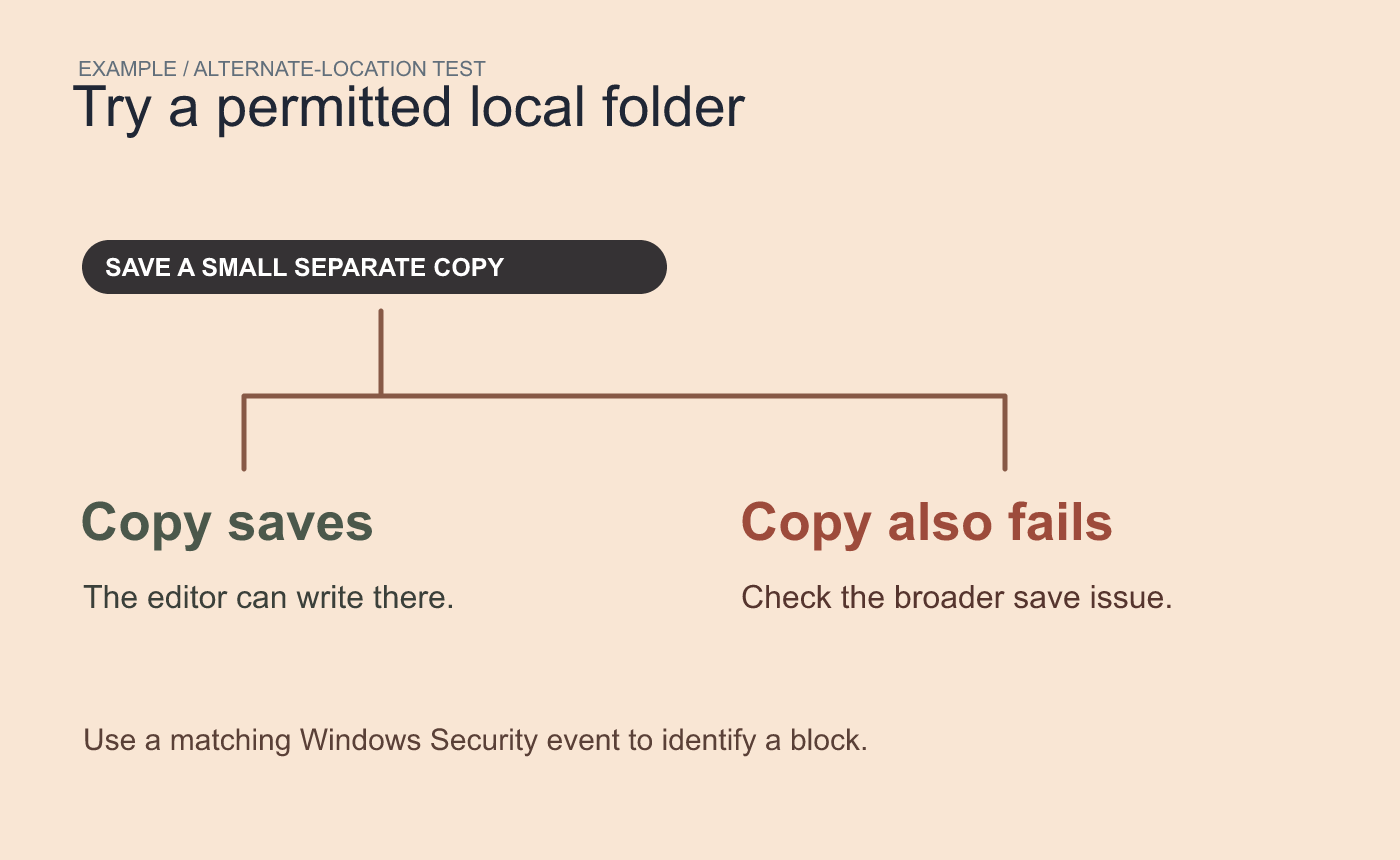
An alternate-location test helps narrow the issue. A matching security event identifies the specific block.
References Windows Security Protection history and Microsoft’s Controlled folder access overview.



