
Event staff should see “Workshop studio” in the venue dropdown. The booking system expects WS-02. Acrobat lets the PDF carry both values in the same choice.
Give each venue a label and a code
In Acrobat Pro, open All tools > Prepare a form, then open the dropdown’s properties. In Options, put Workshop studio in Item and WS-02 in Export Value. Select Add to store the pair. For the other choice, add Reception desk with RC-01. Read the saved choices back before closing the dialog.
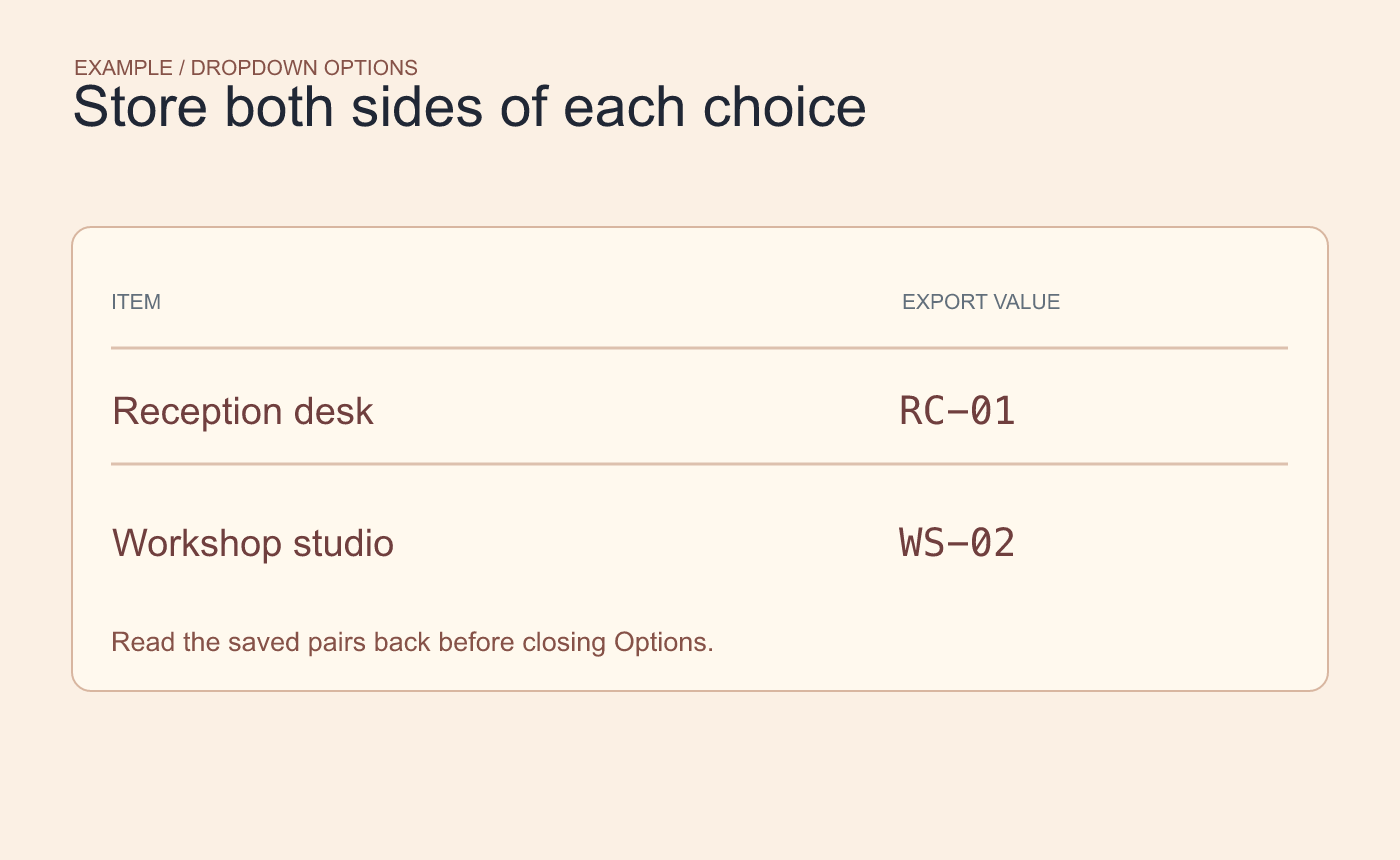
Example mapping. Give each saved choice a distinct code.
Check an exported response before sending the blank form
Save a test copy and select Workshop studio. Save the response. In Prepare a form, open the options menu and choose Export data. Select a format your receiving tool supports. Check the exported field named Venue in that tool and expect WS-02.
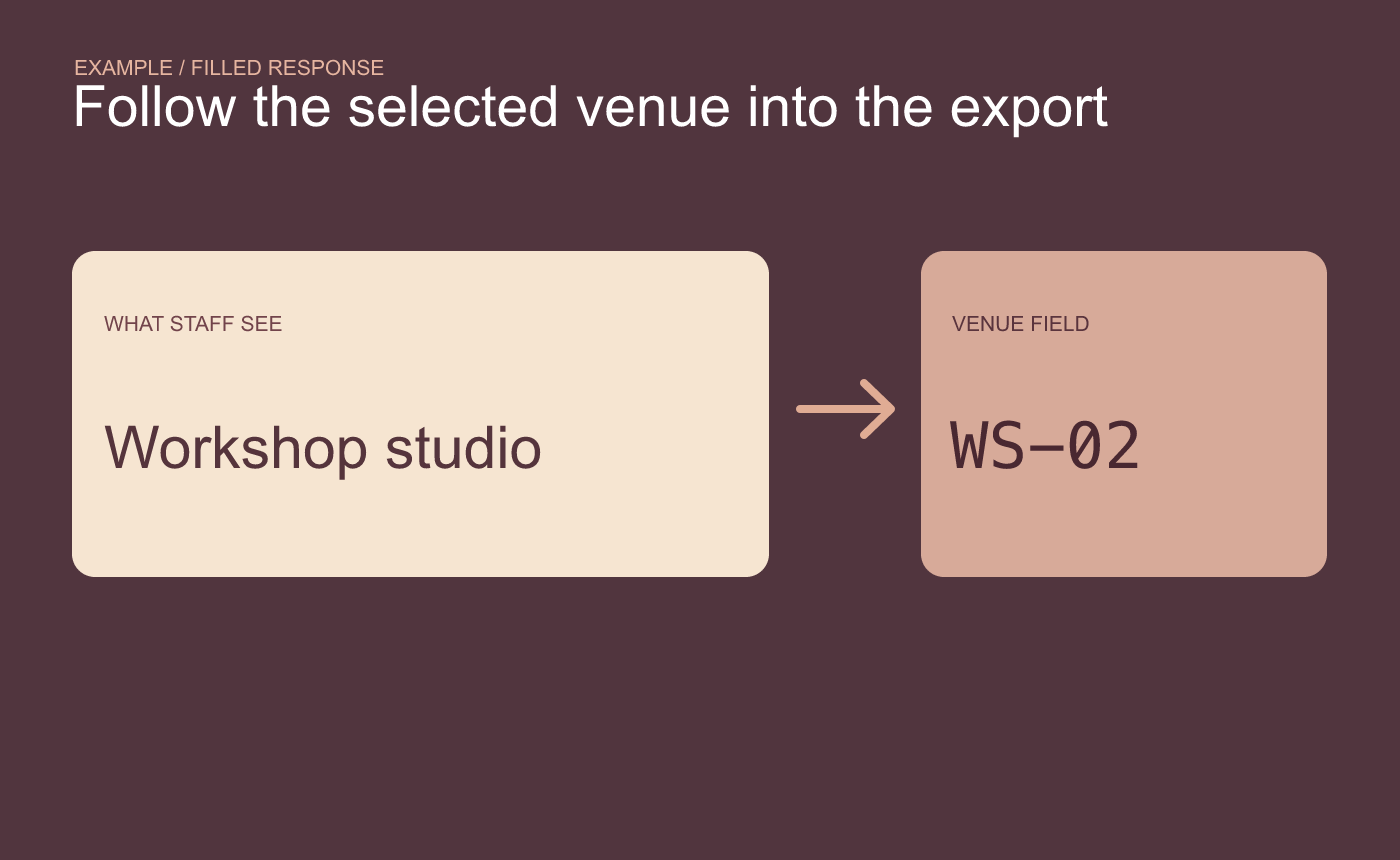
Example response check. Match the visible choice with the value in the exported data.
Repeat with Reception desk to catch a duplicate or swapped code. Keep the filled copy separate from the blank master. A later wording change can keep the same code if the choice still means the same thing to the receiving system.
Adobe’s dropdown field options and form data export instructions.



