
The returns form asks for a six-character locker code such as QF2048. A character limit catches an extra keystroke, and a visible example tells the person filling the form what belongs there.
Set the limit on the locker field
In Acrobat Pro, open Prepare a form, open the Locker code text field’s properties and select Options. Enable Limit of characters and enter 6. Put an example beside the field in the visible form so the instructions are available before anyone starts typing.
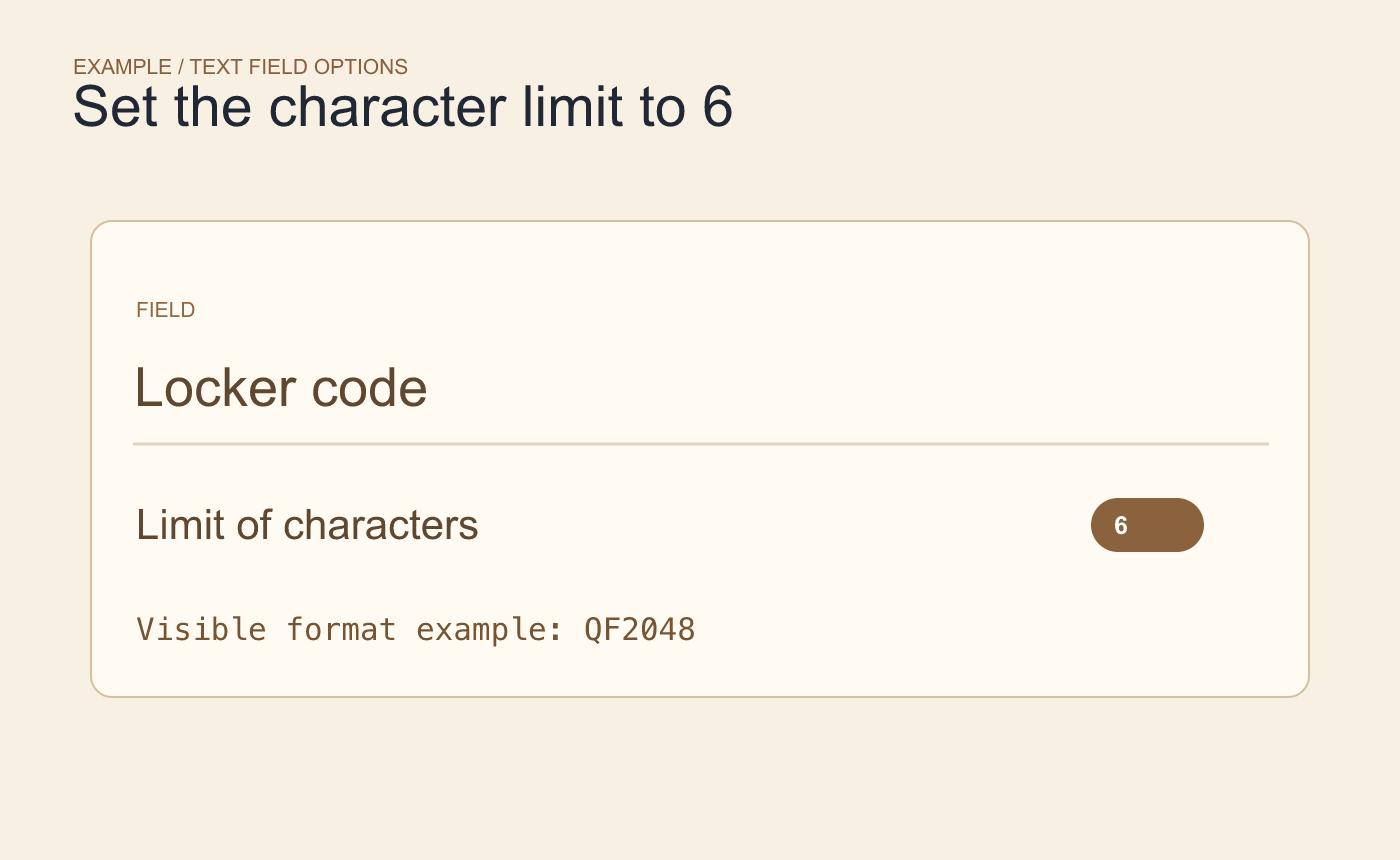
Example field setting. Put the format example next to the visible field label.
Type, paste, save and reopen
In a separate test copy, enter QF2048 and confirm all six characters fit. Then try typing and pasting QF20489. Check whether the viewer rejects or limits the input, and verify the stored value after saving and reopening the copy.
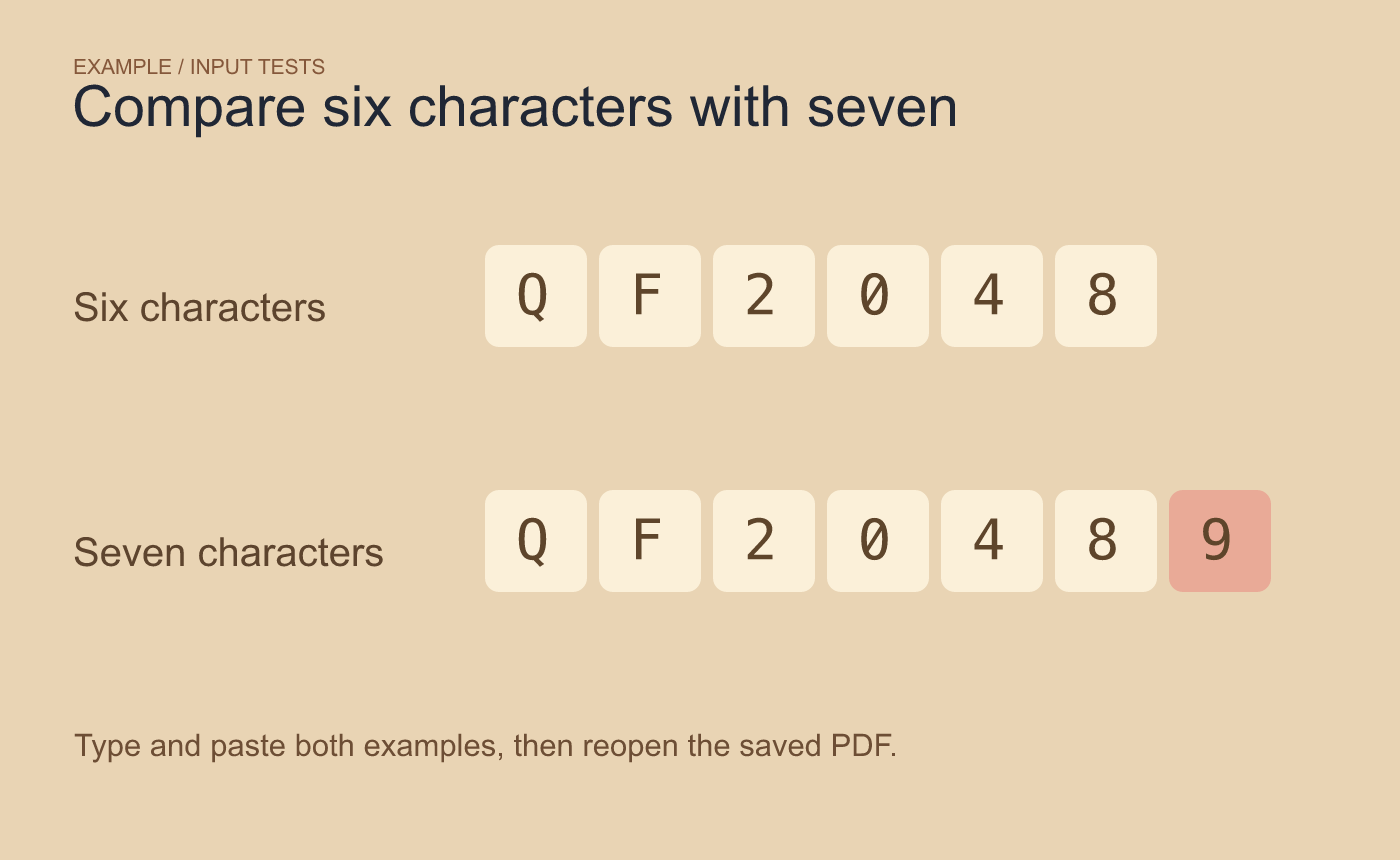
Example input tests. Check what is stored after typing and pasting the overlong version.
A maximum only controls length. If your locker system also requires exactly two letters followed by four digits, validate that pattern separately in the receiving workflow.



