
Someone reviewing the material list on paper spots “Walnutt.” Instead of writing “the typo beside the third finish,” they can point you to D8 if the proof prints its worksheet headings.
Open the relevant sheet in Ulet Sheets. Under Page Layout, find Sheet Options. In Headings, enable Print. The nearby View setting controls what appears on screen. The headings print setting adds worksheet coordinates alongside whatever labels are already in your cells.
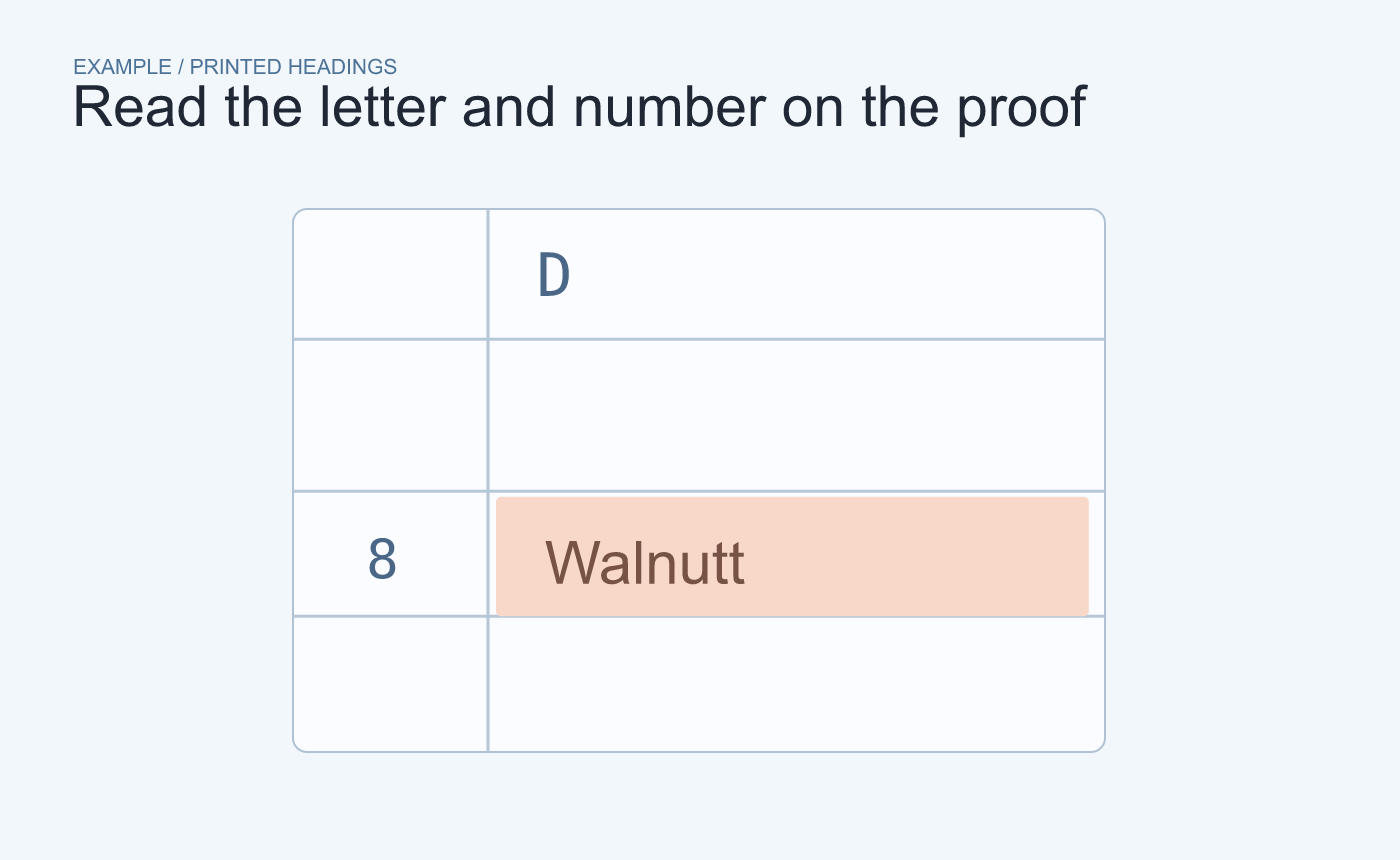
Example paper proof. Read the coordinates printed on this sheet.
Try the coordinate handoff once
Check the top and left edges of the print preview or PDF proof. Read the coordinate next to the typo in the example. Then open D8 in the workbook and confirm it contains the same word before correcting it. If you print a selected area, use the coordinates printed on that proof.
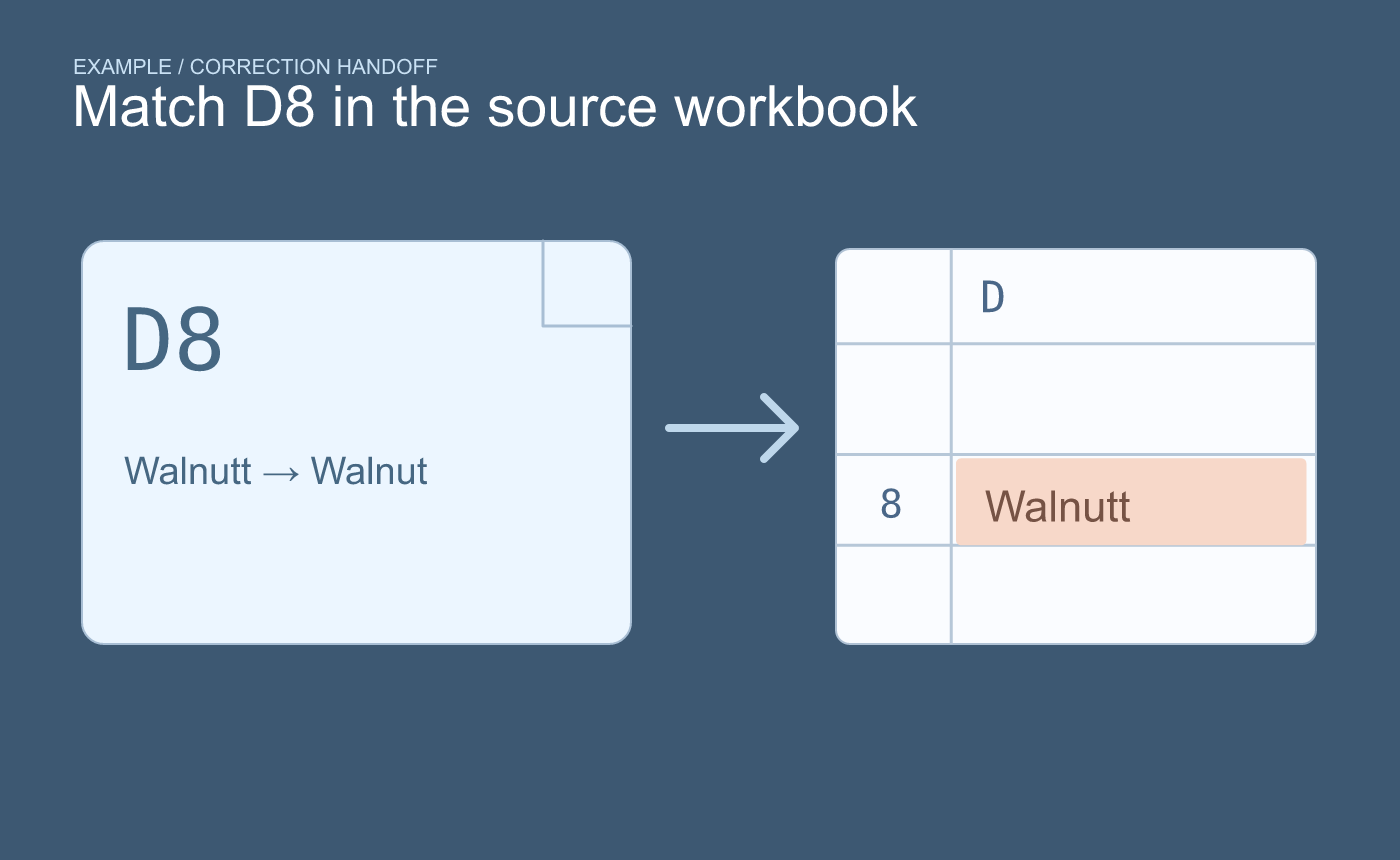
Example verification. Find the printed coordinate in the source workbook before making the edit.
When you produce the clean customer copy, turn off printed headings if the job does not need review coordinates. Preview it again to confirm the worksheet’s own column labels remain.



