
A workbook is moving to a new rate table. Some totals might still use the worksheet RateArchive. Search the formula text to find references that are hidden behind calculated numbers.
Search formulas from the workbook’s Find panel
In Ulet Sheets, choose Home → Find and set Look in to Formulas. Search for RateArchive. A cell displaying 64 may be a result if its underlying formula is =SUM(RateArchive!B2:B4).
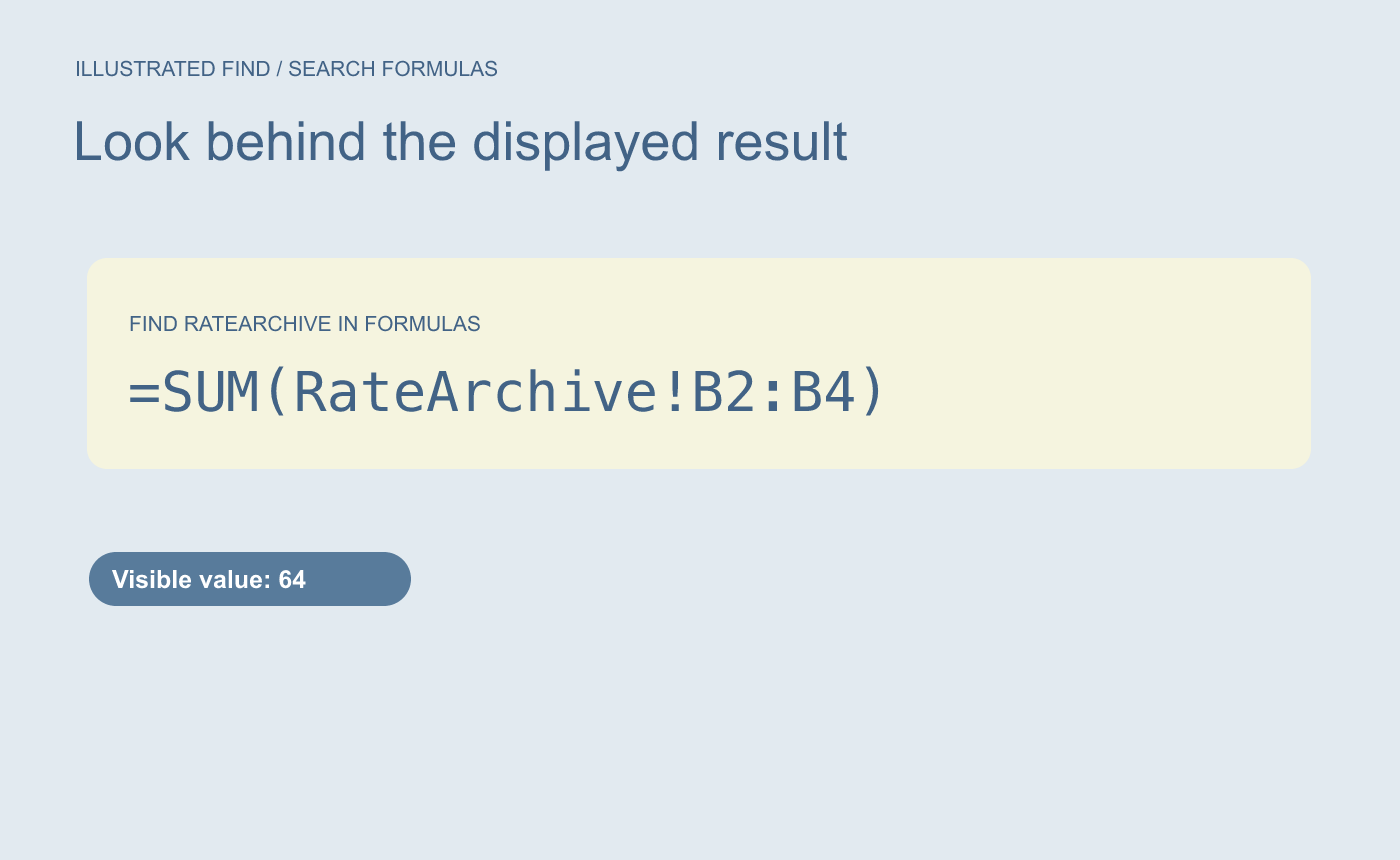
Illustrated search target. Choose formula text when the cell only displays a number.
Open each match before deciding what to change
Use the result’s sheet and cell address. In the example, inspect Summary C5 and Plan D8 in the formula bar. Historical calculations may still need the archive rate. If the search reports partial results, inspect other relevant sheets before deciding you have all the references.
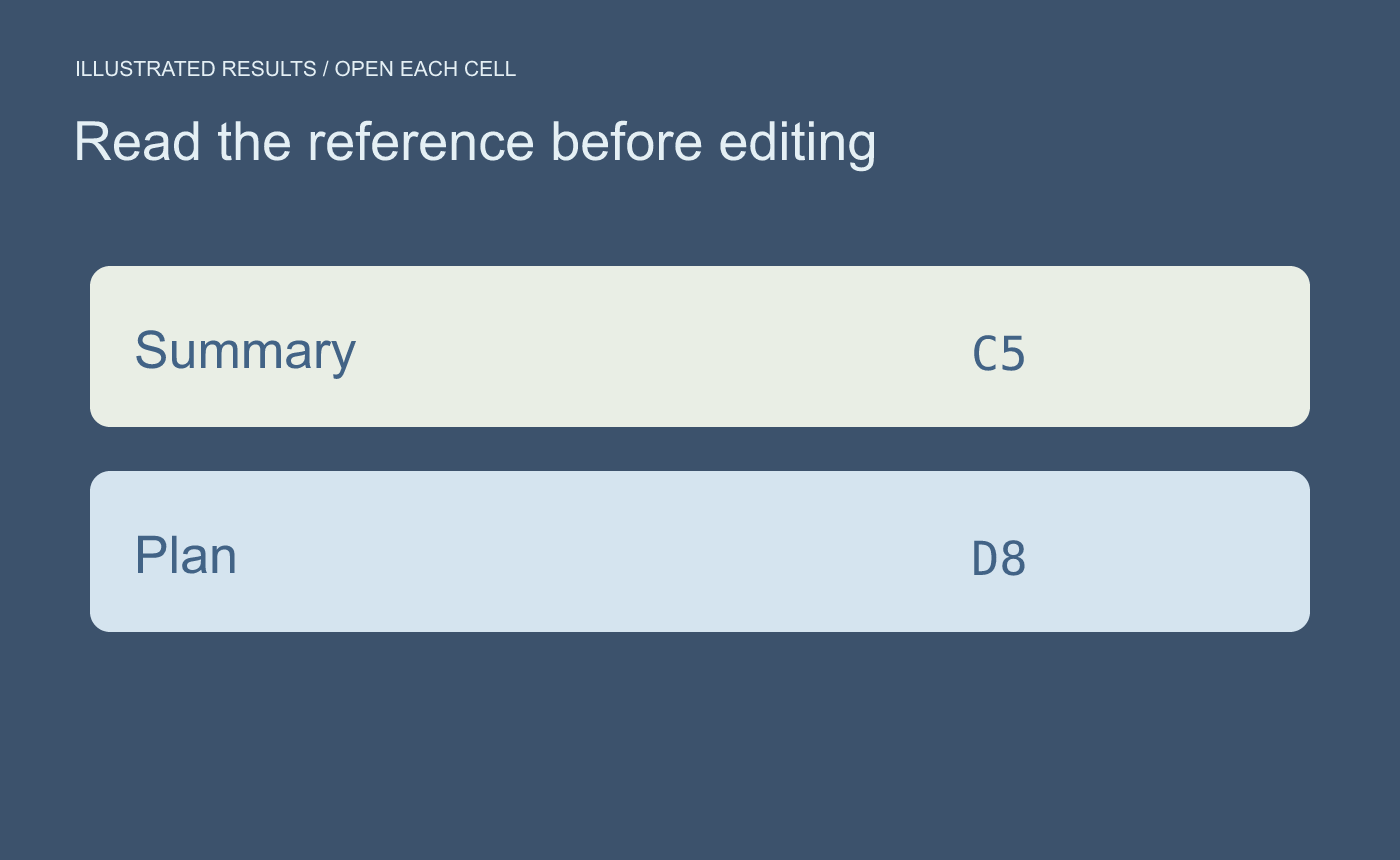
Illustrated result list. Confirm whether each reference is intentional.
After a deliberate change, search again and test one calculation against the rate you expect it to use.



