
Finder shows two files as “Workshop roster.” One is the editable document and one is the print PDF. Make the editable copy’s extension visible so you can select it reliably.
Identify the DOCX in Get Info
Select one candidate in Finder and press Command+I. Expand Name & Extension and read the existing suffix. Check the other file if this one ends in .pdf.
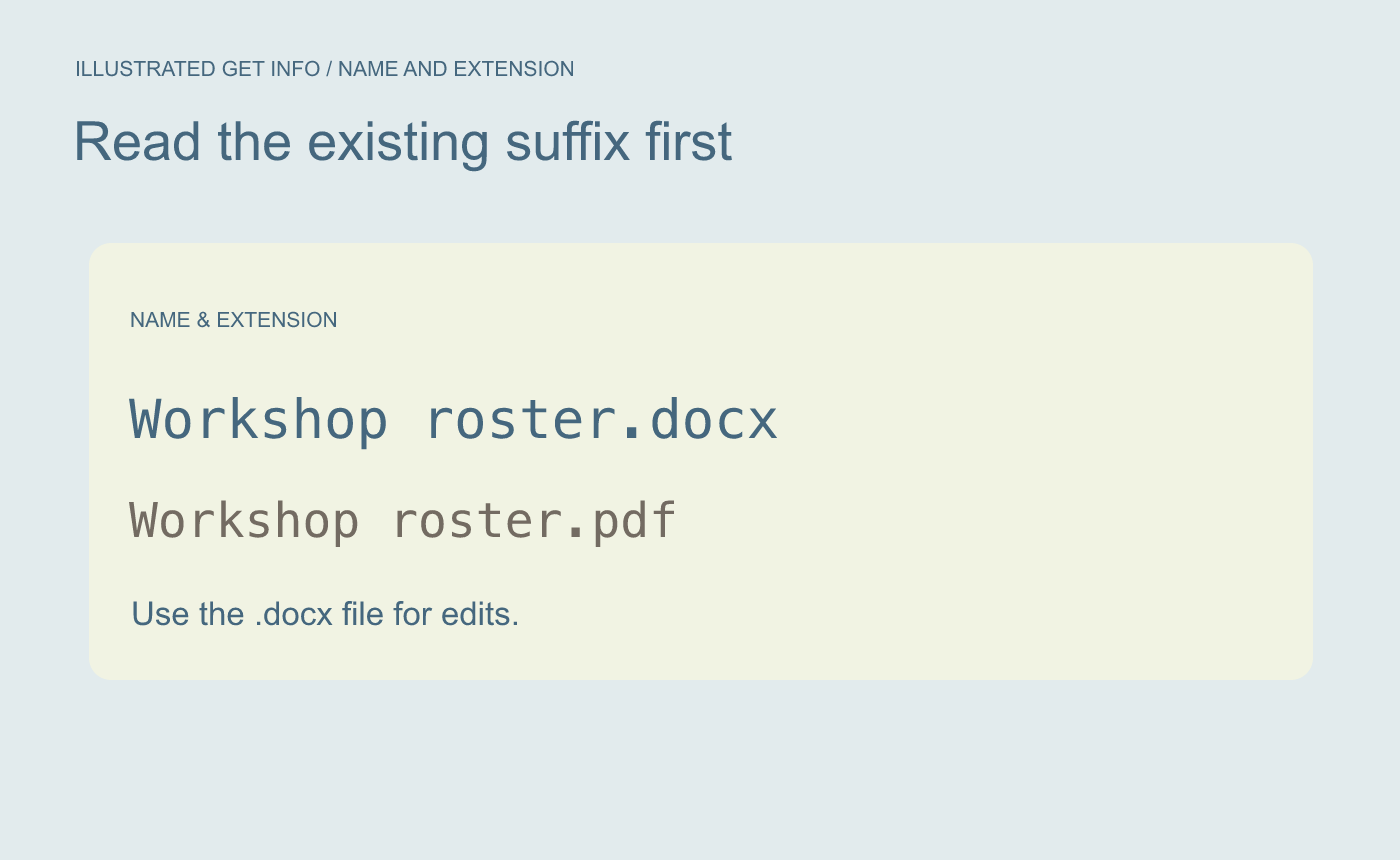
Illustrated selection. Inspect the existing extension before changing what Finder shows.
Show the extension on this file
On the DOCX, clear Hide extension. Close Get Info and verify Finder now shows Workshop roster.docx. Open the intended copy. The checkbox changes the displayed name and keeps the file type intact.
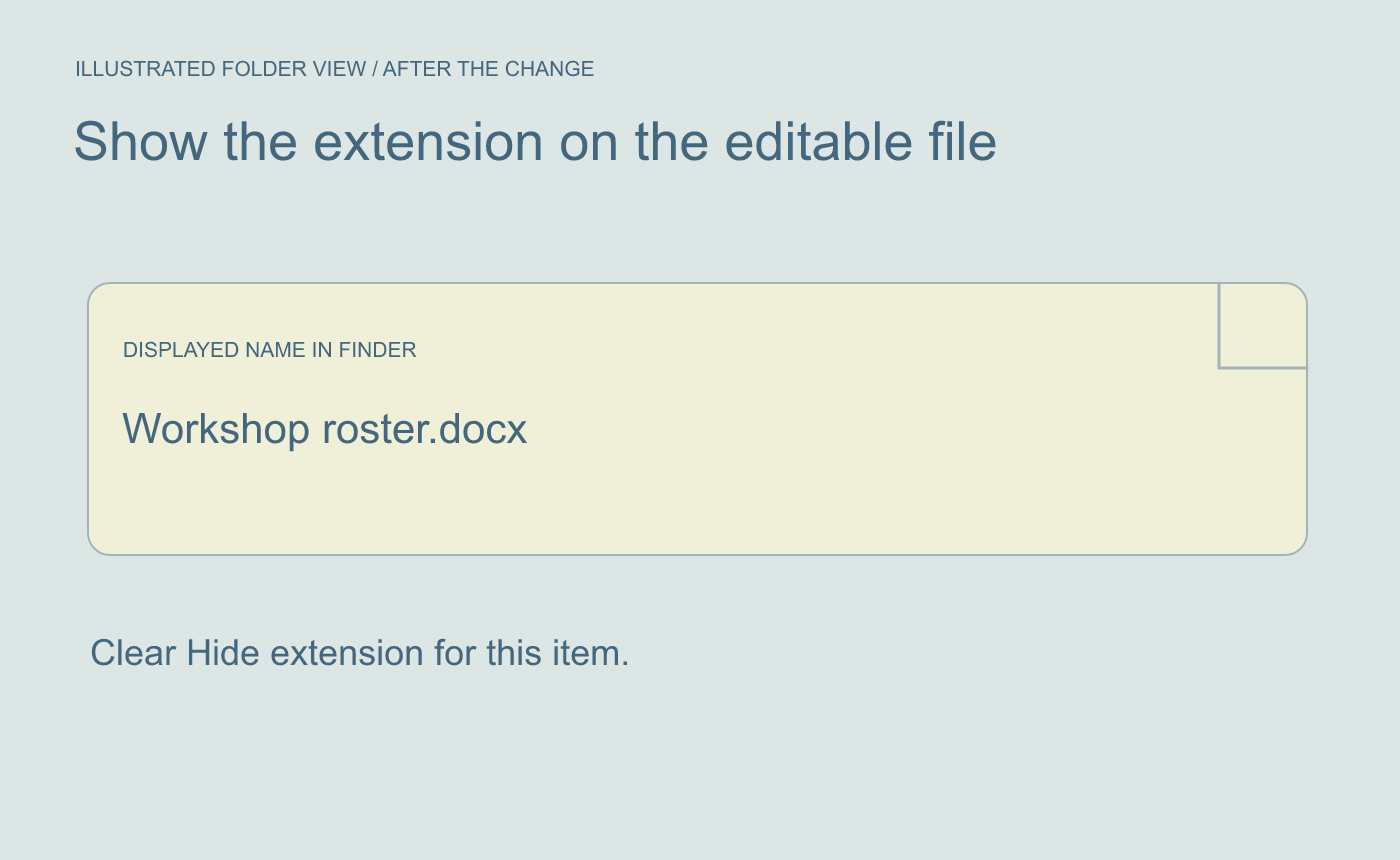
Illustrated result. Open the intended file and check the extension in Get Info.
If Finder already shows all extensions, its global setting takes precedence. Leave that setting in place if you want all suffixes visible.



