
Two exported PNGs both look like page 2 of the handout. The current page says “Side desk,” while the old image says “Main counter.” Read the image before attaching it.
Preview the locally generated image
Open the export folder in File Explorer and press Alt+P to toggle the Preview pane. Select handout-02.png and look for “Side desk.” If the preview is unavailable or too small, open the local image in your viewer and zoom to the changed line.
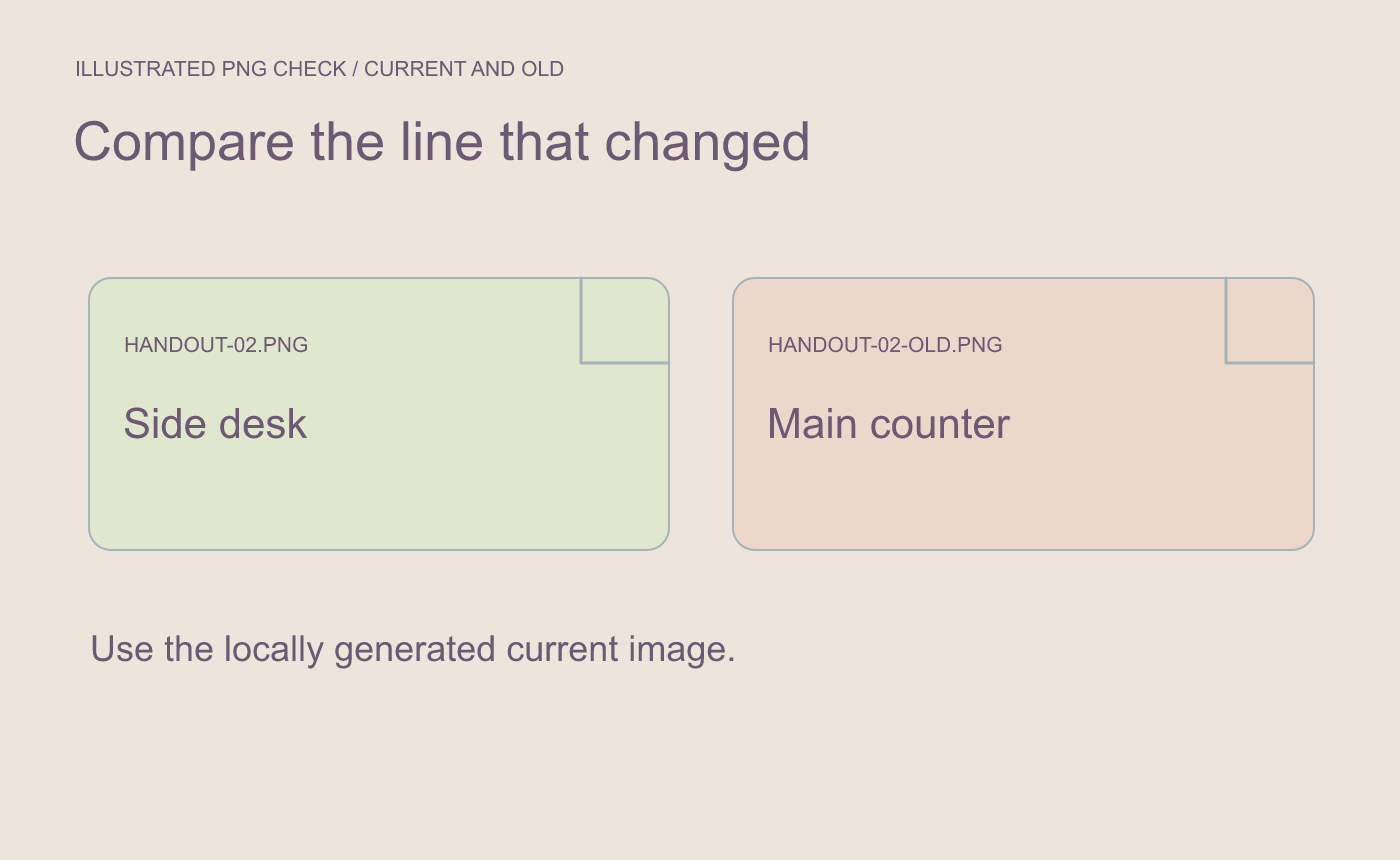
Illustrated revision check. Read the line that changed in the locally generated image.
Check the full set and the attachment names
Read pages 01, 02 and 03 in order. Confirm that the current page 02 appears once. When adding the images to the attachment field, compare the complete file names and leave handout-02-old.png out.
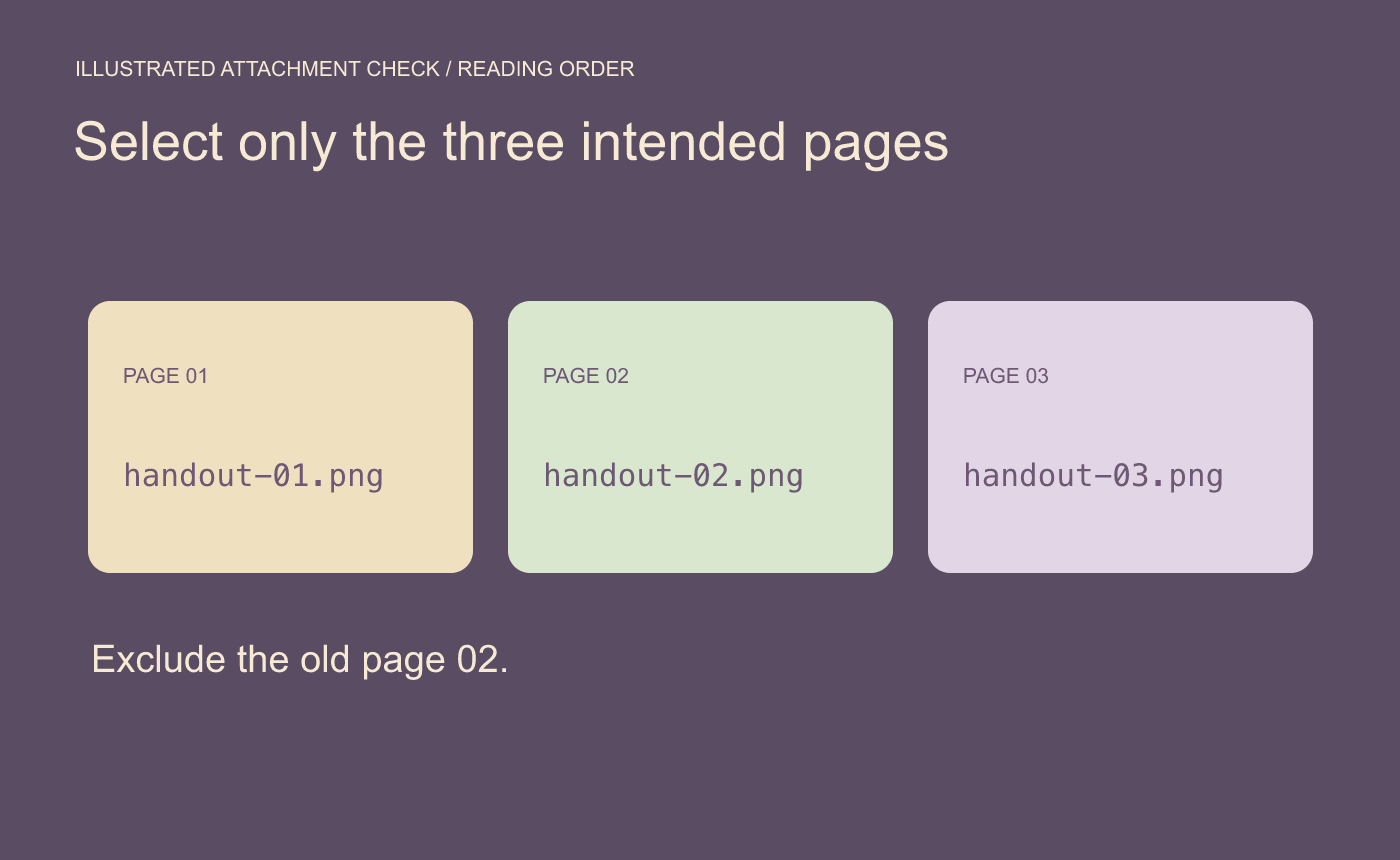
Illustrated attachment check. Match the full filenames to the intended page set.
Open the attached copy when your sending tool allows it. Check that it shows the same location as the local proof.



