
Write alt text around the information the image contributes to the document. Explain the relevant subject, action or relationship, rather than describing every visible detail.
For an illustrative process diagram, “Three stages: collect the data, check the totals, then share the summary” gives more meaning than “Diagram.”
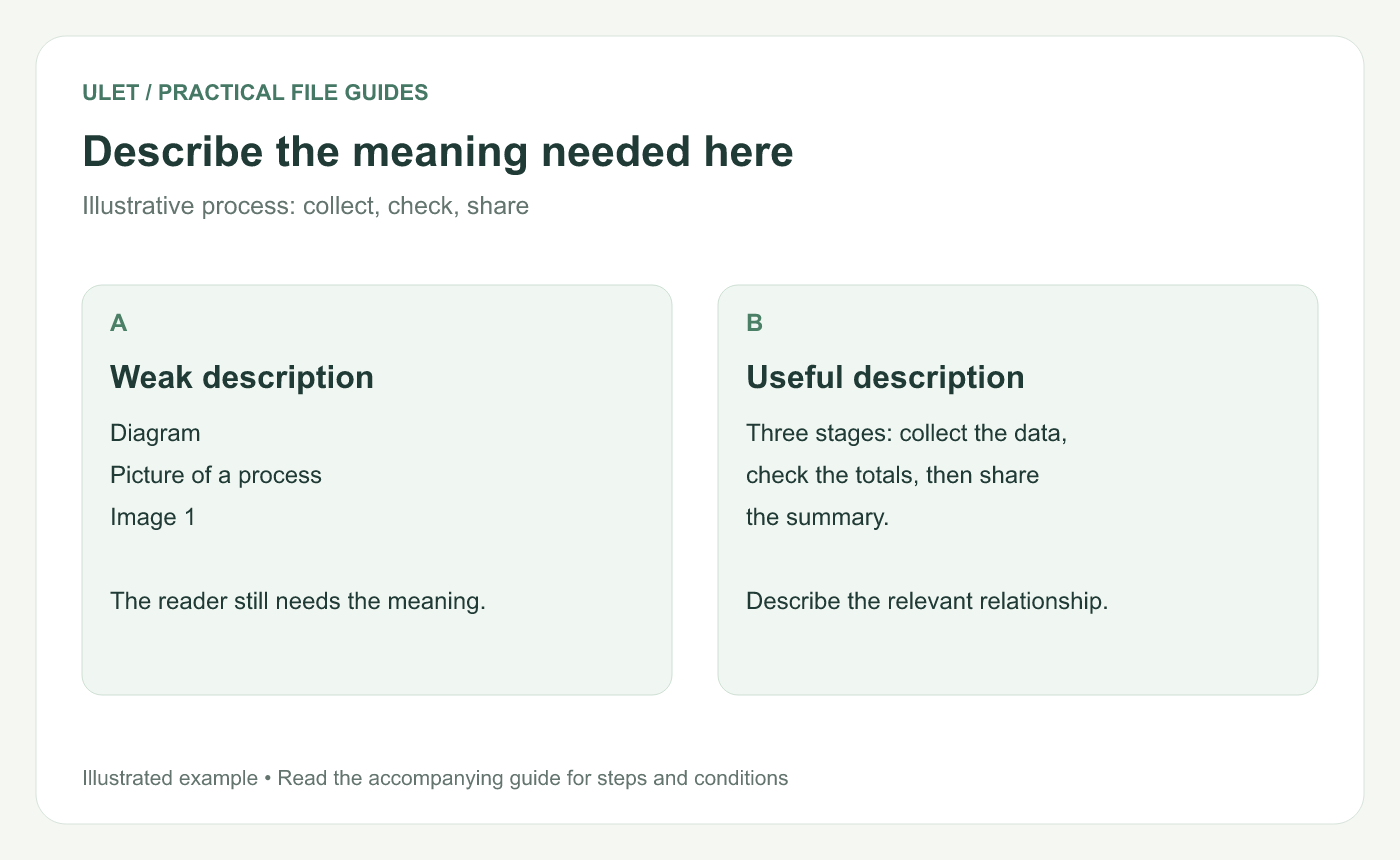
Describe the meaning needed here. Original instructional illustration; fictional examples are not software screenshots or measured product results.
Identify the image's role
Ask what the reader would miss without the image. A photo can identify an object, an arrow diagram can show sequence and a chart can communicate a comparison.
W3C's image decision tree distinguishes informative, functional, decorative and complex images. It is written for the web; its purpose-based questions are useful when drafting descriptions for office documents too. W3C image-description decision tree.
Make the description specific to the context
Image purpose | Description focus |
|---|---|
Process | The stages and their relationship |
Important object | The identifying feature relevant to the passage |
Functional graphic | The action or destination it represents |
Complex chart | The main point, with detailed values or explanation nearby |
Do not infer facts the picture does not establish. If a diagram is illustrative, retain that context instead of making it sound like a captured product state.
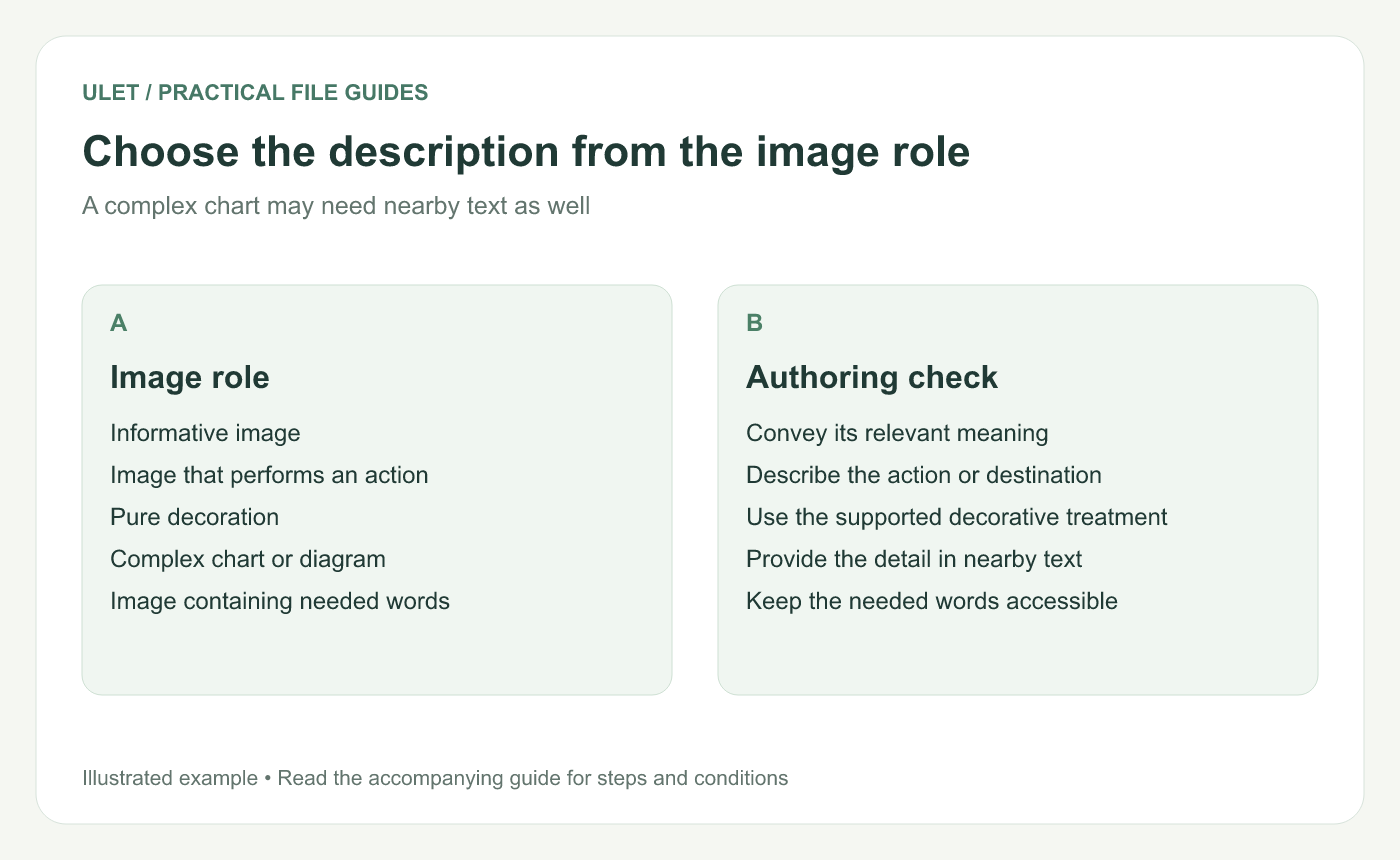
Choose the description from the image role. Original instructional illustration; fictional examples are not software screenshots or measured product results.
Keep complex information in readable text
A short description cannot carry a large table of values comfortably. Put the essential detail in nearby prose or a properly structured table and explain how it relates to the visual.
Do not rely on alt text alone to communicate a qualification that every reader needs. Keep that qualification with the visible explanation as well.
Apply and inspect the document description
In Ulet's current Check Accessibility workflow, a missing-image-description issue can offer an Alternative text field and a repair action. Enter the intended description and inspect the corresponding image after applying the available repair.
Decorative treatment depends on the document tool and output. Use the supported mechanism for that format rather than assuming an empty input implements the same behavior as an empty web alt attribute.
Check the delivered format
Save the DOCX and inspect the relevant image description in the receiving workflow. Review an exported PDF separately; an automated check alone does not establish the complete reading experience.
Ulet keeps local document work on Windows and macOS, with free basic editing. Keep an image-description list with the project when several outputs need consistent wording.


