
Merge adjacent DOCX table cells only when the combined area represents a meaningful group. After merging, inspect the text and the rows beneath it. When splitting a merged cell, check the resulting grid and place the content deliberately.
Keep a working copy before changing table structure. The cell boundaries and the words inside them need separate checks.
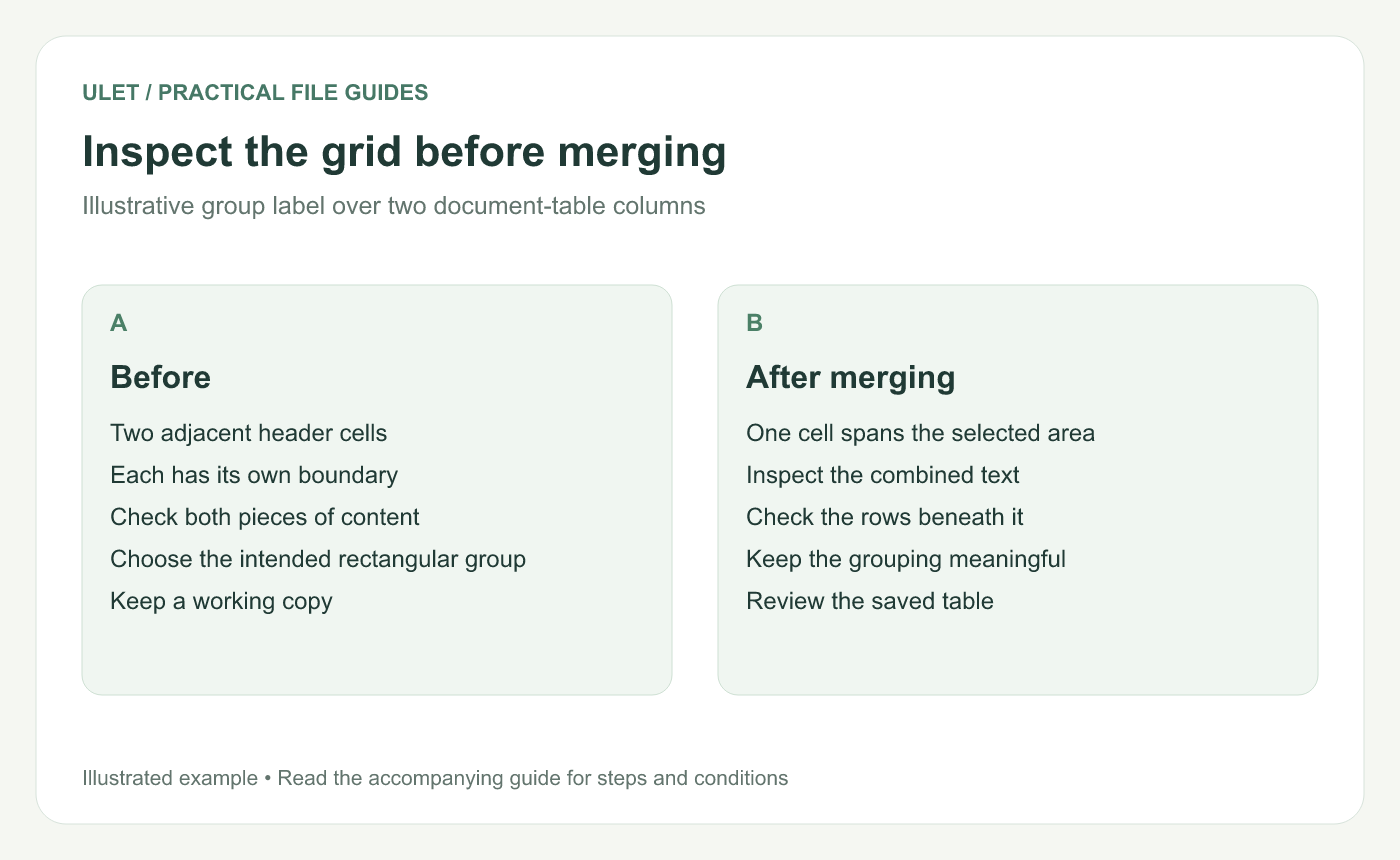
Inspect the grid before merging. Original instructional illustration; fictional examples are not software screenshots or measured product results.
Select the cells you actually want to combine
For an illustrative example, two adjacent header cells may need one shared group label. Select the intended adjacent cells rather than only highlighting some text inside one cell.
Microsoft's table guidance explains merging adjacent cells and splitting cells in Word. Available split options differ between editors, so use the actual controls offered by the application. Table-cell operation reference.
Merge and inspect the result
Open the DOCX table in Ulet.
Select the adjacent cells that form the intended group.
Use Merge Cells from the available table or context controls.
Read the combined cell's complete text.
Check alignment, wrapping and the meaning of the rows below it.
If the command is unavailable, inspect whether the actual cell selection is suitable. Do not assume selecting words creates a multi-cell selection.
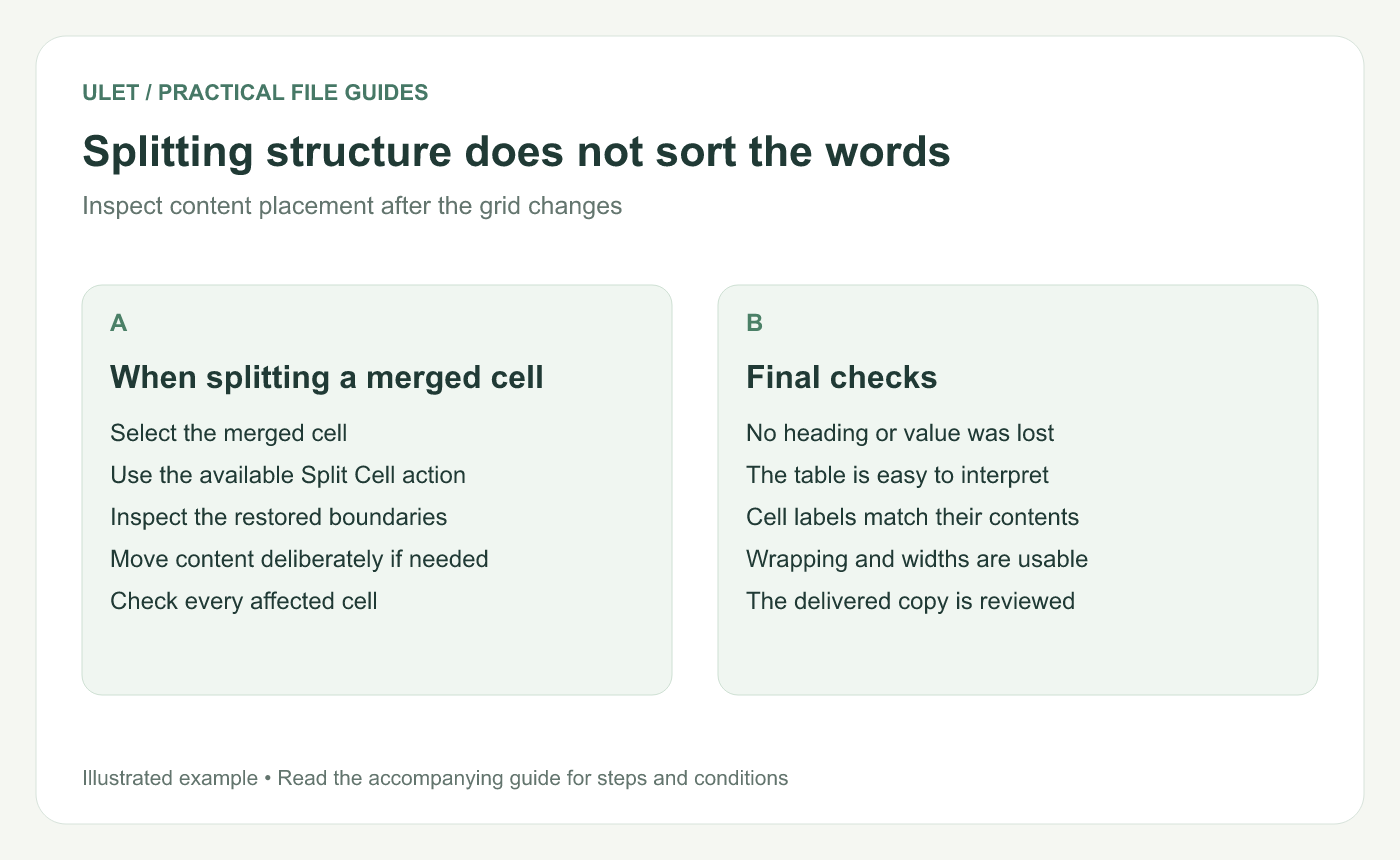
Splitting structure does not sort the words. Original instructional illustration; fictional examples are not software screenshots or measured product results.
Split a merged cell when the grid is needed
Select the merged cell and use the available Split Cell action. In Ulet's current table controls, this operation is tied to the selected merged structure.
Inspect the resulting boundaries. Do not assume a split will automatically divide the words into the intended new cells. Move or rewrite content where necessary and check each affected label.
Keep the structure understandable
A simple data table is usually easier to interpret when each row follows the same column pattern. Use a spanning group label only when it clarifies that pattern.
Repeated merges can make it hard to tell which heading belongs to a value. If the structure becomes difficult to explain, consider a separate caption or a simpler table instead.
Review the saved table
Save and reopen the DOCX. Check the first affected row, the last affected row and any page boundary inside a long table. Compare cell values with the original copy.
Ulet supports local document editing on Windows and macOS with free basic tools. Verify the structural edit before making additional width or styling changes that could hide its effect.


