
Use PDF page labels when front matter, body pages and appendices have different numbering. Define the physical page where each sequence starts, choose its numbering style and check the resulting labels in the saved copy.
Page labels affect digital page navigation. They do not add printed page numbers to the page artwork or change the order of the pages.
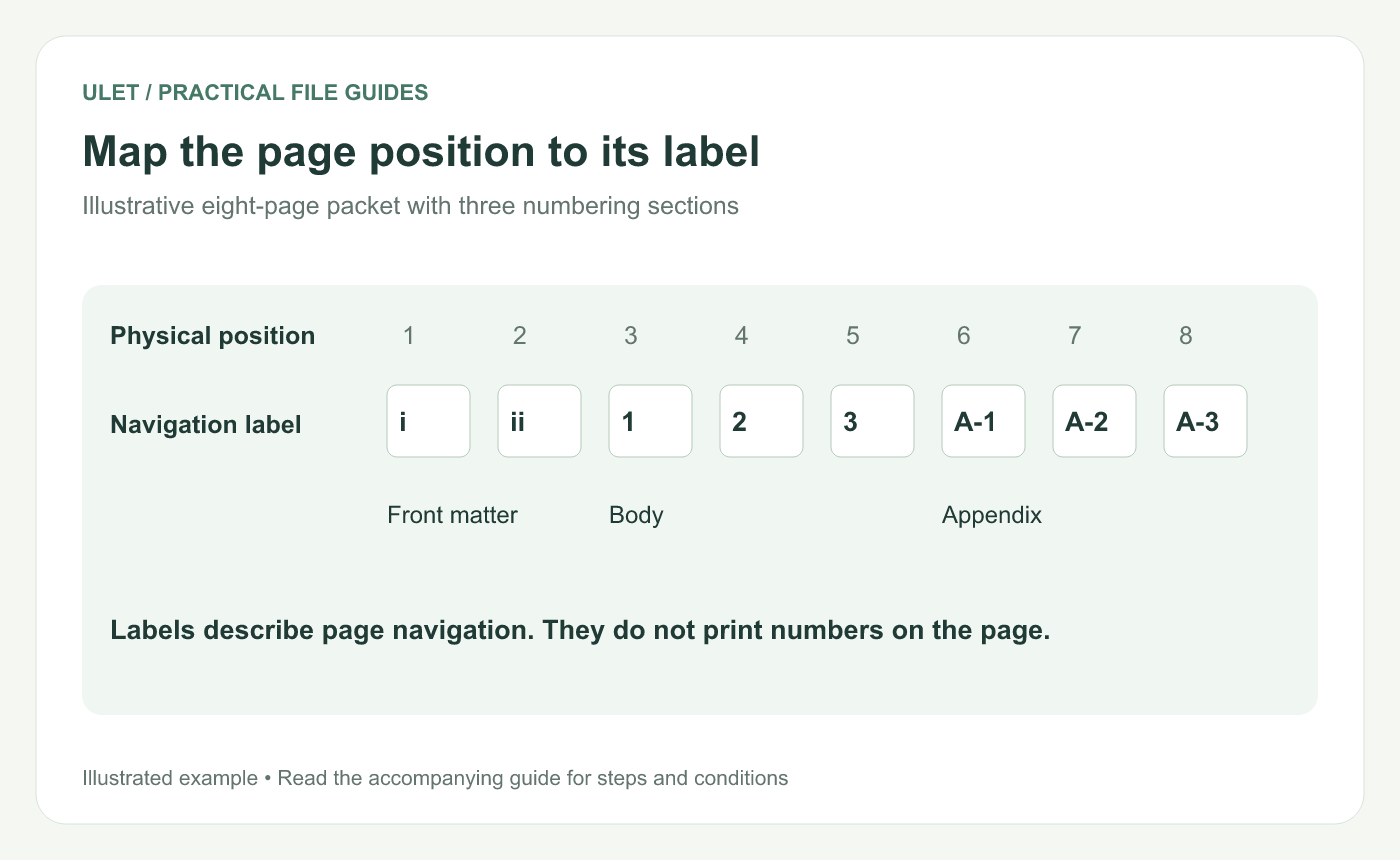
Map the page position to its label. Original instructional illustration; example text and diagrams are not software screenshots.
Make the position-to-label map first
For an illustrative eight-page packet, positions 1–2 are front matter, positions 3–5 are the body and positions 6–8 are an appendix.
Physical positions | Intended labels | Section setting |
|---|---|---|
1–2 | i, ii | Lowercase Roman, starting at 1 |
3–5 | 1, 2, 3 | Decimal, starting at 1 |
6–8 | A-1, A-2, A-3 | Decimal, prefix A-, starting at 1 |
A reader who asks for A-2 means physical position 7 in this example. Keeping both concepts clear helps avoid sending someone to the wrong page.
Set the sections in the page-label editor
Open the PDF in Ulet and open its Page labels controls.
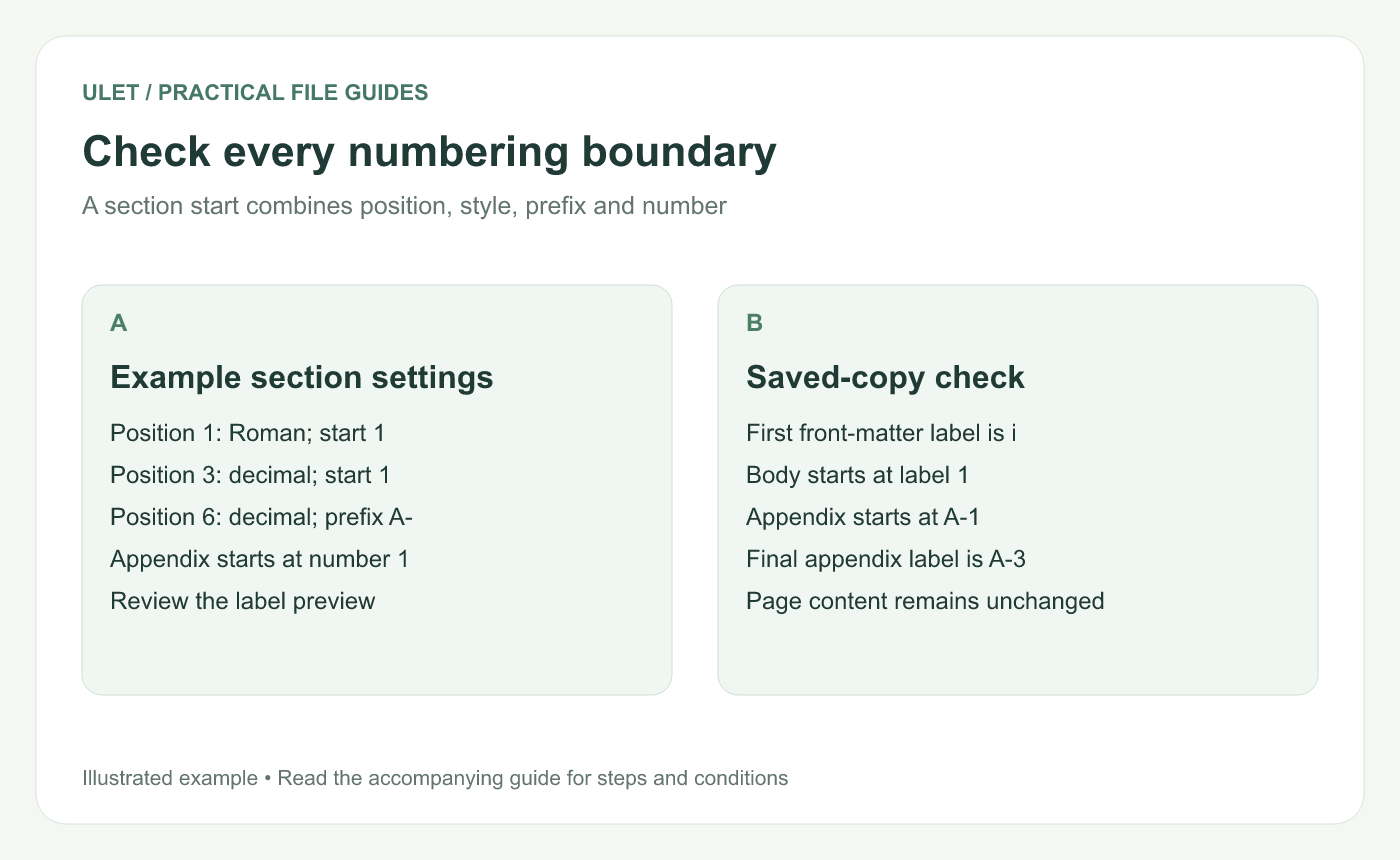
Add a section at physical page 1 with lowercase Roman numbering.
Add a section at physical page 3 with decimal numbering starting at 1.
Add a section at physical page 6 with decimal numbering, prefix A- and start number 1.
Review the label preview and use Save copy.
Ulet's current page-label controls distinguish physical start page, numbering style, prefix and start number. Use the preview to check the exact range before saving.
Check every numbering boundary. Original instructional illustration; example text and diagrams are not software screenshots.
Check the section boundaries
Open the saved copy and inspect the labels before and after each transition: ii to 1, then 3 to A-1. Check the final label A-3 too.
Confirm that the labels describe the correct content. A perfectly formatted appendix prefix is still wrong if its sequence begins on the last body page.
Keep printed numbers and references consistent
Adobe's page-label documentation also distinguishes navigation labels from visible numbers added with headers or footers. Page-label explanation.
If the printed page numbers or contents entries disagree, resolve that in the maintained document or with the appropriate editing tools. Labels alone will not rewrite them.
Recheck the map after inserting or removing pages. Ulet keeps this local PDF work on Windows and macOS alongside your source files, so the saved copy and its numbering plan can remain easy to compare.



