
Before printing a PDF, check the destination printer, paper, page range, scale and one- or two-sided setting. Print a representative page first and inspect the physical result before running the full job.
The PDF may look correct on screen while the print settings crop an edge, shrink important text or turn the reverse side upside down.
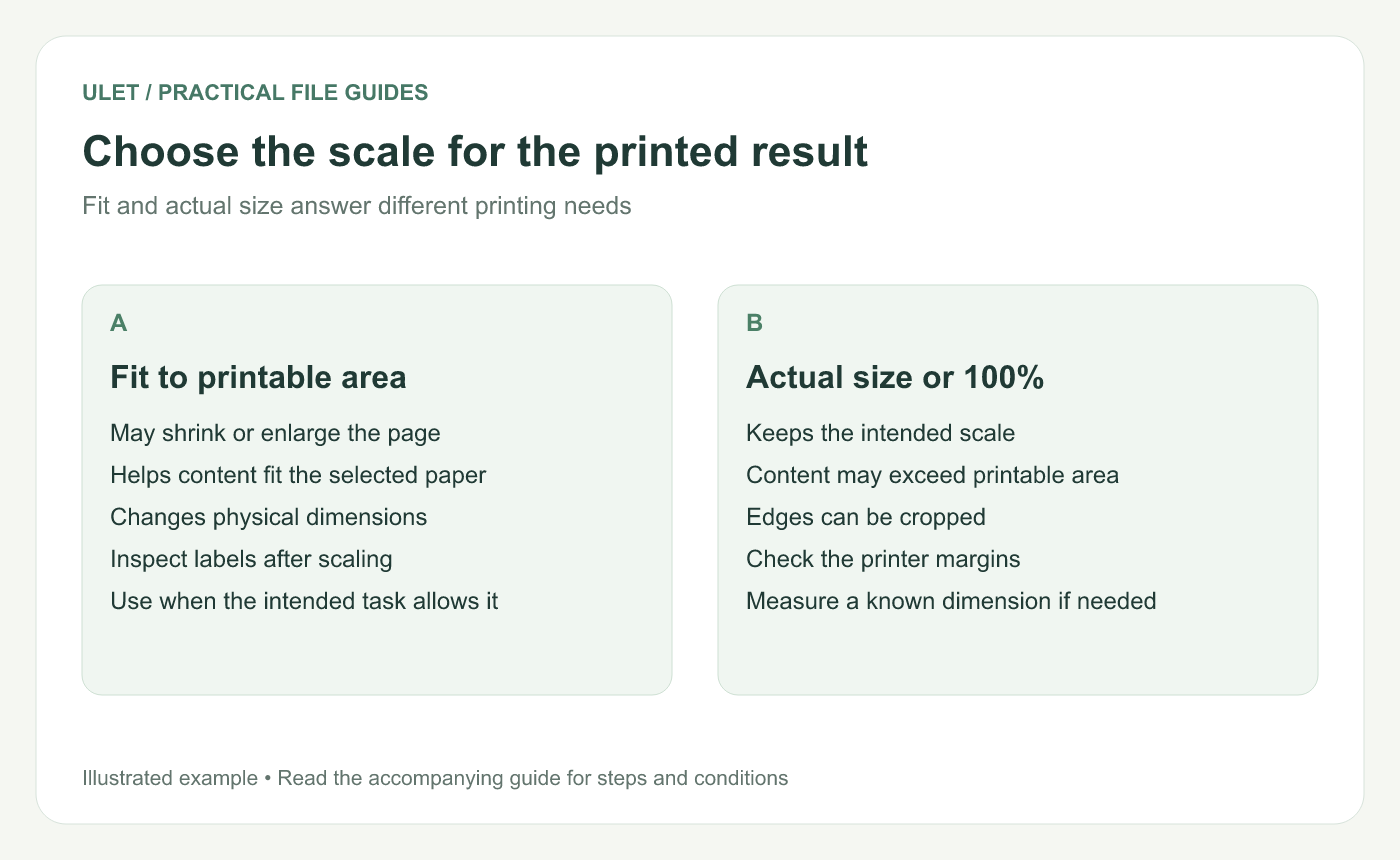
Choose the scale for the printed result. Original instructional illustration; sample records and layouts are examples, not software screenshots.
Match the job to the paper
Confirm the paper size actually loaded in the printer. Check whether the document contains a mixture of portrait, landscape or differently sized pages.
Choose the output you need: a readable office copy, a packet for duplex printing or a page whose physical dimensions must be retained. Those goals can require different settings.
Choose scaling deliberately
In Acrobat, Fit changes the page size to fit the printable area; Actual size prints without scaling and can crop content that does not fit. Adobe also describes custom scaling and shrinking only oversized pages. PDF print scaling guide.
Use the equivalent controls available in your printing application and system dialog. Do not assume every viewer uses identical labels or offers every option.
If physical size matters, check a known dimension on the test print. Screen zoom is not a measurement of the printed output.
Review the range and duplex direction
Select the intended pages and inspect the preview where available. Check whether the dialog refers to document positions or printed page labels before entering a range.
For two-sided output, choose the flip direction appropriate to the page orientation and binding. Test a two-page sample and turn it as the reader will. That exposes an upside-down reverse side before the whole packet is printed.
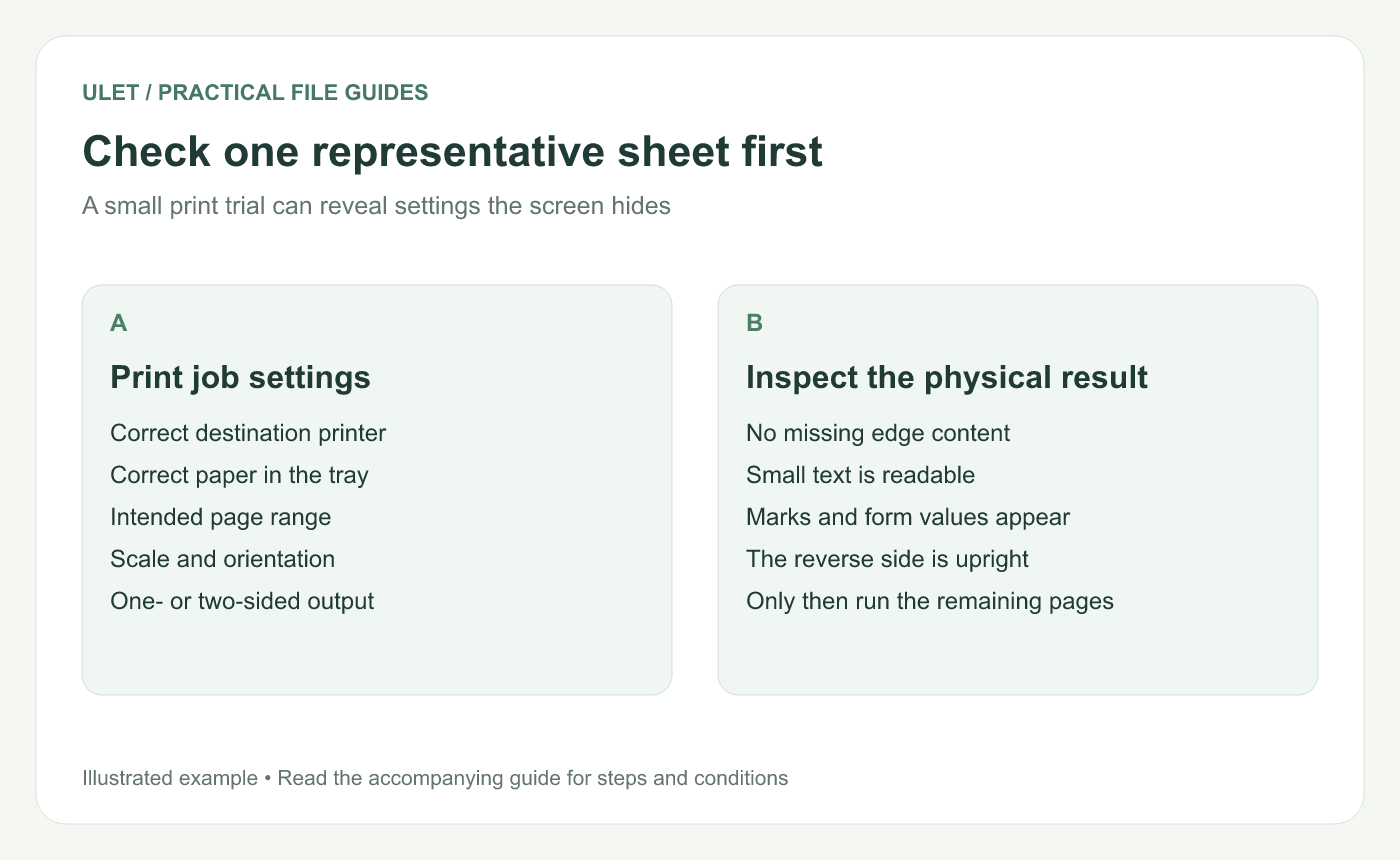
Check one representative sheet first. Original instructional illustration; sample records and layouts are examples, not software screenshots.
Inspect a representative trial
Feature in the PDF | Physical check |
|---|---|
Small labels | Readable after scaling |
Edge content | No unintended clipping |
Form entries or review marks | The required information actually appears |
Landscape page | Orientation and reverse side are usable |
Comments shown in a viewer are not a promise about printed output. Check the actual required marks and entries on paper.
Save the checked source before the final run
In Ulet, save the intended local PDF and use its Print command to open the printing workflow. Available choices depend on the system and printer. Keep the reviewed settings with the job if it will be repeated.
Ulet provides local PDF work on Windows and macOS with free basic editing. Confirm the file version and remaining page range before printing the rest of the packet.



