
A sales summary starts with a definition: what amount are you adding, for which period, and what does one row represent? Once those are clear, group the transaction amounts by a useful category such as channel and reconcile the result to the detail.
For this exercise, use one currency and signed transaction amounts: sales are positive and refunds are negative. The amounts are illustrative, not an accounting policy.
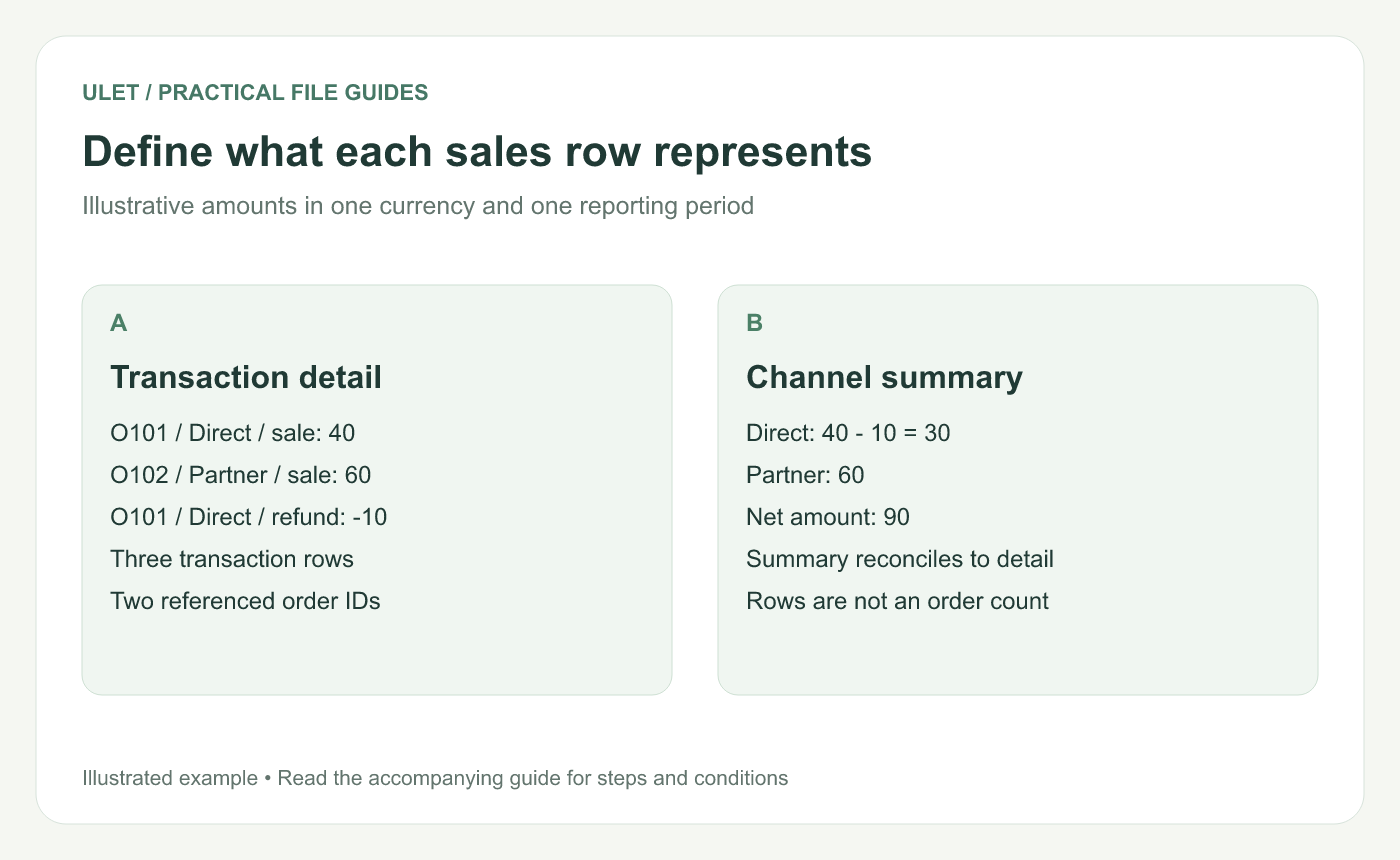
Define what each sales row represents. Original instructional illustration; the examples are not software screenshots.
Start with transaction detail
A — Order ID | B — Channel | C — Entry | D — Net amount |
|---|---|---|---|
O101 | Direct | Sale | 40 |
O102 | Partner | Sale | 60 |
O101 | Direct | Refund | -10 |
Put the headers in row 1 and records in rows 2–4. These are three transaction rows associated with two order IDs. Counting rows would not give an order count. A larger dataset may also contain several sales lines for one order.
Record the reporting date rule, period, currency and tax treatment beside the table. A refund date and an original order date can fall in different reporting periods.
Build a separate channel summary
Put Direct in F2 and Partner in F3. In G2, enter =SUMIF($B$2:$B$4,F2,$D$2:$D$4), then copy the formula to G3.
The formula checks the channel range and adds the corresponding amount entries. It should give Direct 30 and Partner 60. Microsoft describes the criteria range and optional sum range in its SUMIF reference.
Keep channel labels consistent. A misspelling or unintended space can leave a transaction outside the expected group. An explicit review category is more useful than silently dropping an unassigned row.
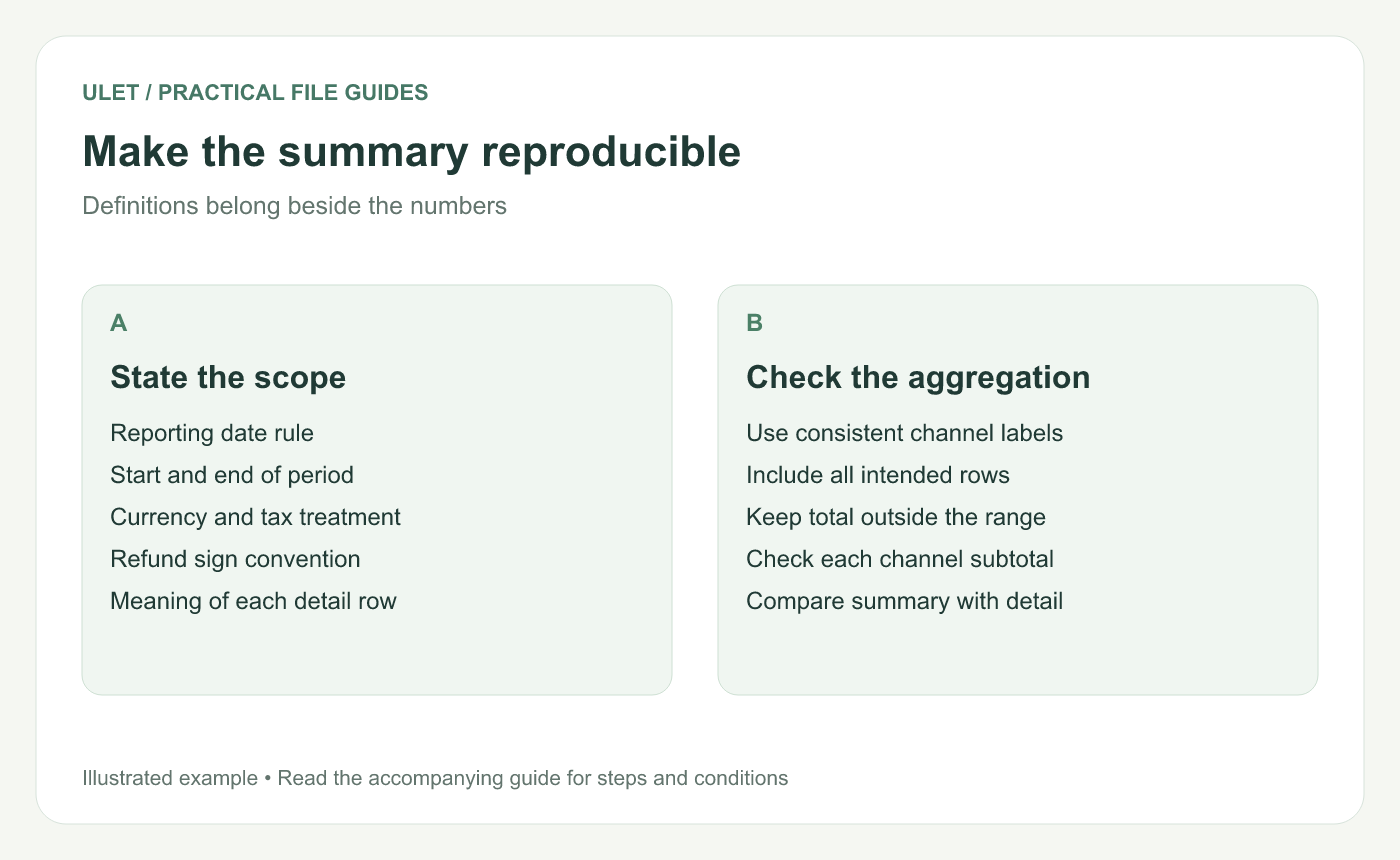
Make the summary reproducible. Original instructional illustration; the examples are not software screenshots.
Reconcile the summary to the detail
Compare =SUM(G2:G3) with =SUM(D2:D4). Both should be 90 in this example. If they differ, inspect the grouping labels, range boundaries and whether any category is missing from the summary.
Then trace one sale and the refund into their channel subtotal. Matching grand totals are helpful, but they do not establish that every row was assigned to the correct channel.
Keep the metric honest when the sheet grows
Add new records to the detail, expand the reviewed ranges and repeat the reconciliation. Do not add a grand-total row inside the same amount range and count it again.
If the report also needs orders, units or average order value, define those separately using the appropriate record grain and denominator. They answer different questions from net transaction amount.
Ulet provides free basic XLSX editing locally on Windows and macOS. Keep the detail, summary and definitions in the workbook so another reader can follow the result.



