
Make a workbook's editable inputs easy to spot and its calculated cells easy to recognize. A short instruction such as “Change quantity, unit price and the discount assumption” helps the next person update the right values.
Start by listing the inputs. Then inspect which formulas depend on them.
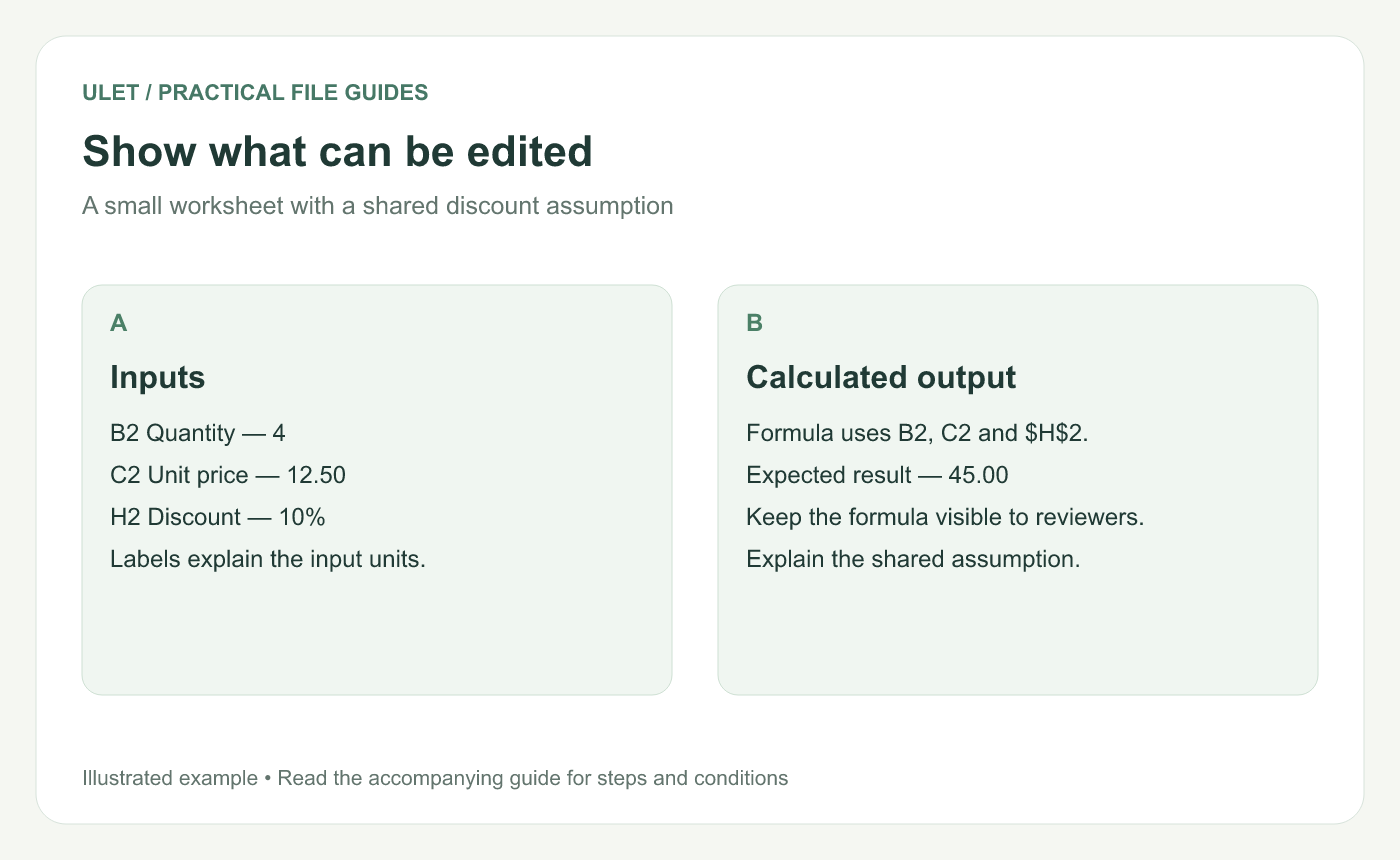
A small worksheet with a shared discount assumption. Original instructional illustration.
Keep a shared assumption in one labeled place
In this example, B2 contains quantity 4, C2 contains unit price 12.50 and H2 contains a 10% discount. The calculation =B2*C2*(1-$H$2) gives 45.00.
The dollar signs keep the H2 reference fixed when the formula is copied. That makes H2 a shared assumption for the copied rows. Check whether a shared rate actually fits your data before using that structure.
Give the cells a consistent treatment
Cell role | Useful treatment |
|---|---|
Editable input | Clear label, unit and consistent visual style |
Shared assumption | Named purpose and visible location |
Calculated result | Consistent style and a traceable formula |
Color alone can be missed in print or by readers who distinguish colors differently. Include a brief legend or explicit input labels.
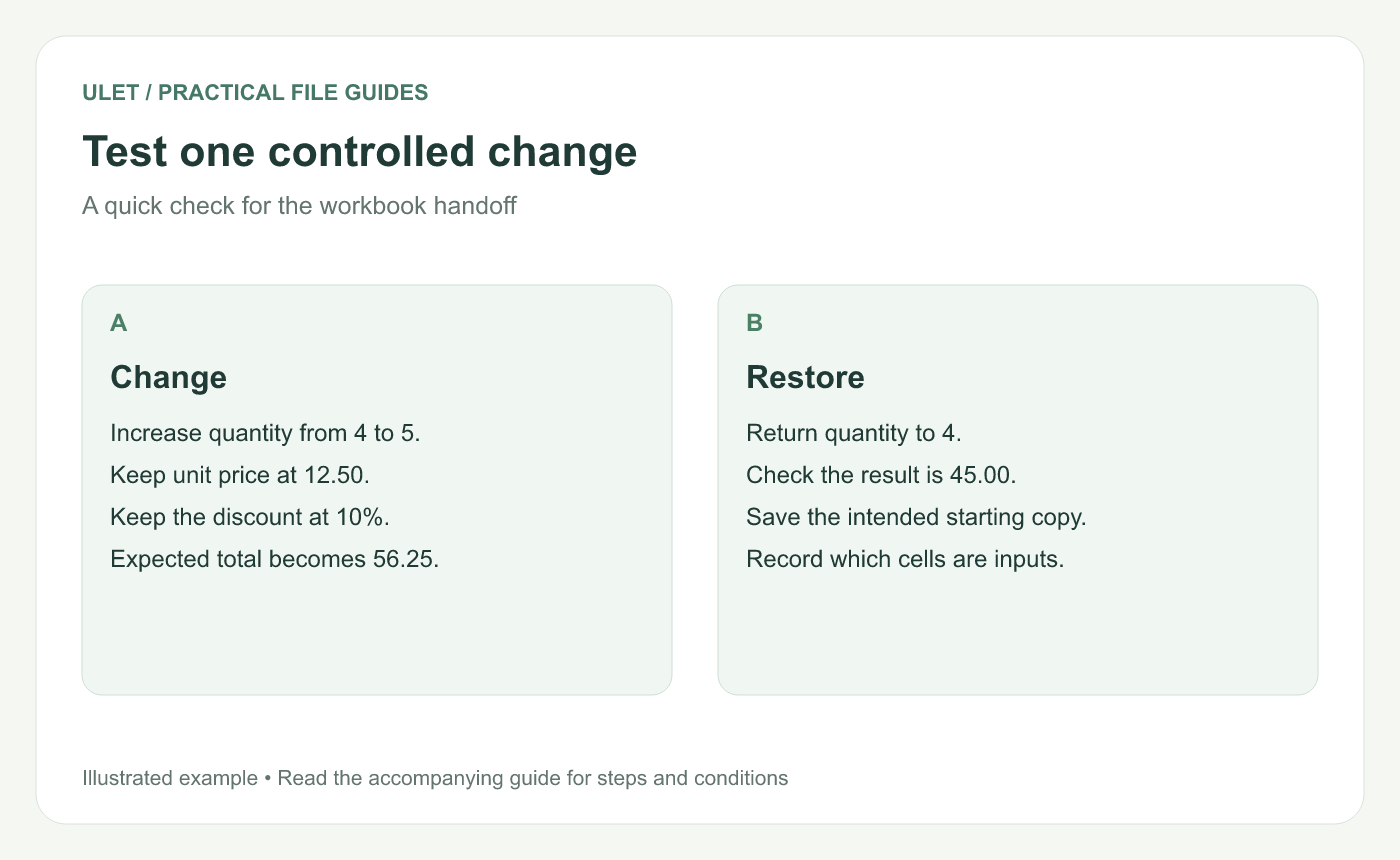
A quick check for the workbook handoff. Original instructional illustration.
Run a controlled change
Note the starting inputs and expected result.
Change quantity from 4 to 5.
Check that the example result becomes 56.25.
Return quantity to 4 and check the result is 45.00.
Save the intended starting copy.
This checks the example's dependency. It does not establish that every formula in a larger workbook is correct. Review the formulas and assumptions that matter to that workbook.
Leave short operating notes
State which cells people should edit, what units the values use and which outputs to check. If the workbook uses protection, explain how the intended editing workflow works without treating visual formatting as access control.
The line-total guide explains the arithmetic behind this example. Ulet can keep the workbook and its calculations local while you review those inputs. Edit the workbook in Ulet.



