
A simple monthly budget sheet needs planned amounts, actual entries and a clear way to compare them. Choose the month first, then decide which categories and sign convention you will use.
For a small workbook, a summary sheet and a transaction sheet are a useful starting point. Keep the numbers tied to the records you use to check them.
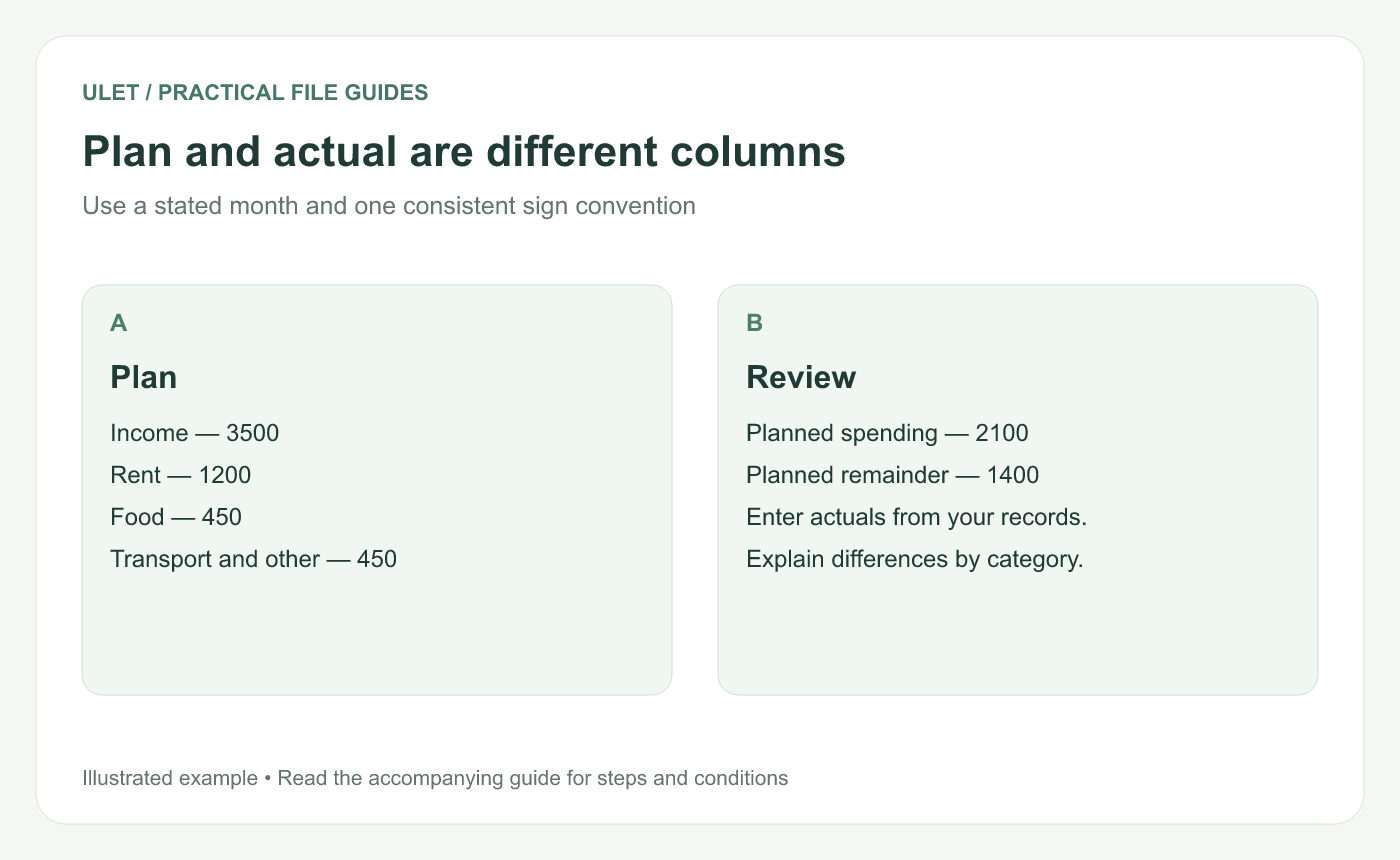
Use a stated month and one consistent sign convention. Original instructional illustration.
Start with a small example
Category | Illustrative planned amount |
|---|---|
Income | 3500 |
Rent | 1200 |
Food | 450 |
Transport | 150 |
Other spending | 300 |
These amounts are a workbook exercise. Planned spending totals 2100, leaving 1400 from the example income. Replace the categories and values with your own records.
Separate plan and actual
Give the summary distinct columns for planned and actual amounts. Add a difference column and say which subtraction it uses. Actual minus plan will be positive when spending is above the planned amount.
For example, if planned food spending is 450 and actual food spending is 480, =C2-B2 gives 30 when Plan is in B2 and Actual is in C2. Label that result “30 over plan” in the review. A difference needs context. If an expense belongs to a different month, check its date and the method used to assign it before interpreting the category result.
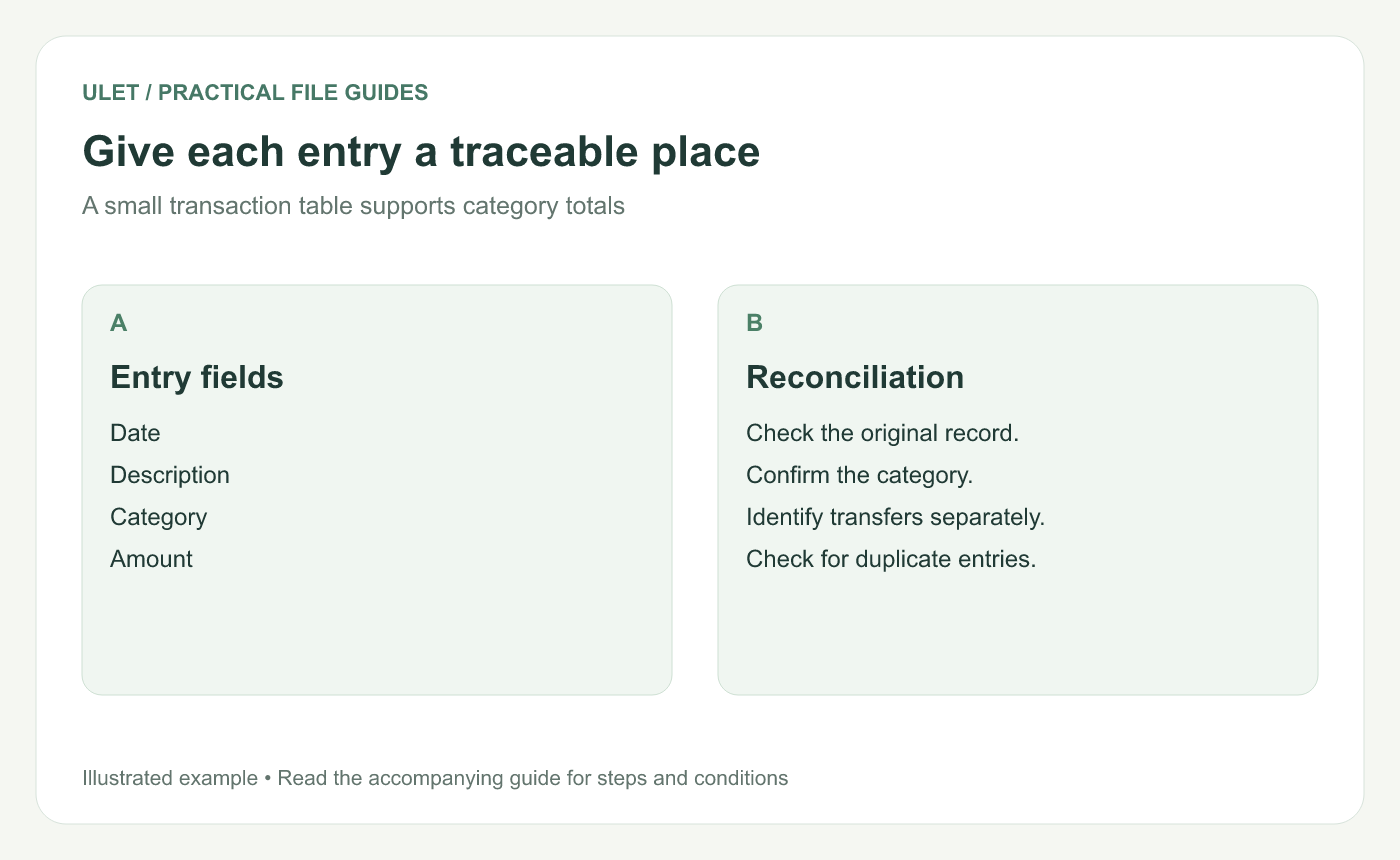
A small transaction table supports category totals. Original instructional illustration.
Keep a traceable transaction list
Use a row for each entry with a date, description, category and amount. A reference to the source record can help when an amount needs checking.
Identify transfers so the same movement is not accidentally counted as both a new expense and another expense when money leaves the destination account. Make the treatment consistent with the purpose of your own sheet.
Reconcile before interpreting
Check the reporting month.
Compare entries with the source records.
Look for duplicates, missing amounts and inconsistent categories.
Check the summary ranges include the intended rows.
Save a dated copy after the review.
You can build and edit the workbook locally in Ulet. Keep a small check like the example totals on a separate practice sheet when you want to understand how the summary works. Ulet Spreadsheet Editor.



