
Choose SUM when you want a total for a whole range. Choose a suitable SUBTOTAL calculation when the total should respond to filtered rows. First decide which records the result is supposed to include.
The examples below follow Microsoft's documented Excel behavior. When you open the workbook in another editor, use the same small example to check the result before relying on it.
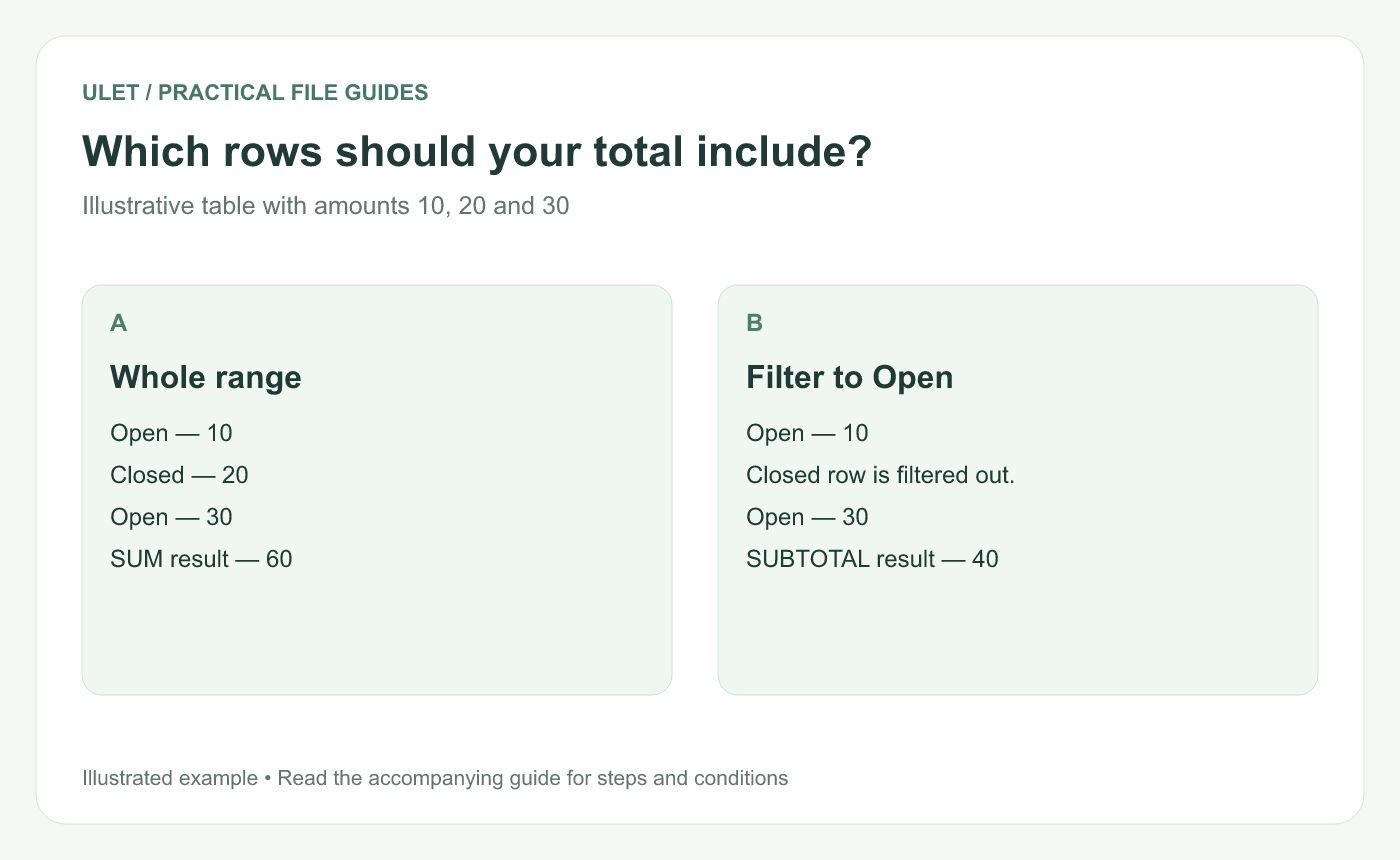
Illustrative table with amounts 10, 20 and 30. Original instructional illustration.
Try a three-row table
Row | A — Status | B — Amount |
|---|---|---|
2 | Open | 10 |
3 | Closed | 20 |
4 | Open | 30 |
Place the formulas outside B2:B4. =SUM(B2:B4) gives 60. In Excel, after filtering the table to Open, =SUBTOTAL(9,B2:B4) gives 40 because the Closed row is filtered out.
Know what 9 and 109 mean
For an Excel SUBTOTAL sum, function number 9 includes manually hidden rows. Function number 109 excludes them. Both exclude filtered-out rows. Microsoft also explains that SUBTOTAL ignores nested subtotals within the referenced range. SUBTOTAL reference.
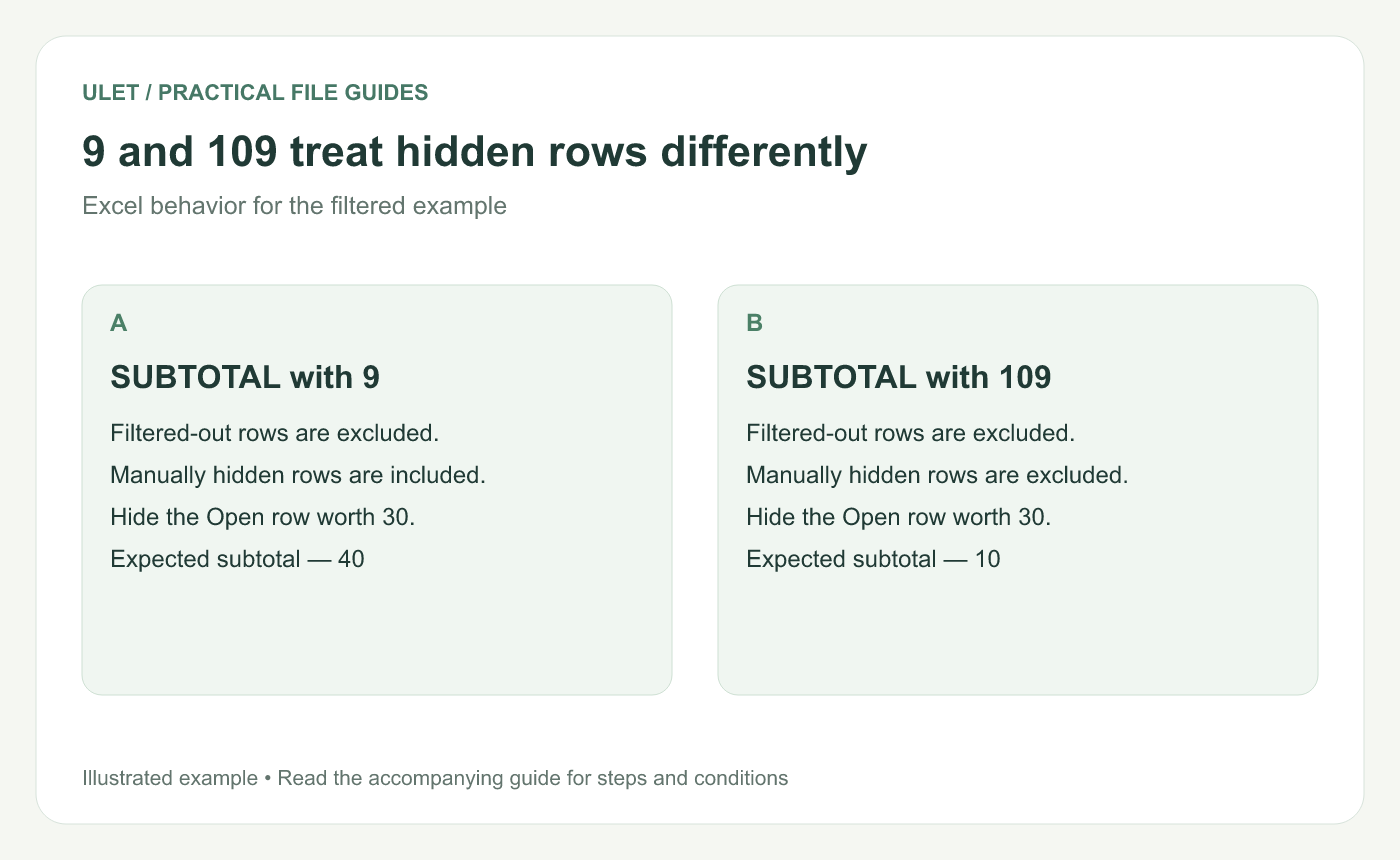
Excel behavior for the filtered example. Original instructional illustration.
In the filtered example, manually hiding the Open row containing 30 leaves SUBTOTAL with 9 at 40 and SUBTOTAL with 109 at 10. SUM still describes the full numeric range and gives 60.
Label what the total means
Use labels such as “All records” and “Visible records” only when the formulas actually match those definitions. A total can be mathematically correct yet answer the wrong question.
Keep the input range separate from the total cell so the formula does not include itself. Review the range again after adding rows.
Check before handing over the workbook
Check the unfiltered total.
Apply a filter with a known result.
Test manually hidden rows if the workflow uses them.
Clear the filter and confirm the expected result returns.
Save and reopen the workbook in the receiving editor.
Ulet can open your local XLSX for editing and review. Verify the calculation and filter behavior needed by that specific workbook. Open and save an XLSX with Ulet.



