
Use a PDF reference to understand the intended appearance of an editable DOCX. Find the same heading, table or figure in both files, compare that area, and record the differences that matter.
Start by checking that the two files represent the same version. A layout difference may actually be an approved text change.
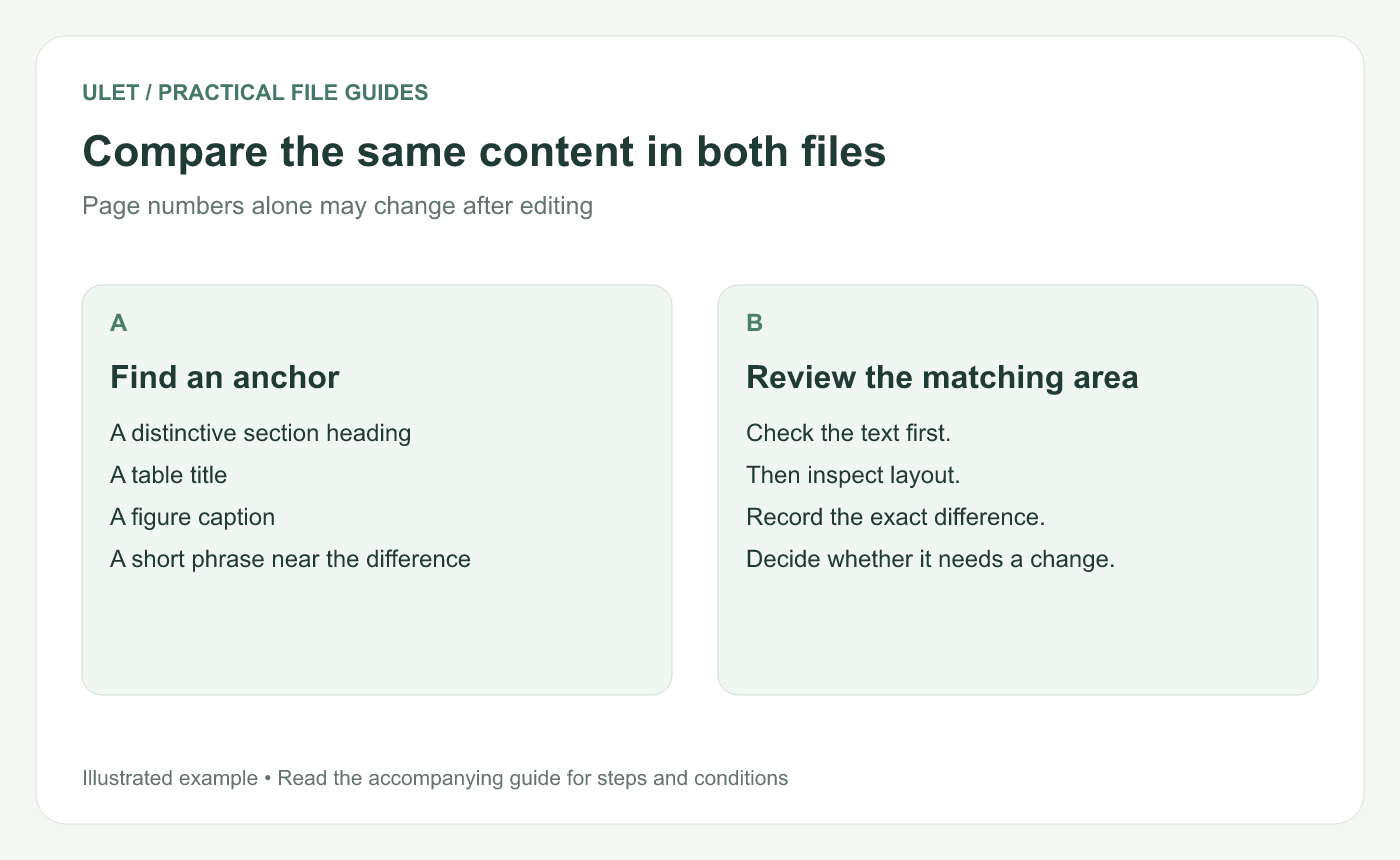
Find the same passage before judging its position.
Use content anchors
Page numbers can move when fonts, margins or paragraphs change. A distinctive heading or figure caption is often a better way to find matching content.
Open the files in separate views or switch between their tabs. Ulet includes DOCX and PDF editors in the same desktop app, so both local files can be part of the review. Ulet Document Editor and Ulet PDF Editor.
Check the content before the spacing
Compare headings, paragraph text, numbers and table values. Make sure a clipped or wrapped value has not been mistaken for missing information.
For a figure, compare the image itself, its caption and its reference in the text. If the files contain different versions of the figure, resolve that before adjusting its size.
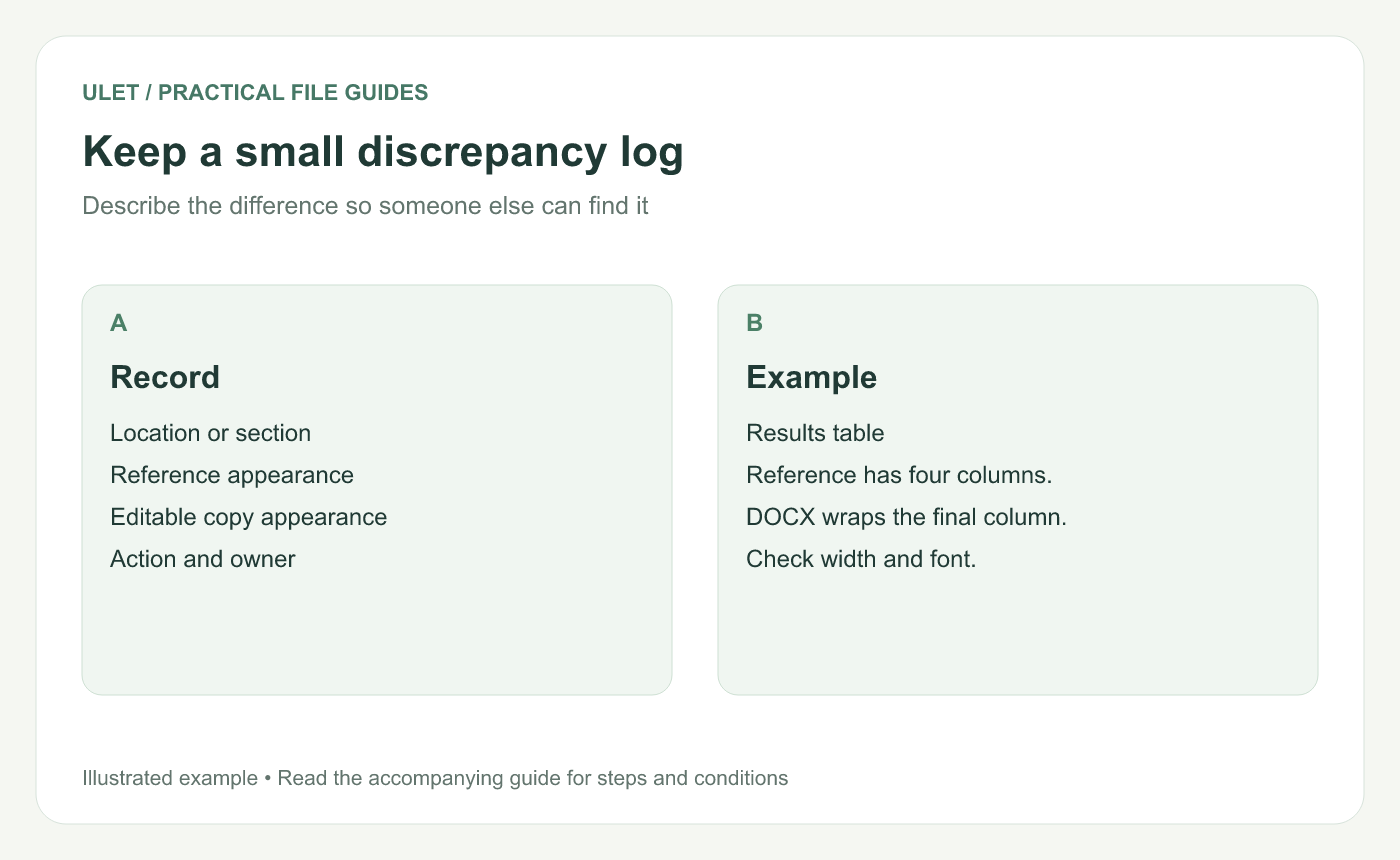
Separate an observed difference from its suspected cause.
Keep the discrepancy log specific
Location | Observed difference | Next check |
|---|---|---|
Results table | Final column wraps in the DOCX | Compare font and column width |
Figure 2 caption | Caption starts on the next page | Inspect image placement and spacing |
Write what you can see separately from what you think caused it. That makes the record useful if another person continues the review.
Adjust one cause at a time
Compare page size, margins and fonts before making many local adjustments. A global difference can explain several pages at once. Then inspect the paragraph, table or image settings near each remaining issue.
Save a separate DOCX working copy and reopen it after the changes. Review the same anchors again. When you make a new PDF, compare that output with the intended reference as a separate final check.



