
Put a figure close to the paragraph that discusses it, give it a short caption, and check the pair after saving. If an edit pushes the caption onto another page, inspect the image placement and nearby paragraph settings before adding empty lines.
Ulet can edit images and text in a local DOCX report. Work from the document's existing layout where possible.
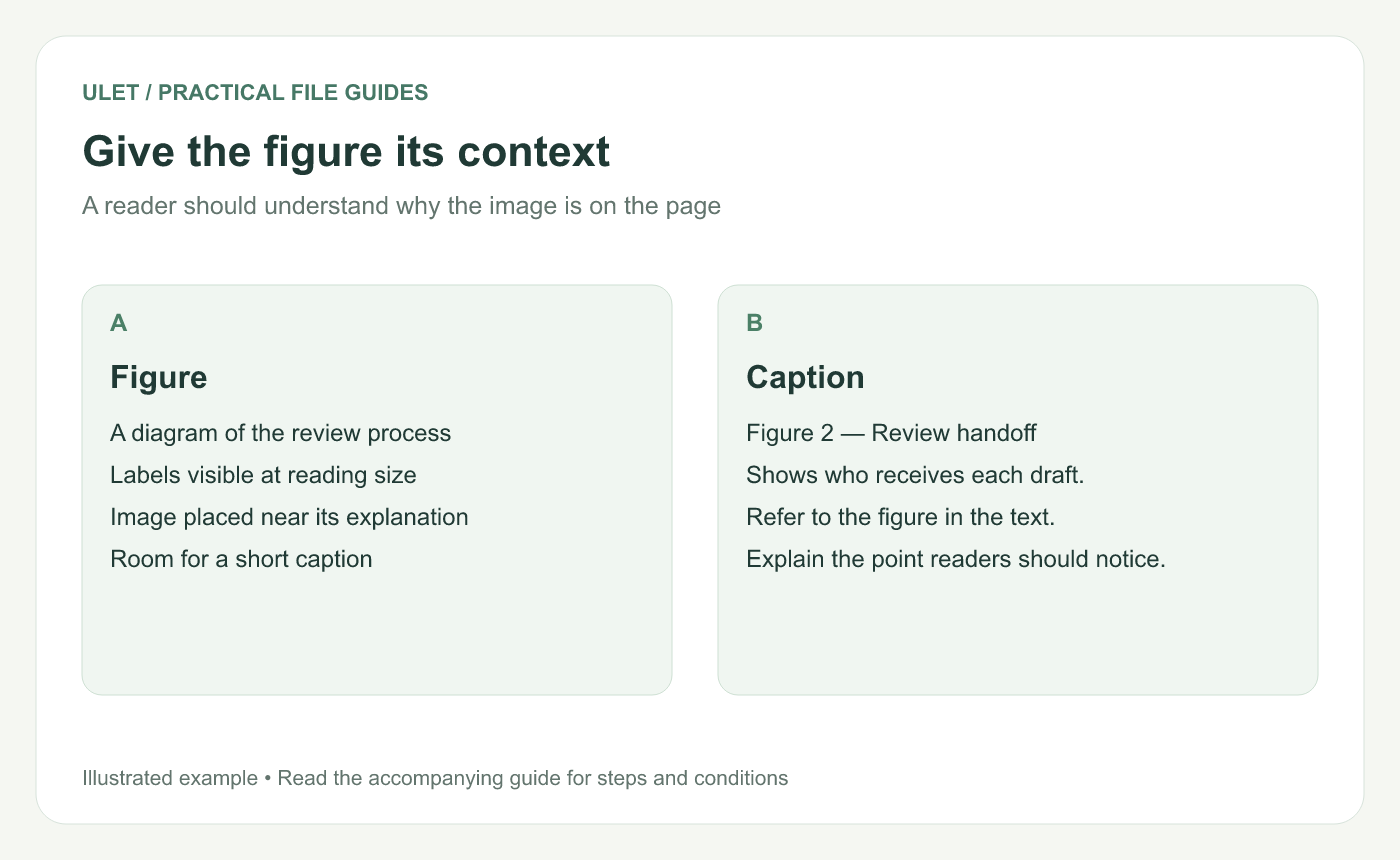
Treat the image and its explanation as one reading task.
Write a caption that identifies the figure
“Figure 2 — Review handoff” is a useful start. Add a short explanation when the image's purpose is not obvious. For example, “Shows who receives each draft before approval.”
In the body text, tell readers what to notice. A process diagram may show that one review step has no named owner. Point that out beside the figure so readers know why it matters.
Choose a manageable placement
When your editor offers an inline image option, it can make a straightforward report easier to maintain because the image moves with its paragraph. Floating images provide more layout freedom but need checks around their position and text wrapping.
For an existing document, inspect how the image is placed before changing it. A new placement choice may affect text on the surrounding pages.
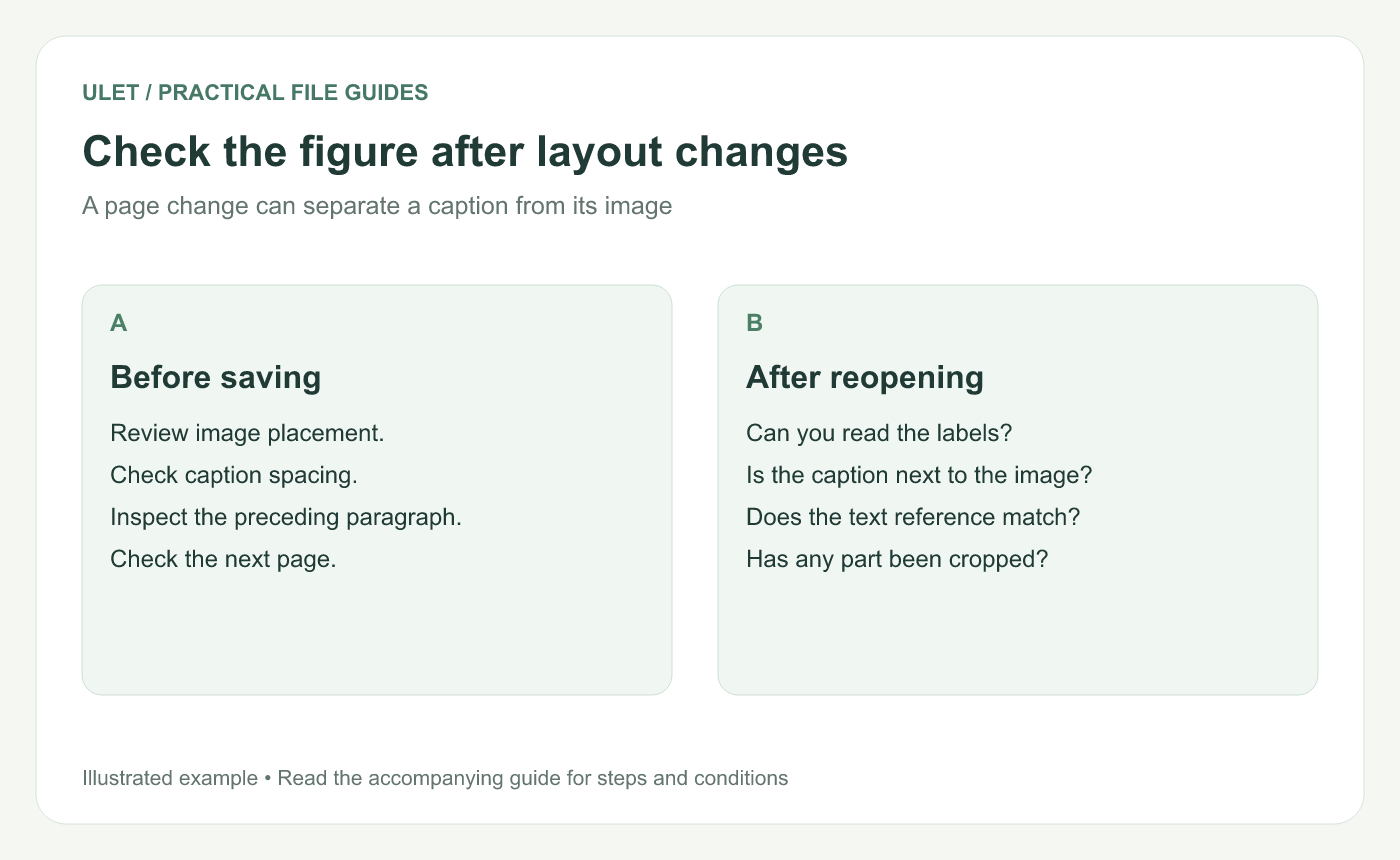
Check the saved copy after changing the page layout.
Review the paragraphs around the image
Use consistent spacing between the figure and its caption. If your editor exposes keep-with-next controls, they can help a paragraph stay with the next one. Check the actual effect in the current file. An image and a caption that cannot fit together may need a different size or page position.
Several blank paragraphs may fix one view and then create a large gap after the next edit. Remove unnecessary empty lines and adjust the intended layout settings instead.
Check meaning as well as position
Are the labels readable at the size the report will be viewed?
Does the caption still describe this version of the image?
Does the body text refer to the right figure number?
Are the source and date included when readers need them?
Save and reopen the DOCX, then inspect the affected pages. If the document will be printed or exported, check that output too. Edit a report in Ulet.



