
Start by deciding what the table should help someone find. A review tracker needs the document, reviewer, due date and status. Extra notes can sit below the table when they make the rows too dense.
Open your DOCX in Ulet and work on a copy if the original needs to stay available. Then review the table from the reader's point of view.
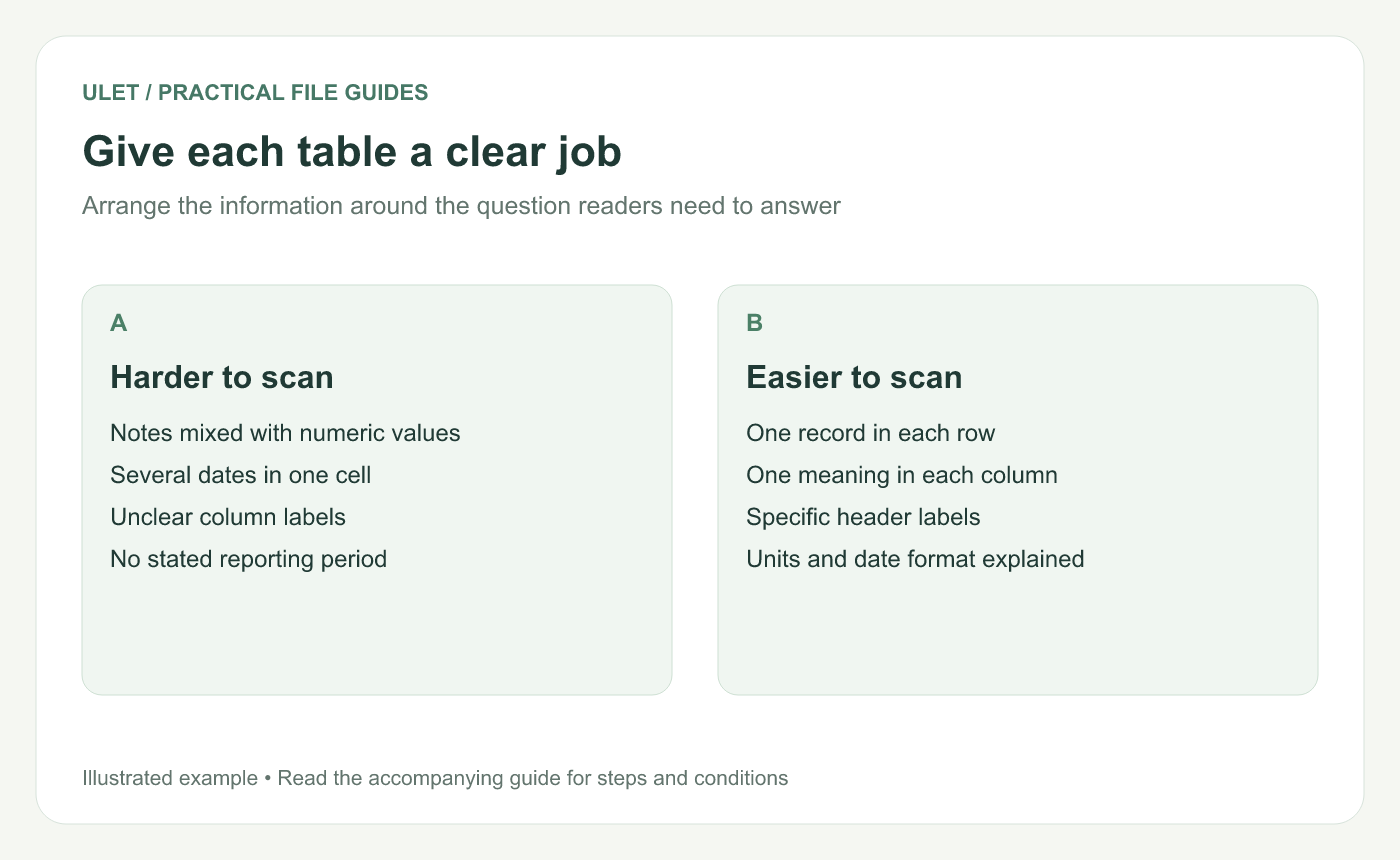
An original table-planning illustration.
Choose a useful column order
Put the item people recognize first. In a document review, that is usually the document name. Follow it with the person responsible, the due date and the current status. Keep a long explanation in a separate notes column only when readers genuinely need it while scanning.
Document | Reviewer | Due date | Status |
|---|---|---|---|
Installation guide | Maya | 12 Nov 2026 | Awaiting review |
Release summary | Leo | 13 Nov 2026 | Changes requested |
Those rows are examples. Replace them with your own records and explain any status terms that the team uses differently.
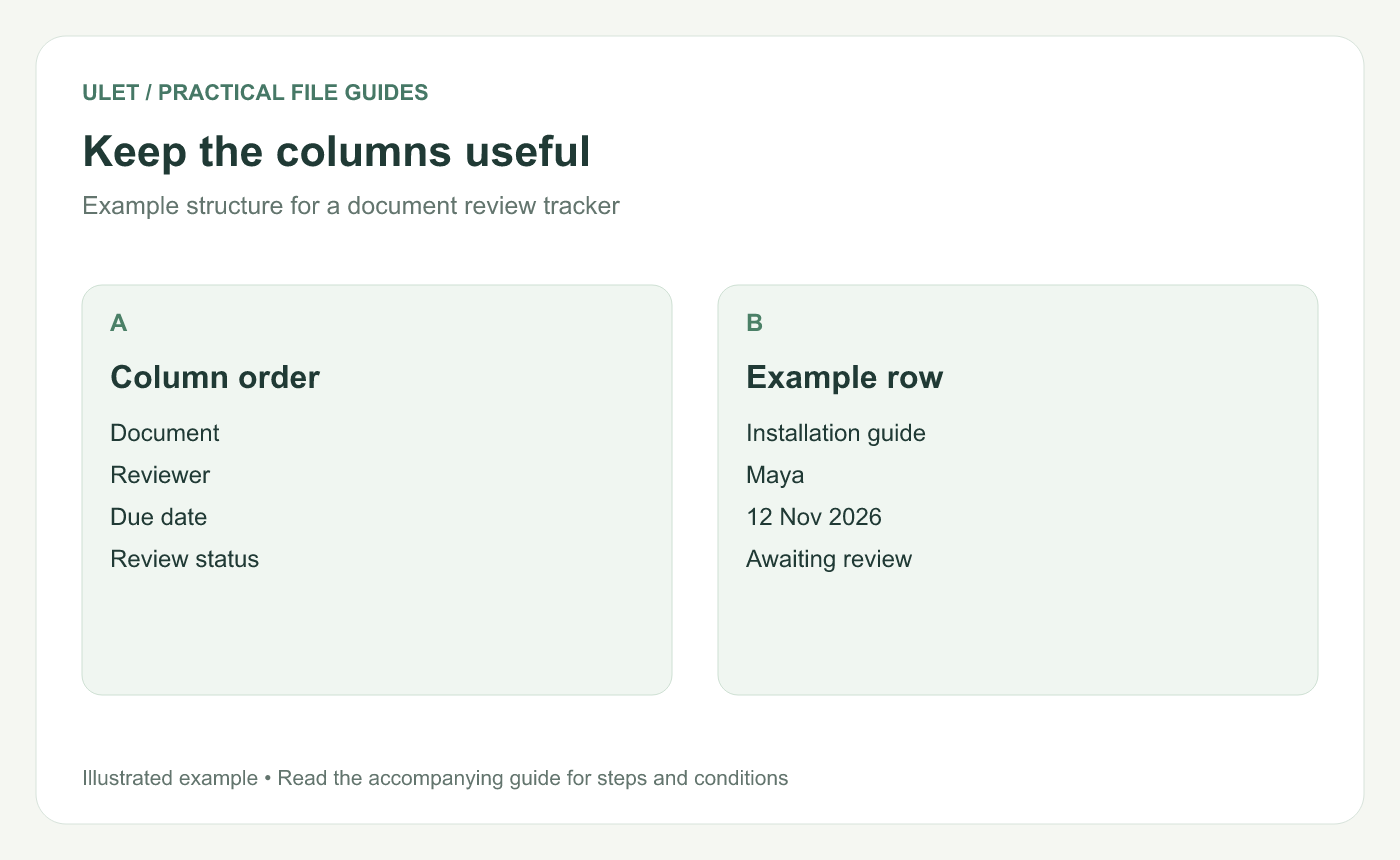
Use columns that support the review task.
Keep the values consistent
Use one date format throughout the column. Give amounts a stated unit, and keep a numeric column's decimal places consistent when the precision matters. Text usually works well left-aligned. Align numbers so their size is easy to compare.
Avoid packing several unrelated facts into one cell. If a row has three due dates, decide whether it represents three separate tasks.
Use formatting to guide the eye
Make the header row easy to distinguish. Light shading or a slightly stronger type treatment may be enough. Give text room inside the cells, and adjust column widths around the content rather than making every column identical.
Check long words and wrapped lines after resizing. A narrow status column can turn a short label into a tall, awkward cell.
Check the table on the actual page
Review the widest row and the longest note.
Check the table near page breaks.
If the table spans pages, confirm that the next page remains understandable.
Save the DOCX and reopen it to inspect the result.
You can make these everyday table and layout edits locally in Ulet Document Editor. For the opening and saving steps, use the DOCX editing guide.



