
Use a header for a short document or project name and a footer for details such as the version or issue date. Keep both brief enough that the main text remains easy to read.
In an existing DOCX, inspect the current header and footer before replacing them. They may already contain fields or different content for the first page.
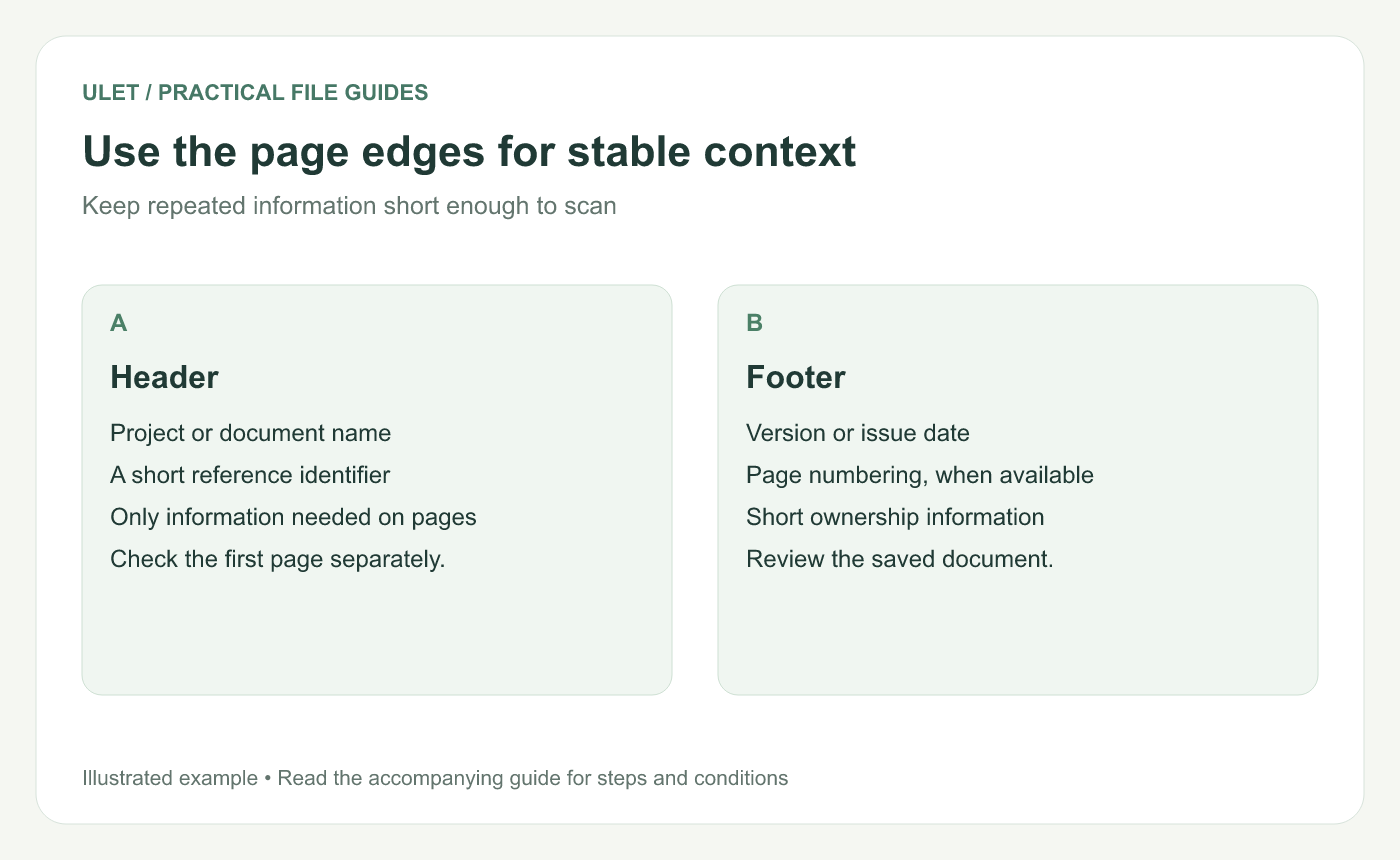
Use the page edges for context the reader needs while moving through the document.
Choose what deserves to repeat
A report's short title or reference ID can help if someone prints individual pages. A version label can help readers check whether they have the copy used in a review.
Long addresses, several logos or a repeated paragraph can crowd the page. Ask whether the information needs to appear on every page or belongs once in the document.
Edit the header and footer
Open the DOCX in Ulet and review an early page and a later page.
Use the document editor's header or footer controls to edit the relevant area.
Enter the short text you want repeated, or update the existing text.
Keep the font, alignment and spacing consistent with the document.
Return to the main body and check that the content has enough room.
If the document uses different sections, first-page treatment or existing page-number fields, check those parts individually. Editing one repeated area may not affect every section in the way you expect.
Give the date a clear meaning
A footer that says only “5 November 2026” leaves readers guessing whether that was the writing, review or approval date. Use wording such as “Updated 5 Nov 2026” when that is what you mean.
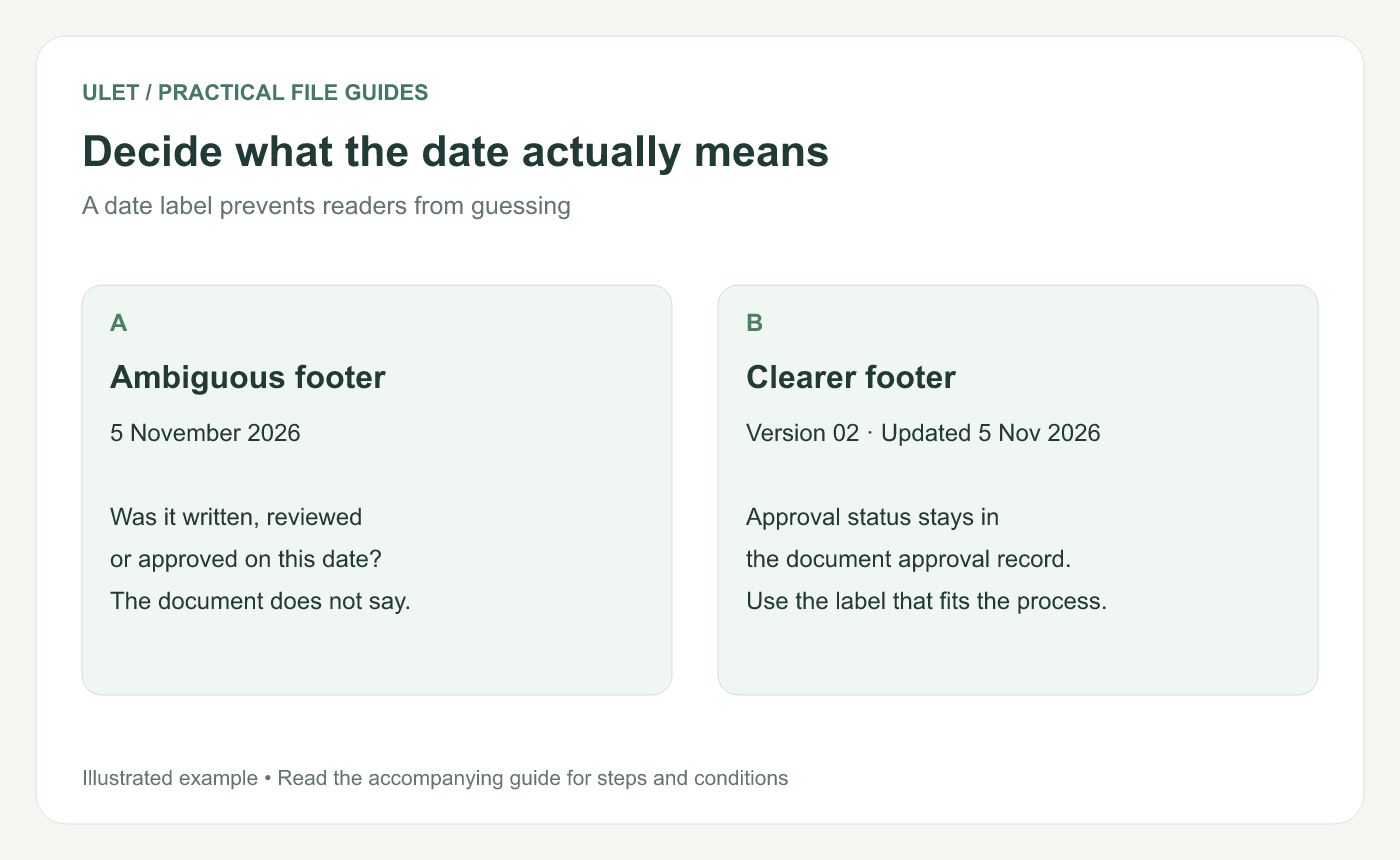
The label matters as much as the date itself.
Keep approval status in the place your process uses for it. An updated date does not tell someone whether a particular approver has accepted the document.
Check page numbers in the saved file
If page-number fields are available and used in the file, review the first page, a middle page and the last page. Check the numbering sequence and whether a cover page should display a number.
A typed number repeated in a footer will stay that same number. Use the editor's page-number feature where supported when you need automatic numbering.
Review the whole page
After changing a header or footer, check whether it overlaps the body or pushes text onto another page. Compare the same pages before and after the change, especially if the report includes tables near the top or bottom.
Save a DOCX copy, reopen it and inspect the repeated text. If the document will be printed, review the print layout as well. Work with documents in Ulet.
A good final check is simple. Give someone one middle page and ask whether they can identify the document and its version without seeing the cover.
For a first DOCX edit, follow the opening, saving and final-check steps.



