
To highlight a PDF locally, open the file in Ulet, select a passage, apply a highlight, and save a review copy. Add a comment when the reader needs to understand a question or requested change, then reopen the saved PDF to check that the annotation is present.
Ulet provides free everyday PDF tools on Windows and macOS, with local file opening and annotation. This guide focuses on reviewing an existing document and leaving useful feedback. Explore Ulet PDF Editor.
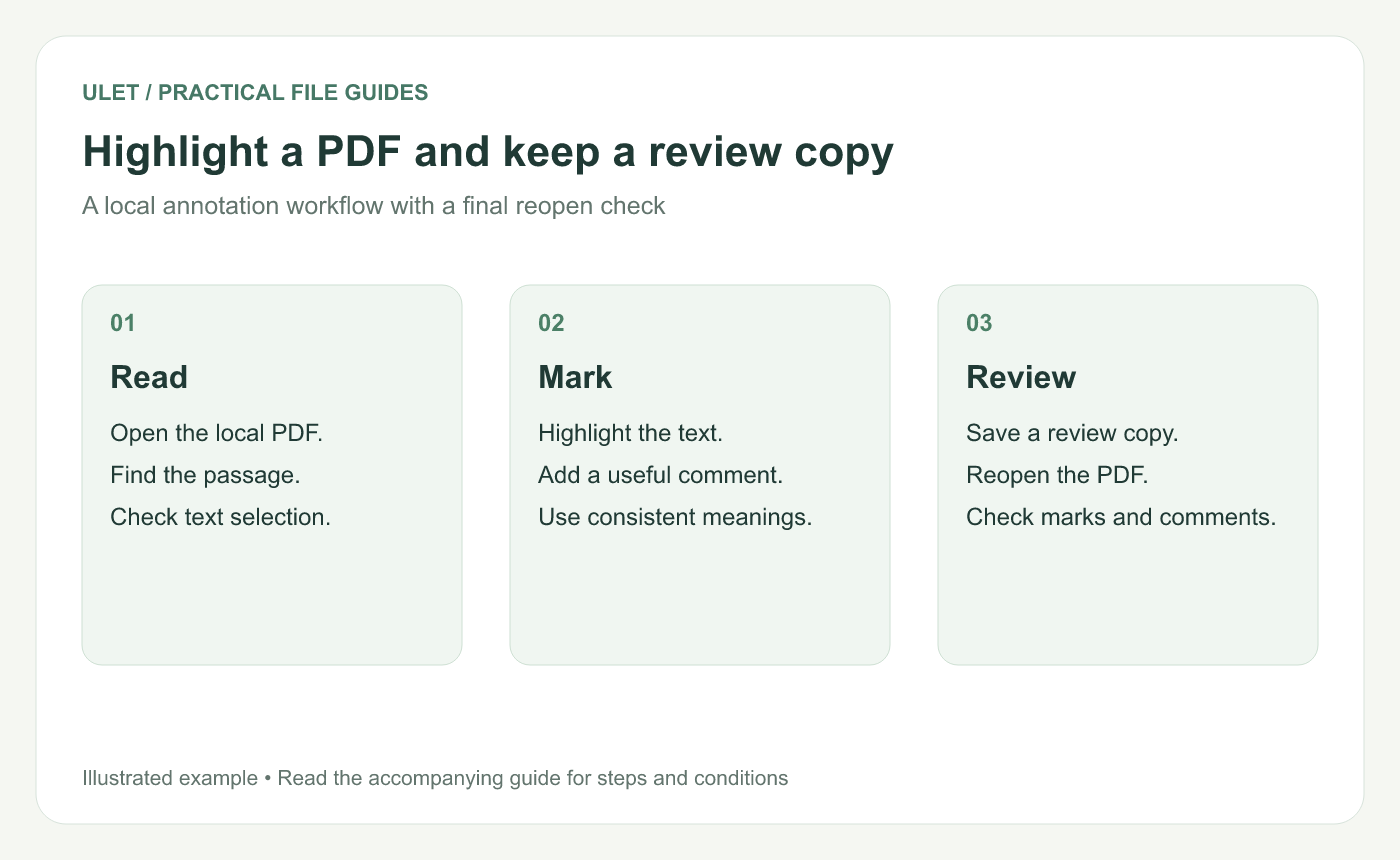
An original workflow diagram for reviewing a PDF and checking the saved annotations.
Check whether the PDF contains selectable text
Try selecting a few words in the paragraph you want to review. If you can select the words, a text highlight can identify that passage. If the page behaves like one large picture, the PDF may be scanned or image-based.
A scanned page can look readable while containing no selectable text. If you use OCR to recognize it, review the recognized words before relying on a highlight, particularly for names, dates, and amounts. A scan's visual appearance alone does not confirm that its text has been recognized correctly.
Highlight a passage in Ulet
Open Ulet, choose Open file, and select your local PDF.
Find the page and passage you want to review.
Select the relevant text and choose the highlight action from the available selection or annotation tools.
Check that the highlighted area follows the intended passage.
Repeat for the other passages that need attention.
Keep highlights selective. Marking an entire page gives the next reader less guidance than marking the sentence that contains an unclear date, an unsupported claim, or an important decision.
Add the reason for a highlight
A highlight tells someone where to look. A comment can explain what you need them to do. Use the PDF's available comment or note tool to connect your feedback with the relevant part of the page.
For example, imagine the document says, “The draft will be ready on Friday.” The following review comment makes the ambiguity clear.
Please confirm the date. Does Friday mean the first draft or the final approved version?
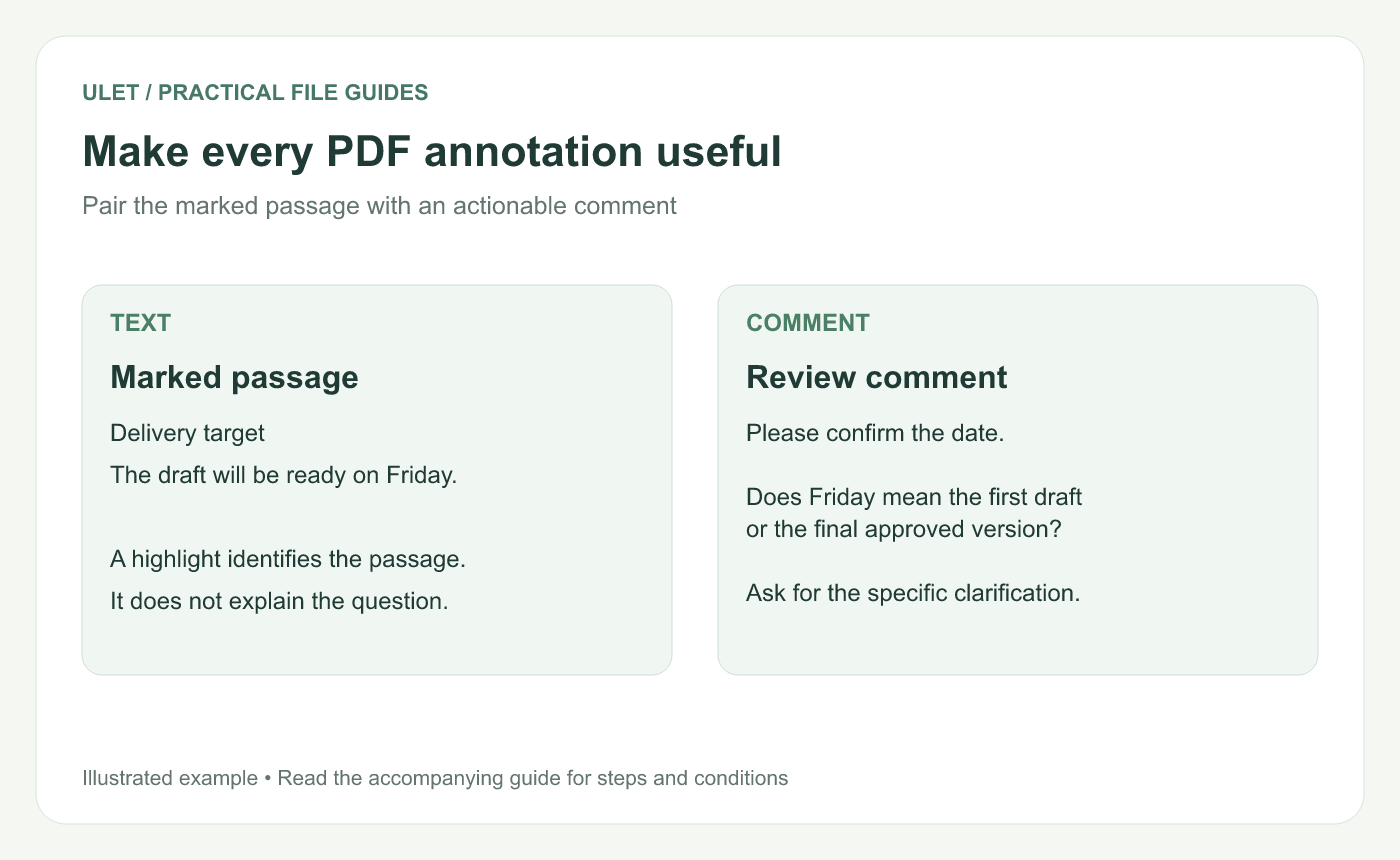
A useful annotation connects a marked passage with a specific clarification request.
This is illustrative review text. Replace it with the question or action required by the document you are reviewing.
Use a simple annotation convention
Purpose | Annotation approach | Example comment |
|---|---|---|
Request clarification | Highlight the unclear phrase and add a question | Which reporting period does this figure cover? |
Request a correction | Mark the exact passage and describe the change | Please check the product name against the source. |
Mark useful information | Highlight only the relevant sentence or phrase | Use this definition in the project glossary. |
If you assign meanings to colors, explain them to other reviewers. The comment text should still make sense when someone prints the document in grayscale or uses a viewer that displays annotation colors differently.
Save and reopen a separate review copy
Use Save As when you want a separate annotated file. A name such as project-brief-review.pdf makes the file's purpose clear. Use Save when you intend to update the current copy.
Finish saving the review file.
Close its document tab and reopen the saved copy.
Visit a page with a highlight and confirm its position.
Open a comment and check its wording.
Confirm that the pages you reviewed are still in the intended order.
For a shared review, ask the recipient to open the PDF in a viewer that supports annotations. Some browser or email previews show fewer comment details than a full PDF editor.
What to check when highlighting does not work
Symptom | What to inspect |
|---|---|
You cannot select words | The page may be a scan. Check for a text layer and the available OCR or annotation options. |
The marked area does not match the sentence | Try selecting a shorter passage and inspect the text-selection boundaries. |
The file opens in read-only mode | Check the file's permissions and whether its protection allows annotation. |
The recipient cannot see the comment | Confirm that you sent the saved review copy and that the receiving viewer displays comments. |
Frequently asked questions
Can I annotate a PDF without uploading it?
Yes. Open a PDF stored on your computer in Ulet and save the reviewed file locally. If the chosen folder is managed by a cloud-sync service, that service may still synchronize the file according to its settings.
Does a highlight change the original paragraph?
A highlight is an annotation associated with a passage. Editing the words in that paragraph is a separate operation. Choose the action that matches the feedback you want to leave.
Can I highlight a scanned PDF?
A text-based highlight needs selectable text. A scanned page may need OCR before that workflow is available. Check the recognized text and the tools supported for the particular file.
For your next review, mark the exact passage, explain the required action, and check the saved result. Get Ulet for Windows or macOS.



