
When a local document opens read-only, record the exact message and check the file's real location before changing settings. The cause may be a file lock, a destination you cannot write to or a restriction inside the document.
If editing is permitted, trying a separate copy in a known writable folder can help distinguish a location problem from a document-level issue.
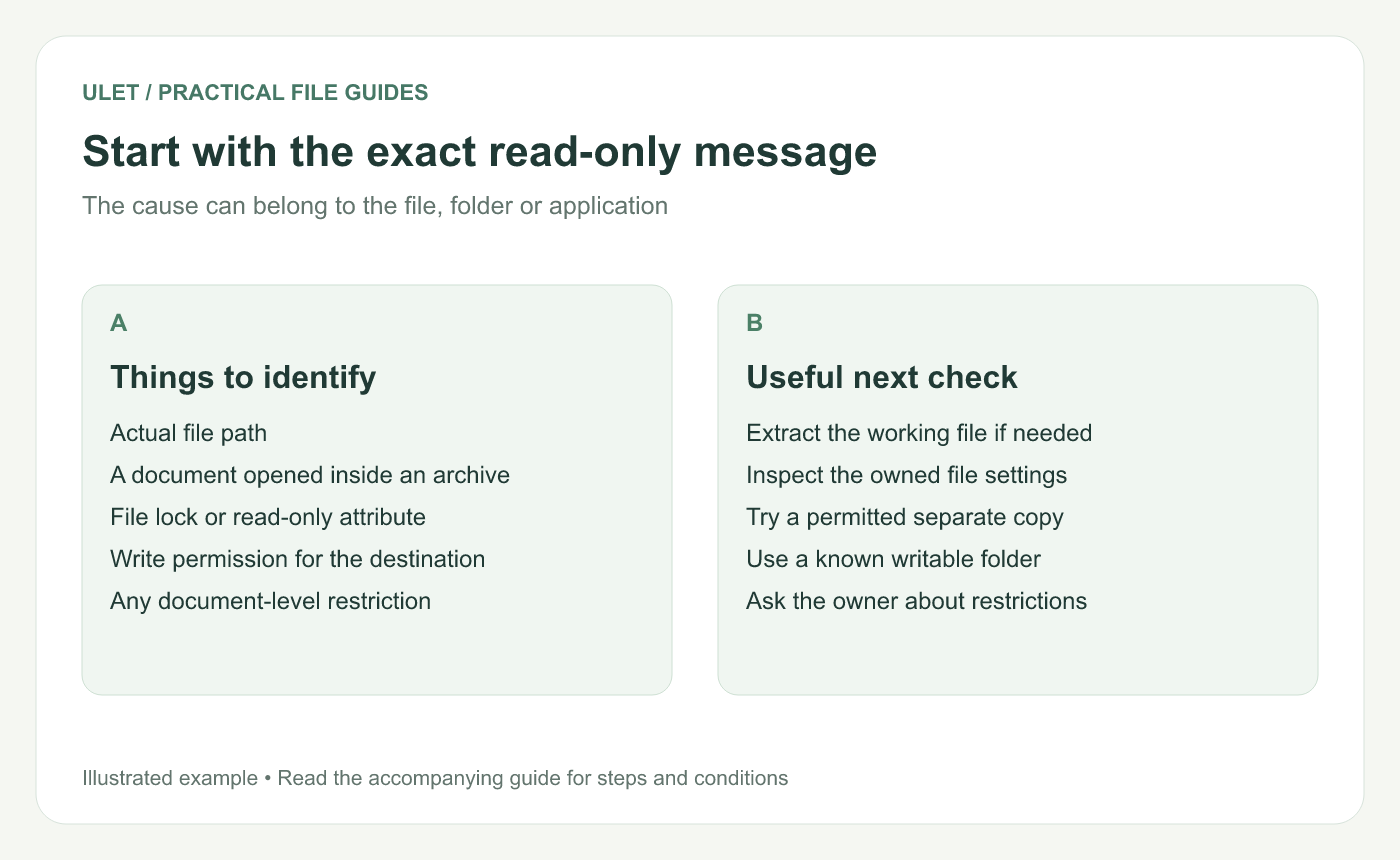
Start with the exact read-only message. Original instructional illustration; sample records are examples, not product screenshots or observed test results.
Confirm which file is open
Find the path in the file manager or application's file information. Check whether the document came from a ZIP, a temporary preview, external storage or a shared location.
For an archive, extract the intended working file first. Keep the original available while testing the extracted copy.
Inspect file settings you are allowed to manage
On macOS, Finder's Get Info window shows a document's Locked setting and its Sharing & Permissions information. Apple distinguishes read-only access from Read & Write access. Mac file locks, Mac file permissions.
On Windows, inspect the file's Properties and the message shown by the application. Microsoft's Office guidance lists several read-only causes; the appropriate action depends on the cause, not merely the visible filename. Microsoft read-only guidance.
Use the actual owning application's controls for its own modes. Do not assume every editor implements the same buttons or protection features.
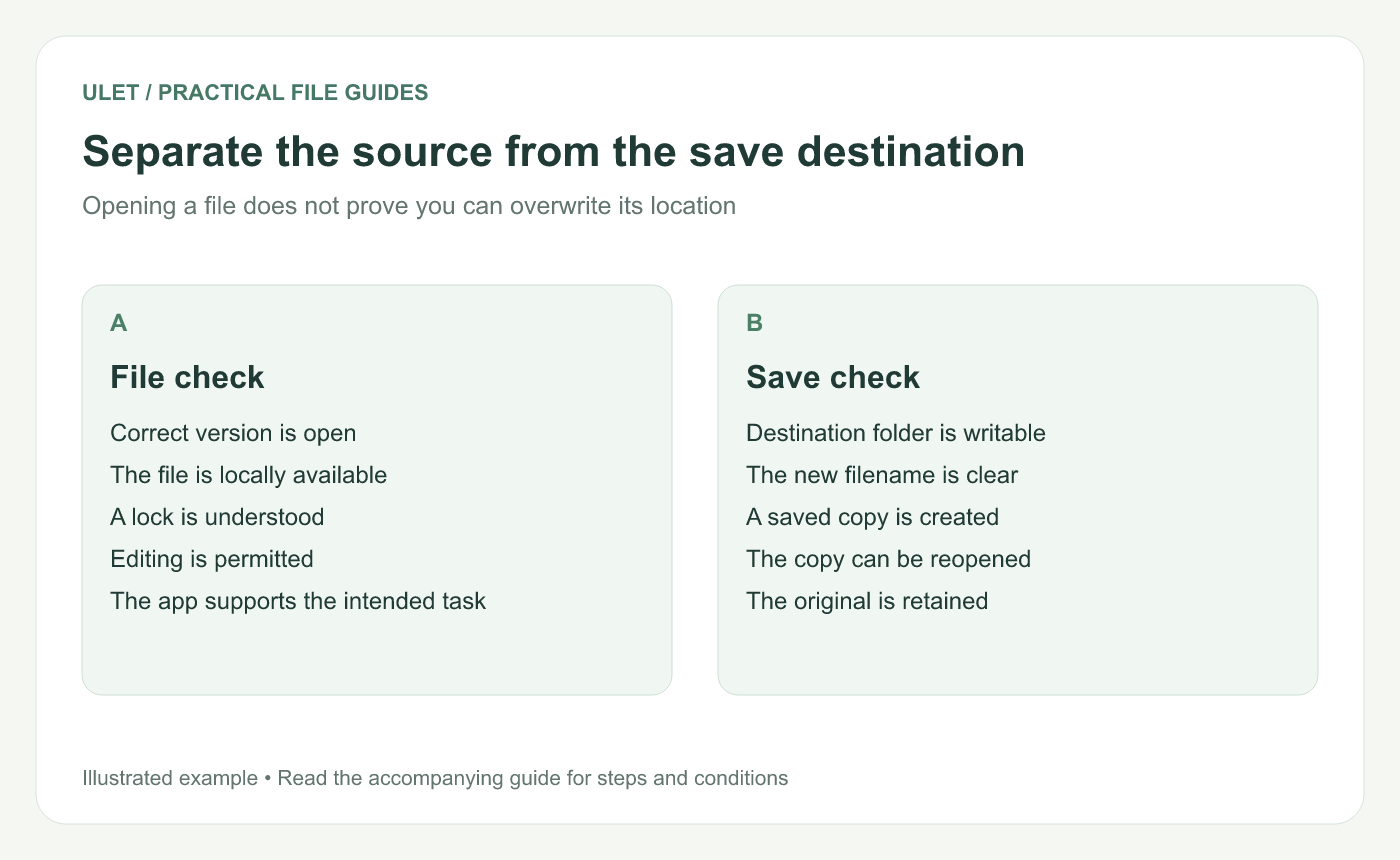
Separate the source from the save destination. Original instructional illustration; sample records are examples, not product screenshots or observed test results.
Try a separate writable destination
Confirm you are allowed to edit the content.
Choose a local folder where you normally create files.
Use Save As or the available copy workflow with a new name.
Make a small check edit if the copy allows it.
Save, close and reopen that copy.
If this works while overwriting the original does not, investigate the original location and permissions. The copy test does not identify every possible cause, but it narrows the question.
Respect a document-level restriction
If the document itself limits editing or the source is controlled by someone else, ask the owner for the intended editable version or instructions. A writable folder alone cannot supply permission to change a restricted file.
Ulet provides local editing on Windows and macOS with free basic tools. Keep the exact error and file path when reporting an issue so the next check addresses the real save or editing failure.


