
The orders sheet says there are 30 kits. The packing sheet says there are 12. Both formulas read =SUM(KitUnits). Before changing the quantities, check what the name means in each sheet.
Read Scope and Refers to together
Open Formulas > Name Manager in Ulet Sheets. Look for every entry called KitUnits. In this example, the workbook-level entry points to Orders!$C$2:$C$4, and the Packing-level entry points to Packing!$B$2:$B$3. Record both addresses and scopes before editing anything.
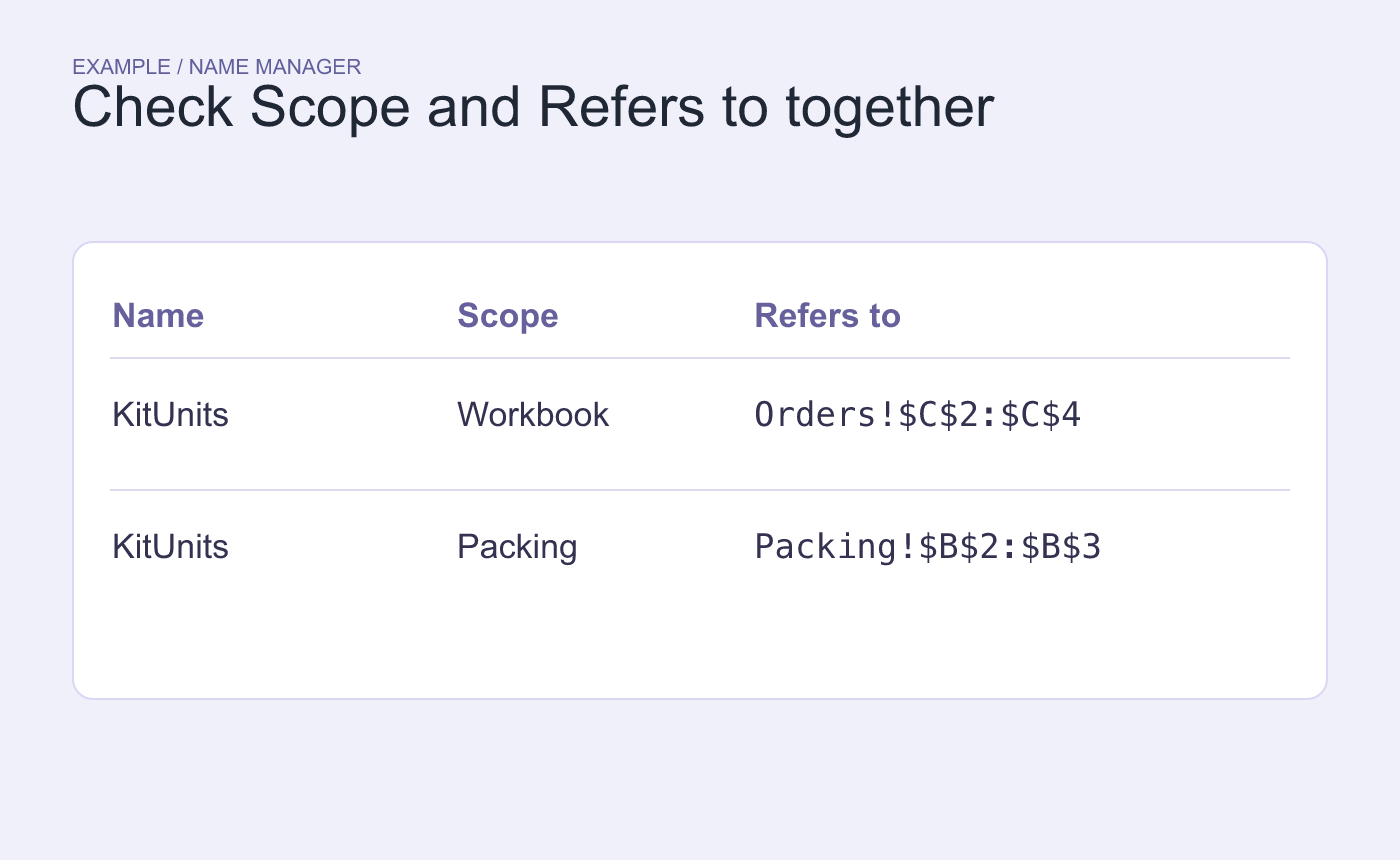
Example definitions. The same name has two scopes and two addresses.
Use a direct formula to check each result
In a copy, calculate =SUM(Orders!C2:C4) and =SUM(Packing!B2:B3). The orders contain 10, 8 and 12 kits, for 30 total. Packing contains 7 and 5 kits, for 12. In Excel, the local name normally takes precedence on its own sheet. Check the named formula on both sheets in the editor that will receive the workbook.
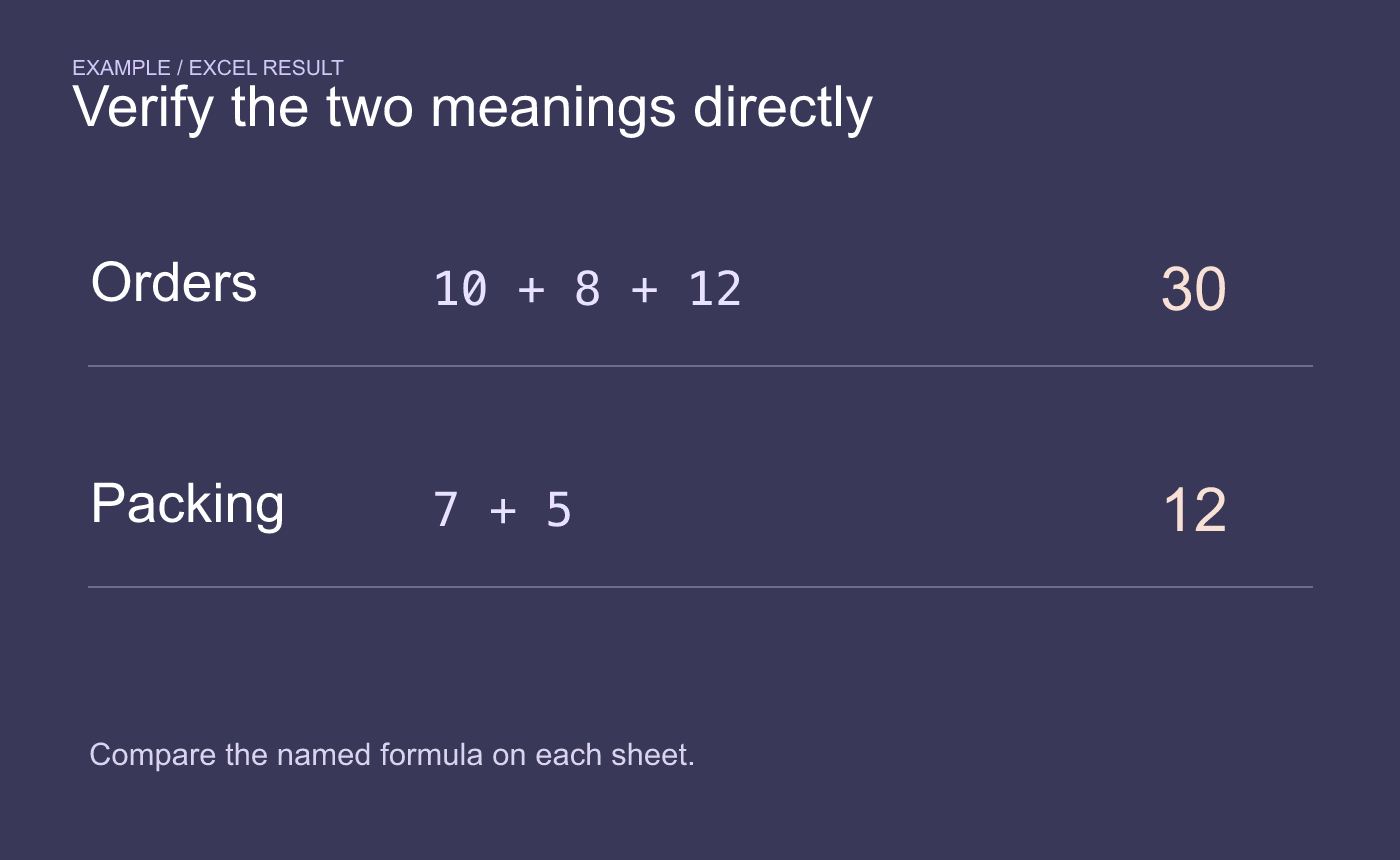
Example outcomes in Excel. Compare each named total with its direct range.
If both meanings are intentional, document the scope near each formula. If one definition is accidental, identify which formulas depend on it before changing or renaming it, then verify both totals again.



