
The facilities drawing shows the permanent exit route and a temporary “Move cart” note. The note helps the installer on screen, but the posted print should show only the permanent route.
Compare the viewing and print layer states
Open the Layers panel in Acrobat. Find the base plan and the installer-notes layer. Expand their group if they are nested. Locate the EXIT mark on the base plan and the Move cart note on the installer layer.
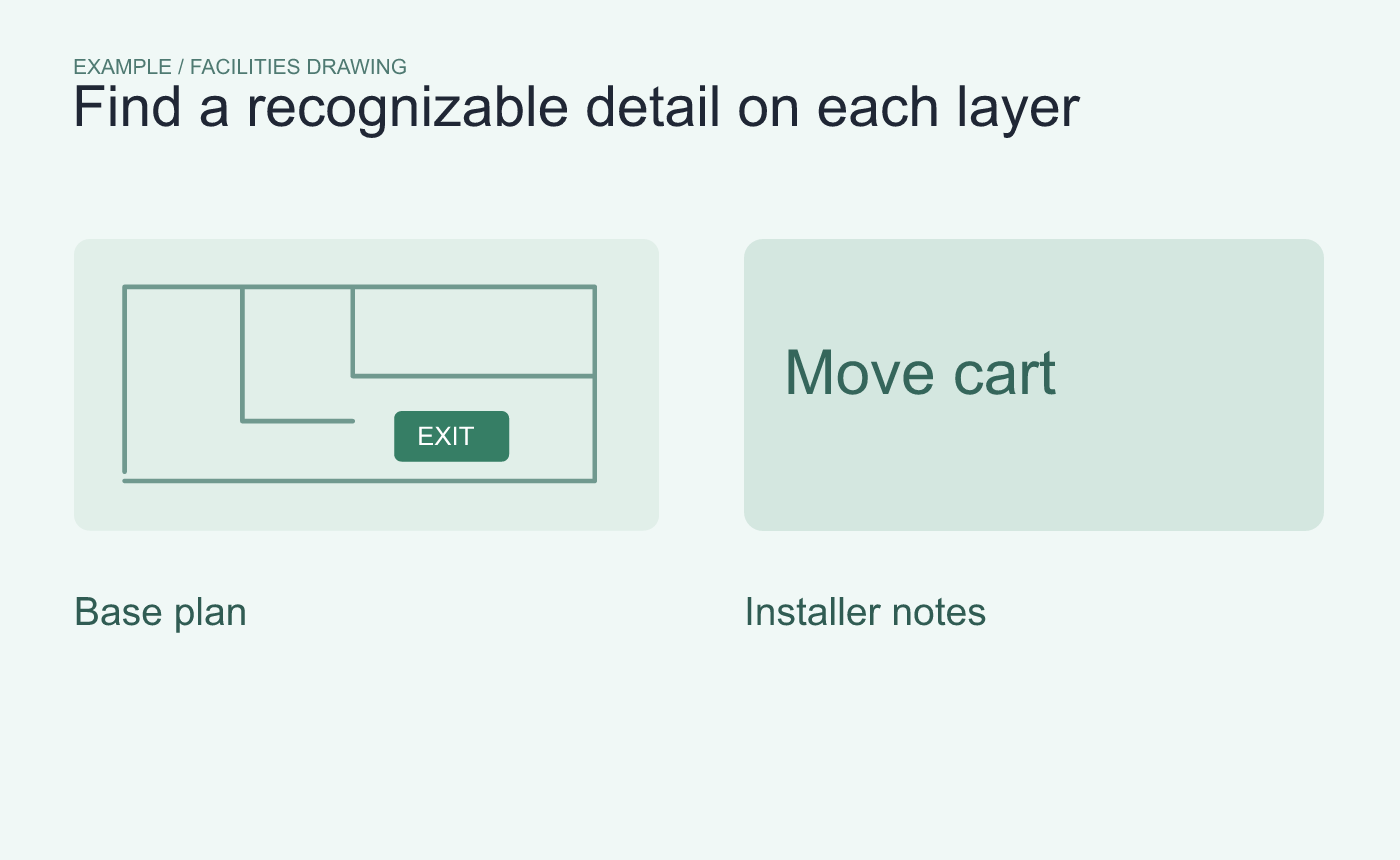
Example layer inventory. Choose a detail you can recognize on each layer.
From the Layers panel’s options menu, choose Apply Print Overrides. Compare those same details with the normal viewing state. The eye icon changes screen visibility temporarily, so use the print override view to check the print-specific setting.
Check a proof from the actual print setup
Print one proof with the intended settings. Check that the EXIT mark is present and the temporary note is absent. If a layer needs a permanent change, inspect its properties in a working copy, then reopen and test the saved PDF again.
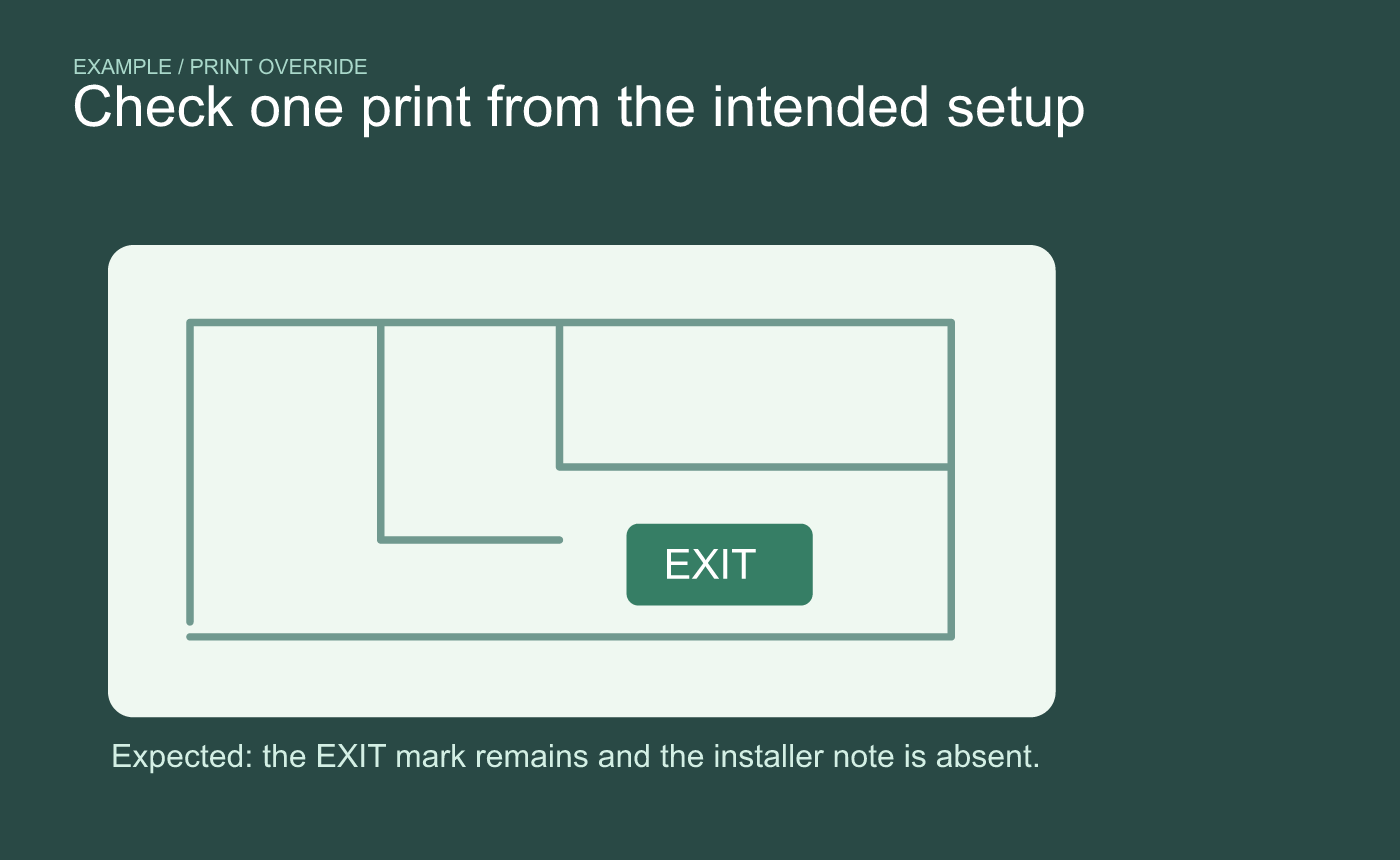
Example expected output. Check these two details on one actual proof before printing the set.



