
The inspection code id-307-ID uses lowercase id at the start and an uppercase marker at the end. If the workflow treats those tokens differently, search for the uppercase one with a case-sensitive function.
Put the code in A2. In B2, enter =FIND("ID",A2). Expect 8. Count the characters before the uppercase I: two letters, a hyphen, three digits and another hyphen. The next character is position 8.
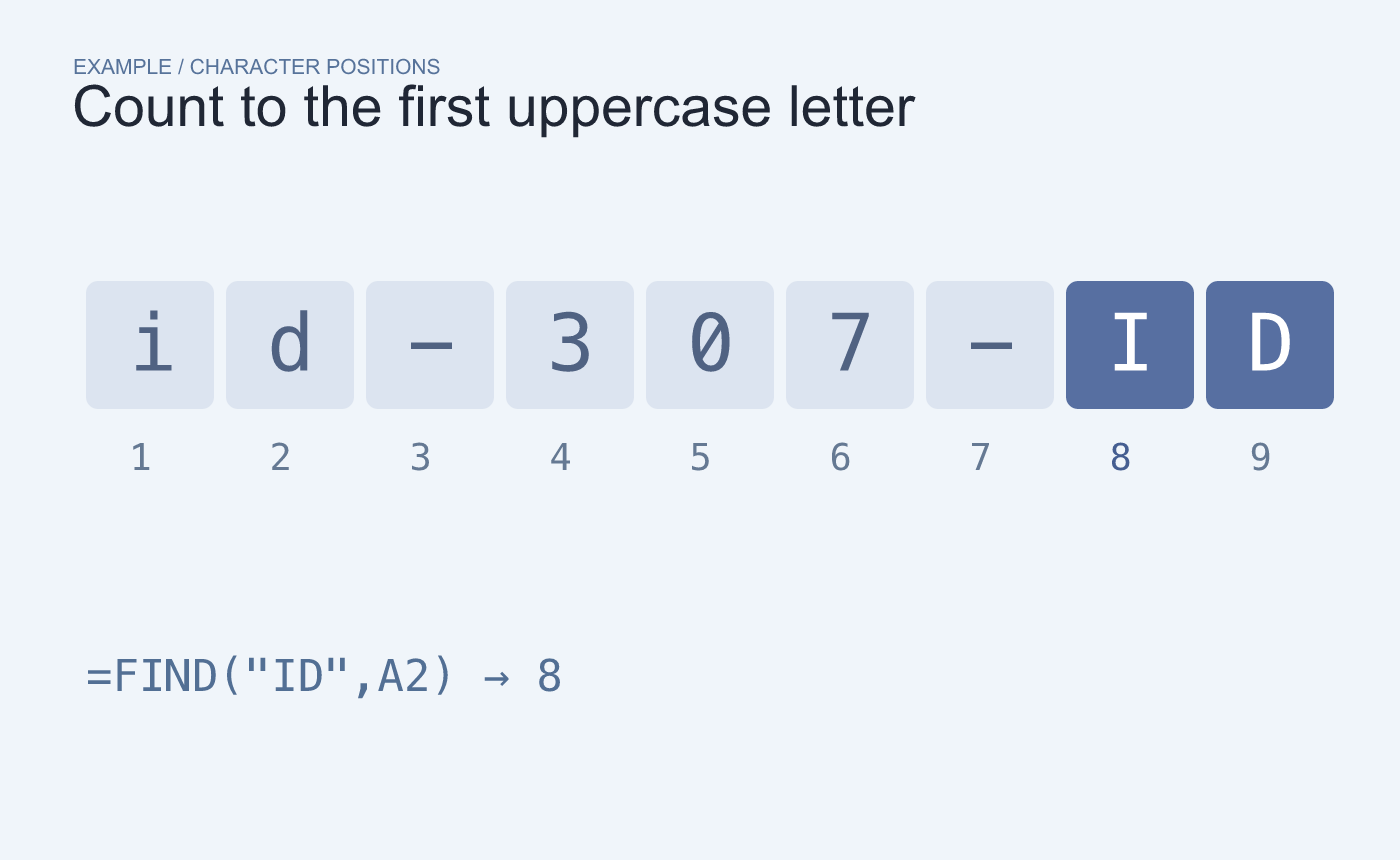
Example index. FIND returns the starting position of the uppercase marker.
Test a code without the uppercase marker
Try id-307-id. Expect #VALUE! because the uppercase text is absent. If your rule requires the hyphen immediately before the marker, search for -ID. That search returns 7 because the hyphen starts the match.
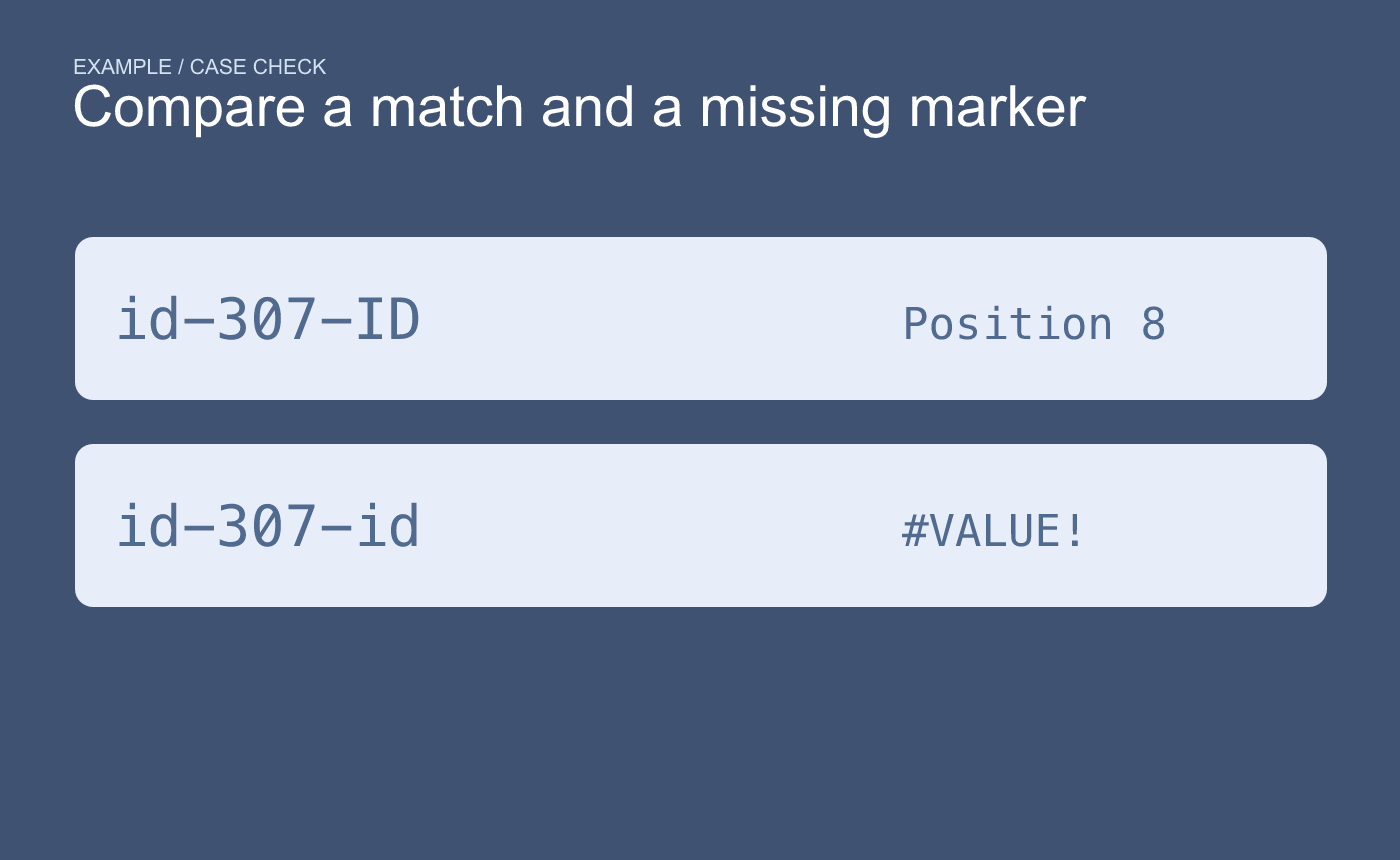
Example case check. Decide how to report the missing value in your workflow.
Keep the code next to the result while checking the rule. Decide whether the absent marker should be flagged or is valid for certain records before replacing the error with a status.



