
For a basic line total, multiply quantity by unit price. If the row includes a percentage discount, multiply that result by one minus the discount. In a sheet where B2 holds quantity, C2 holds price and D2 holds the discount, use =B2*C2*(1-D2).
Build the calculation from a few inputs you can check by hand before copying it down a longer table.
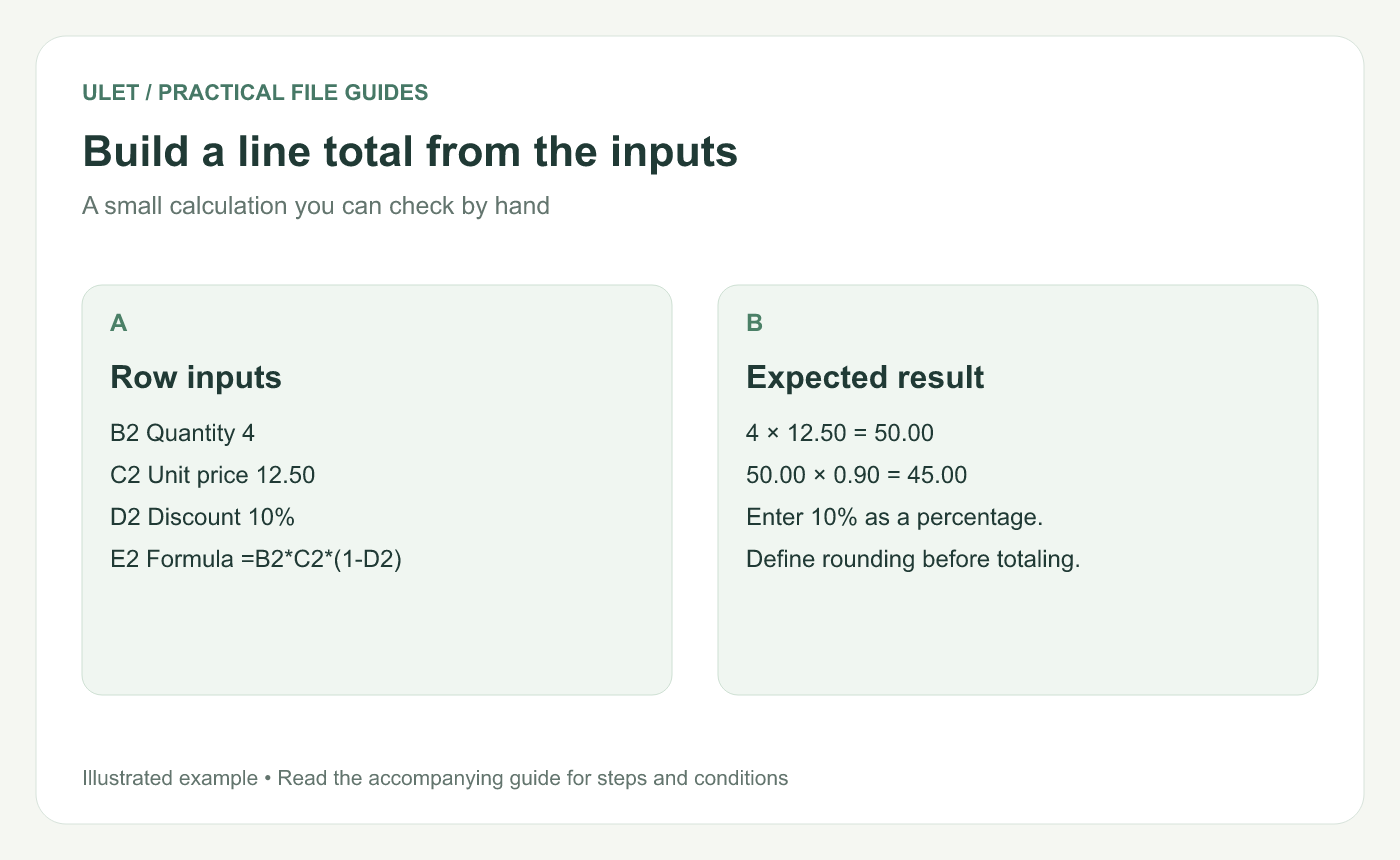
The expected discounted total for this example is 45.00.
Set up the columns
A — Item | B — Quantity | C — Unit price | D — Discount | E — Line total |
|---|---|---|---|---|
Notebooks | 4 | 12.50 | 10% |
|
Folder set | 1 | 19.99 | 0% |
|
The first row gives 45.00 and the second gives 19.99, so their total is 64.99. These amounts are a simple calculation example with no taxes or other adjustments included.
Enter a ten-percent discount as 10% or its numeric equivalent 0.10. Entering 10 means a very different number in the formula.
Copy the formula, then inspect one copied row
When you copy a formula down, relative references normally move with it. A formula in E3 should refer to B3, C3 and D3. Select a copied cell and check those references before filling the rest of the table.
For a quick test, change the notebook quantity from 4 to 5. The unrounded discounted total should become 56.25. Change it back when you've finished checking the example.
Decide when to round
Displaying two decimal places changes how a number looks. It does not necessarily change the value used by later formulas. If your workflow requires each line to be rounded to two decimal places, a common formula is =ROUND(B2*C2*(1-D2),2).
Microsoft documents ROUND as rounding to the chosen number of digits. Check the output in the spreadsheet editor you use, especially when a result sits at a rounding boundary. ROUND function reference.
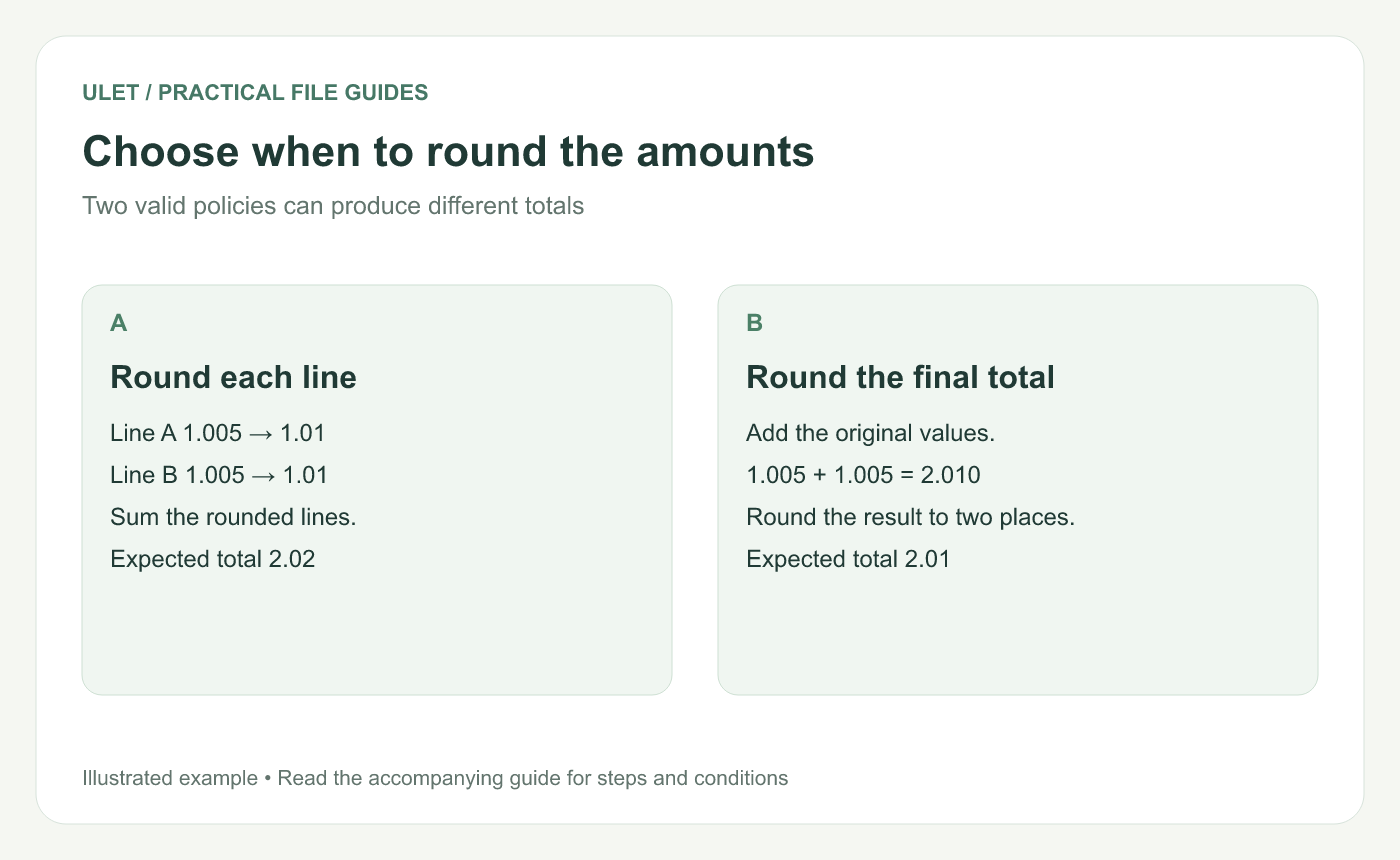
The example uses decimal half-up rounding to show why the order of rounding matters.
With decimal half-up rounding, two lines of 1.005 become 1.01 each, totaling 2.02. Adding the original values first gives 2.010, which rounds to 2.01. Agree on the rule used by the receiving workflow and use it consistently.
Common checks when the answer looks wrong
Is a numeric input stored as text?
Did someone enter 10 instead of 10%?
Does the formula point to the correct row?
Did a calculated cell get replaced with a typed number?
Are the total and its component rows using the same rounding policy?
In Ulet, you can edit the local workbook, inspect the formulas and save the XLSX copy. Keep a small example sheet available when another person needs to understand the calculation. Work with spreadsheets in Ulet.
For the file-opening and saving steps, use the local XLSX editing guide.


