
You can open and edit an XLSX file without installing Microsoft Excel. Ulet provides free local spreadsheet editing on Windows and macOS, so you can work with an existing workbook on your computer, update its cells, and save an editable XLSX copy.
The practical steps are to open the workbook, review its sheets, make a controlled change, save in XLSX format, and reopen the result. This guide includes a small cost-sheet example you can use to check both values and calculations.
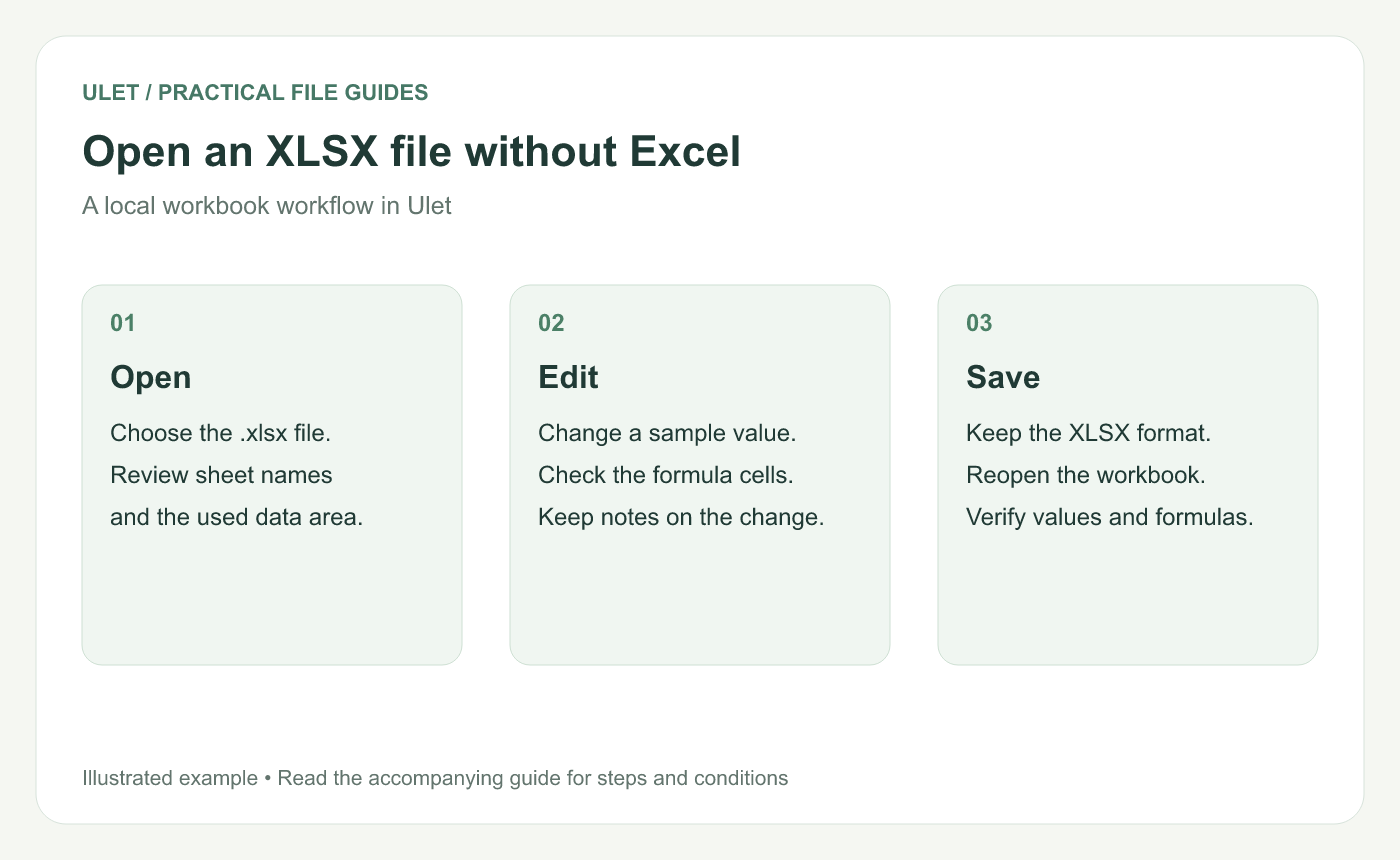
Open a local workbook, review the change, and verify the saved XLSX copy.
What is an XLSX workbook?
An XLSX file is a spreadsheet workbook. It can contain multiple worksheets, cell values, formulas, formatting, and charts. That combination makes it useful for budgets, schedules, inventories, and reports that need to stay editable.
A file preview may let you read a workbook without letting you change and save it. To complete the workflow in this guide, use an editor with XLSX opening and saving support.
Open an XLSX file in Ulet
Install and open Ulet for Windows or macOS.
Choose Open file from Home and select the
.xlsxworkbook.Review the worksheet names and locate the table you need.
Use Save As to create a separate working copy when you want to retain an important original.
Check the workbook's context before editing. A cell may contain a manually entered number, a formula, or a label. Replacing a formula with a number changes how the workbook responds to future inputs.
Ulet's spreadsheet editor provides local file editing, formulas, tables, charts, and data organization tools. Use the tools needed for your workbook and review advanced elements in the final saved file. Explore Ulet Spreadsheet Editor.
Try a small example before changing an important workbook
For a quick check, create a simple sheet with the following values. These are illustrative quantities and costs, so no currency or tax assumptions are required.
Cell row | A — Item | B — Quantity | C — Unit cost | D — Line total |
|---|---|---|---|---|
1 | Item | Quantity | Unit cost | Line total |
2 | Notebooks | 3 | 8 |
|
3 | Markers | 2 | 5 |
|
4 | Total |
|
The expected line totals are 24 for notebooks and 10 for markers, giving a grand total of 34. Change the notebook quantity from 3 to 4. The notebook line should then be 32, and the grand total should be 42.
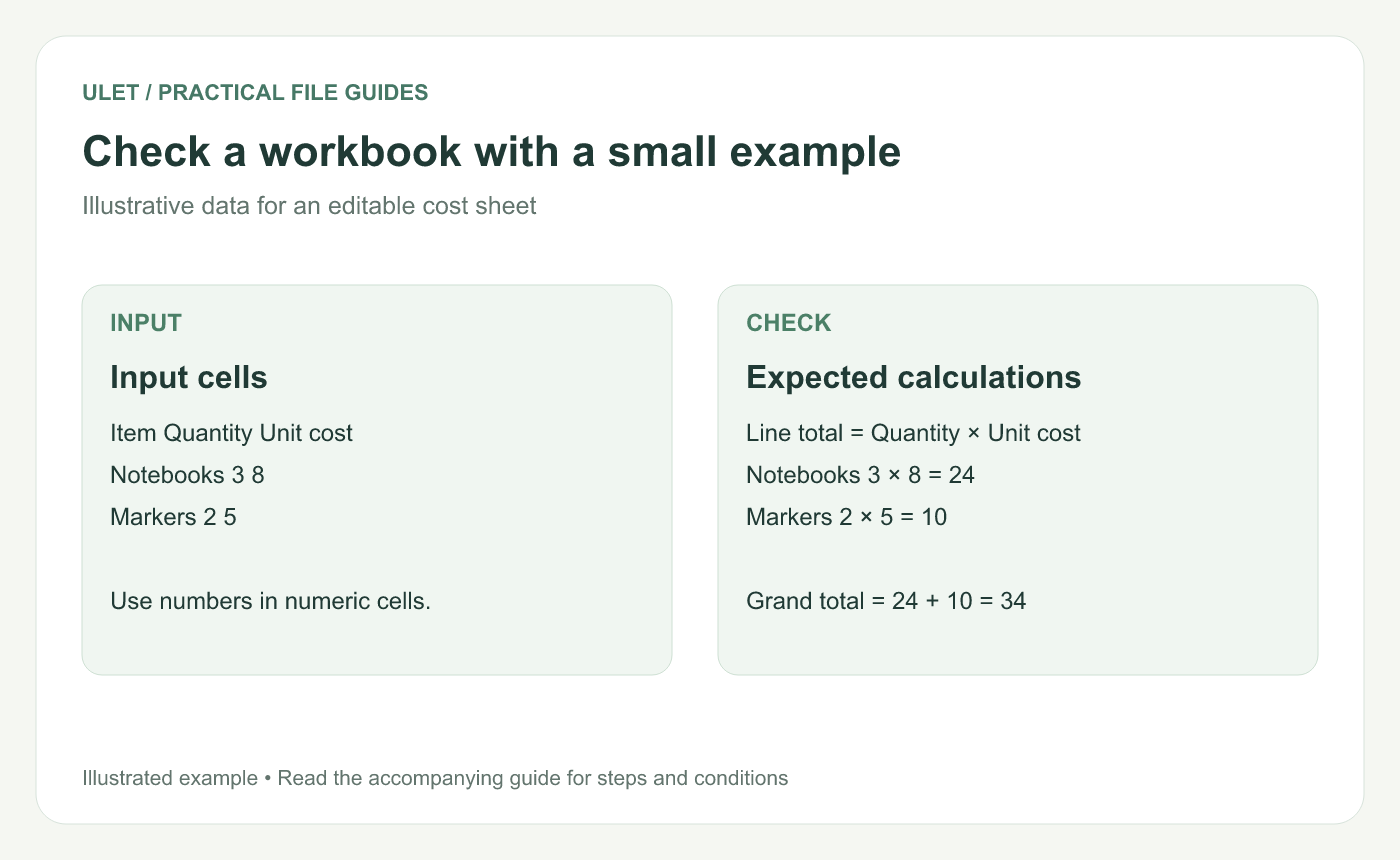
A small worked example makes it easier to check inputs and arithmetic before editing an important workbook.
This small check helps you distinguish entered values from calculated results. The arithmetic results are expectations for the example, rather than a report of a product benchmark or a test of every workbook feature.
Edit values and formulas carefully
Keep numeric inputs numeric
Enter quantities and unit costs as numbers. Text that looks like a number can behave differently in calculations or sorting. A currency symbol can usually be shown with cell formatting while the underlying value remains numeric.
Inspect a formula before replacing it
Select the cell and inspect its content in the formula bar or editor. A formula begins with =. In the example, update the quantity in B2 to recalculate the line total, instead of overwriting D2.
Review the whole record when sorting
A row often represents one item or transaction. If you sort data, include the related columns so labels, quantities, and totals remain associated with the right record.
Save the workbook in XLSX format
Use Save to update the current file or Save As to choose another filename or location. Keep the .xlsx format when you need worksheets, formulas, and workbook formatting to remain part of the deliverable.
You can use Ctrl + S on Windows or Command + S on macOS. Once saving finishes, close the tab and reopen the saved workbook. Check the input values, formulas, sheet names, and any charts used in your report.
Why saving as CSV changes the result
CSV stores rows of text values. It is useful for exchanging a single data table, but it does not preserve an entire workbook with multiple sheets, cell formatting, and working formulas. Save an XLSX master copy before making a CSV for a separate data-import task.
Need | Format to consider |
|---|---|
Continue editing a workbook with formulas and multiple sheets | XLSX |
Import a plain data table into another system | CSV, following the receiving system's import requirements |
Give someone a fixed-layout version to read | PDF, while keeping an editable workbook separately |
What to check when a workbook looks different
Start with the exact part that changed. Missing fonts can affect text width and row height. Different number formats can change how dates, percentages, and currency amounts are displayed. Advanced charts, external links, macros, and specialized formulas require checks appropriate to the workbook and editor.
If the recipient depends on a particular Excel feature, ask which feature they need and validate the final file in that environment. A correct-looking table alone does not confirm every advanced workbook behavior.
Other ways to open an XLSX file
LibreOffice Calc is another desktop editor with support for Microsoft Office file formats. Google Sheets can edit Office files uploaded to Google Drive, with changes saved in the original Office format. The latter is useful when you want to work with an online copy. LibreOffice Office-format support, Google Drive Office editing.
Frequently asked questions
Do I need an Excel subscription to edit an XLSX file?
You can use an XLSX-capable editor such as Ulet for free basic local spreadsheet editing. Check the features required by the specific workbook before choosing an editor.
Can I edit XLSX files offline?
Yes. With Ulet installed and the workbook available on your computer, you can open, edit, and save local files offline. External data sources or cloud-only files may require a connection.
Will changing the extension convert a CSV into a workbook?
Renaming a file does not convert its structure. Open the data in a spreadsheet editor and use its saving or export options to produce a real XLSX file.
Open a local workbook in Ulet, make a small controlled change, and verify the saved result before continuing with a larger editing task. Get Ulet for Windows or macOS.


